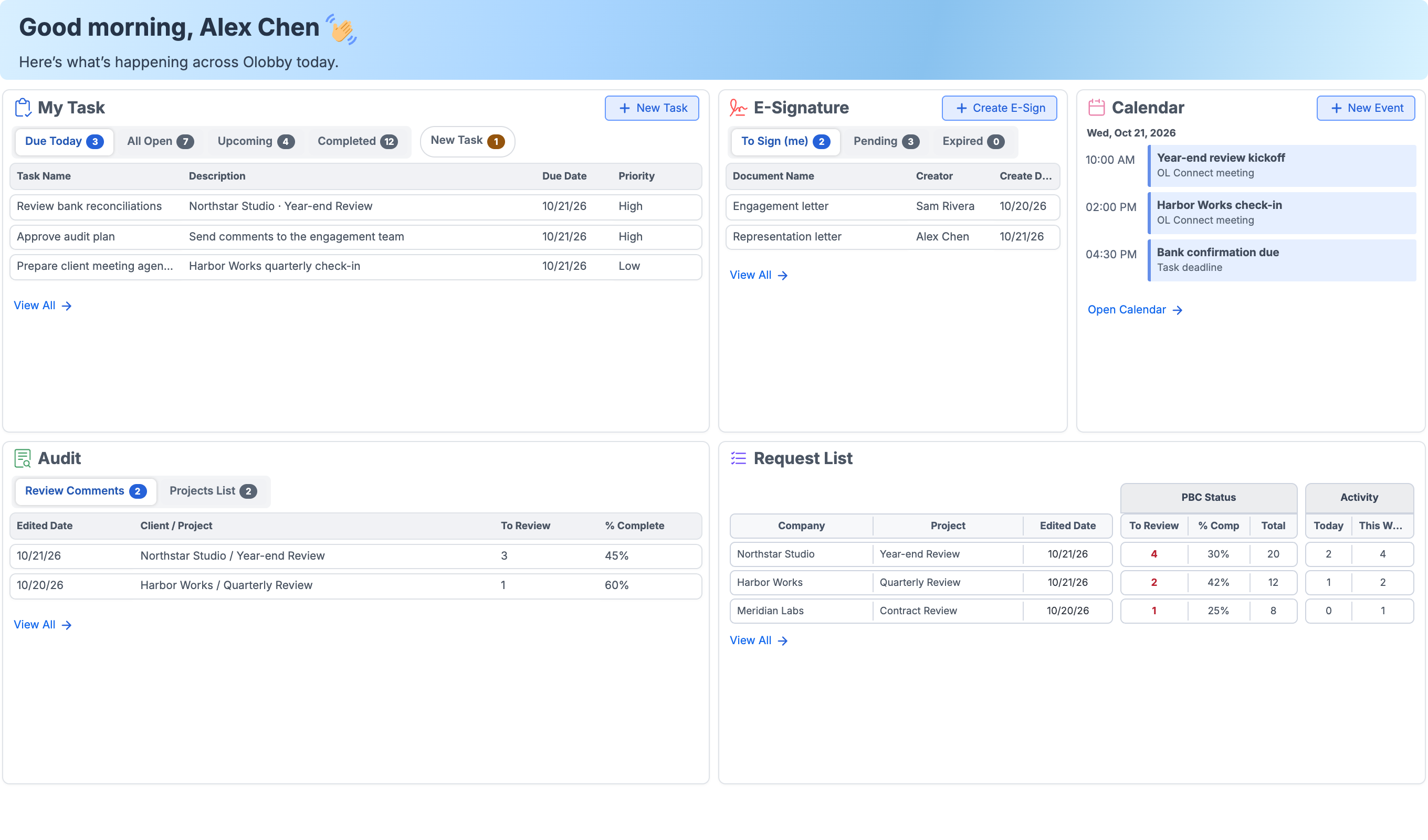
Check daily tasks in the morning, review documents submitted by customers, and check signing status by document. See your team's daily workflow and industry-specific use cases in the product interface.
After meeting is Check the calendar and go directly.
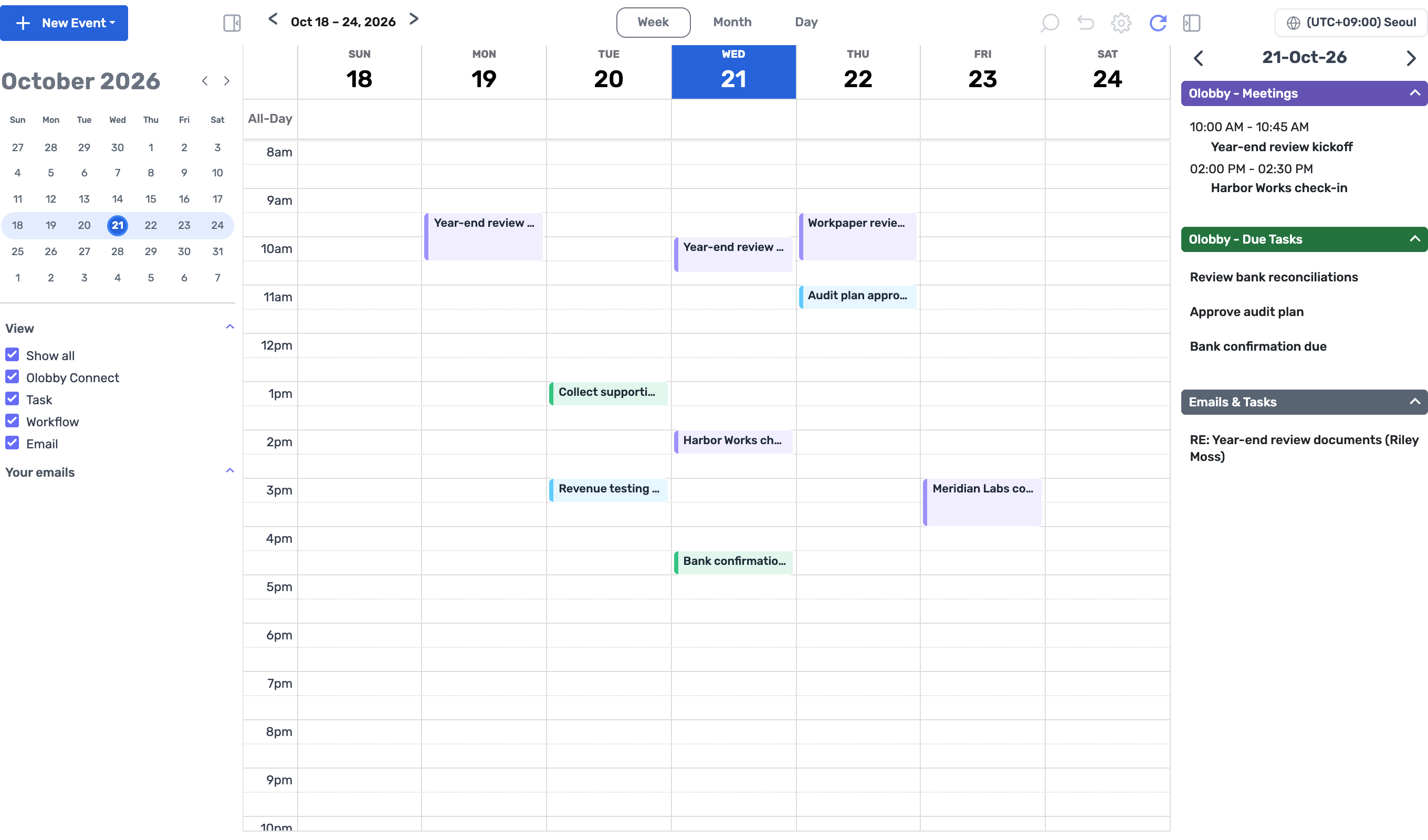
View OL Connect meeting schedules, deadlines, and document review appointments all in one calendar. When meeting time arrives, join external collaborators in real time within OL Connect for discussion.
Select schedule from OLOBBY Connect, Task, Workflow, Email in View
View by month, week, or day to compare today's meetings and deadlines
Share screen during OLOBBY meeting to discuss the same materials
Check the status of today's tasks and pick up where you left off from the remaining tasks tomorrow in Home.
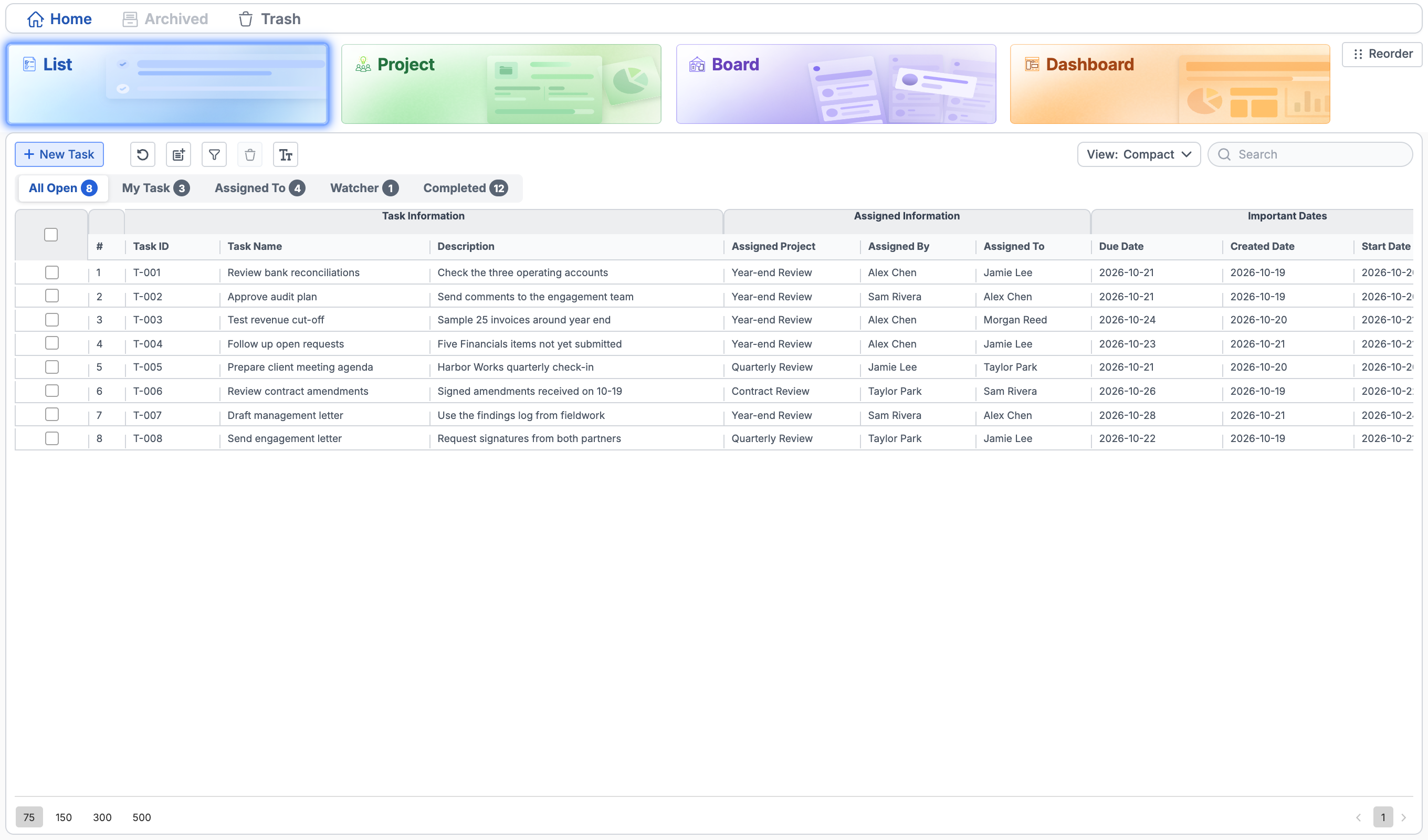
TasksCompleted tasks are marked as Completed, remaining tasks are assigned to the responsible person with a deadline.
Request ListReviewed items are in review status, remaining items are on deadline reminder.
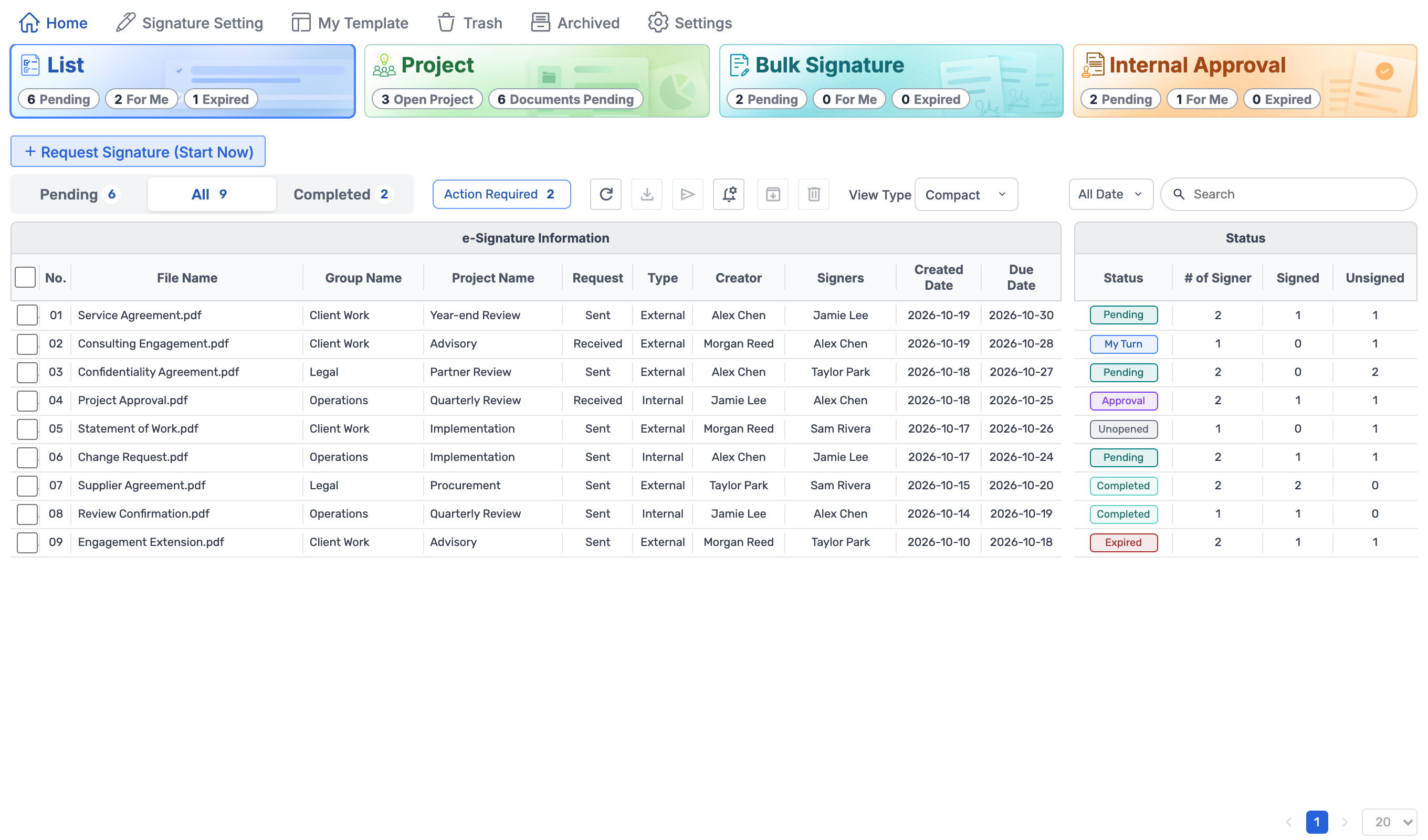
E-SignatureAfter signature, document is completed as PDF and signature certificate.
CalendarMeetings and deadlines are in one calendar.
Who, when, what
One request, from assignment to archive.
Customers, assignees, and approvers each handle their own tasks and pass them along. Each handoff is recorded, so you never have to ask who's next.
0/ 8Step
Request
Submission
Review
Signature
Storage
ClientRequestee E-Signature
Contact salesRequest List E-Signature
ReviewerWorkFlow
Contact sales1Create a request list and assign itSpecify description, deadline, and responder for each item and send assignment email.Request ListOpen
Client2Sign in via email or link for authenticationOnly assigned requests are accessible after login or OTP authentication.Requestee
Client3Submit file and note per itemSubmit each item upon reviewing the request and reference materials.RequesteeCompleted
Reminders before and on deadline
Contact sales4Confirm submission and update review statusLog customer submissions and our team's reviews separately.Request ListTo Review
Reviewer5Review and approve in a defined orderSet review stages and assign reviewers, then distribute approval or return requests.WorkFlowApproved
Contact sales6Request signature initiationThe agent reviews the document, recipient, and signature location before sending.E-SignaturePending
Client7Customer signs documentSign sequentially or non-sequentially, and the progress status remains.E-SignatureCompleted
Contact sales8Complete document retention and reuseSave the completed PDF and signature certificate, and next year, retrieve the same request again.Folder AccessArchived
Signature request does not automatically appear after review is complete. It is initiated after the responsible party confirms the review results.
Stored successfullyCompleted · Archived
Once submitted, reviewed, and signed, the request is marked as Completed, while the project is archived. Next year, retrieve the request tab to restart.
The moment it's handed off
Three handoffs between teammates
Assign tasks to responsible personnel, review customer submissions, and request signatures from the next party.
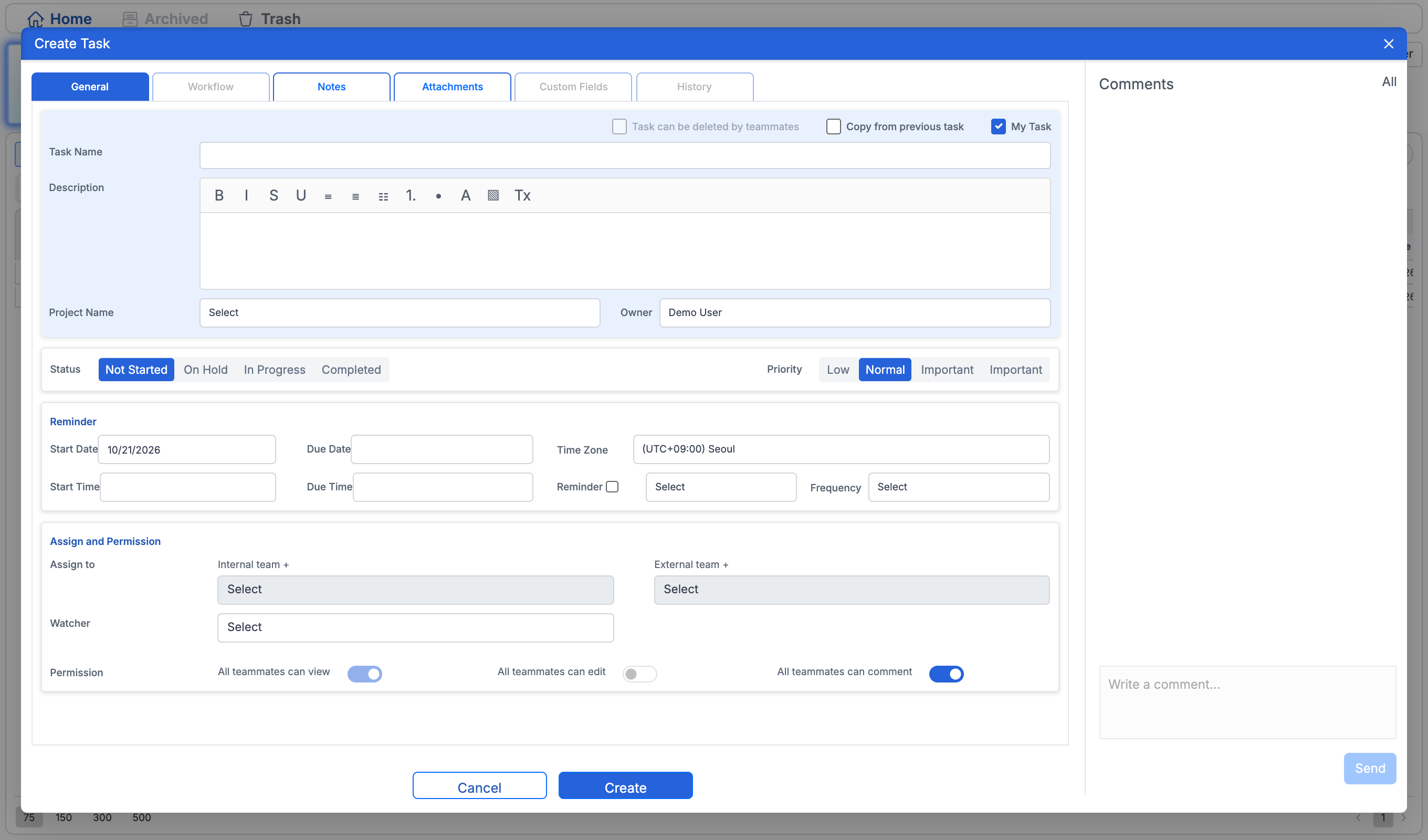
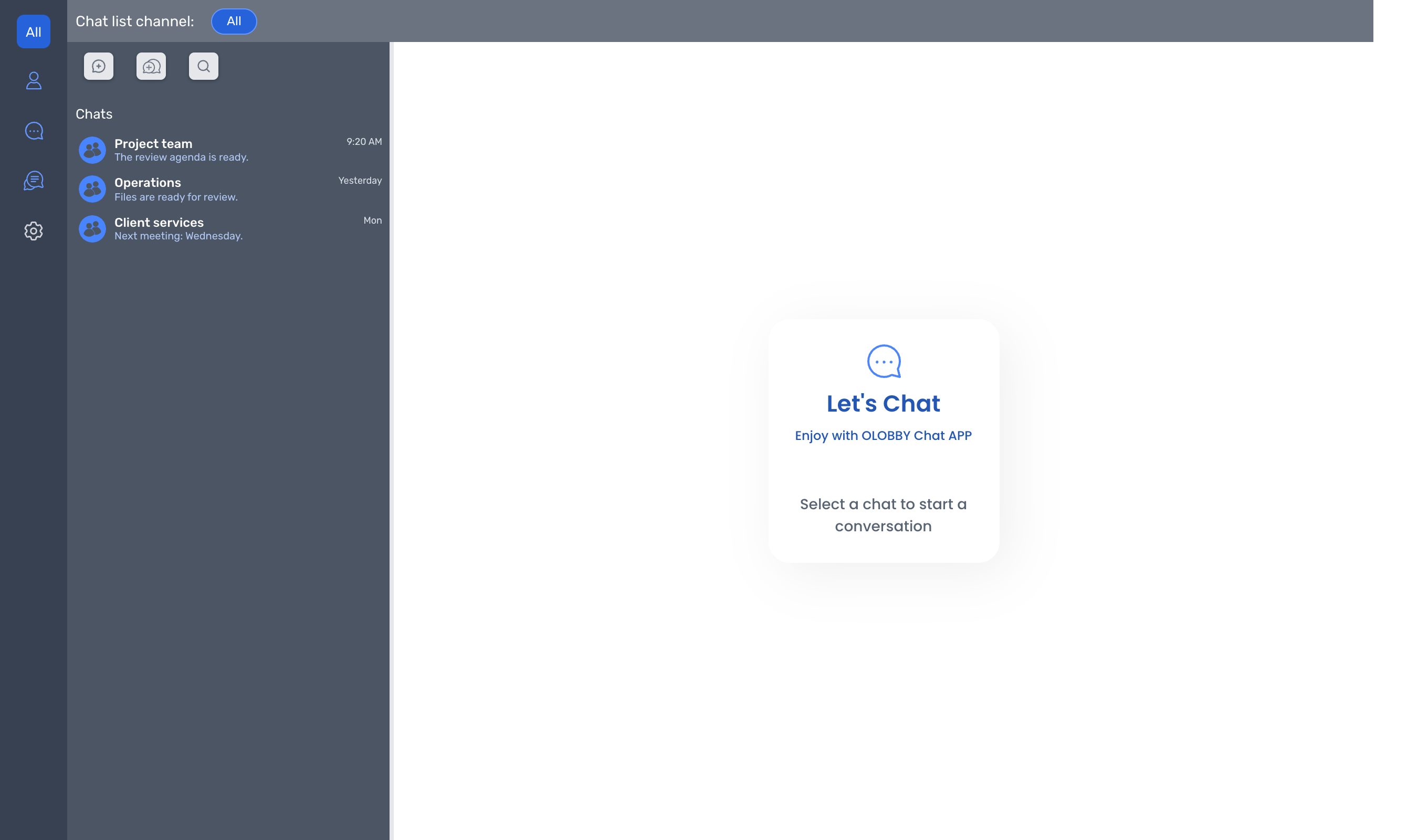
What was agreed upon in the conversation? Register as a task.
Project chat room discussions and shared materials are saved in the chat room notes, and actions are created as tasks with assigned owners and deadlines.
Project teamChat room note
Contact salesNot Started
Share materials and agreed-upon content in the Conversation Files and Notes.
Create a task with New Task and assign a responsible person, set a deadline
My Task and Assigned To for distinguishing my tasks from assigned tasks
Customer-submitted materials Here's your list for review.
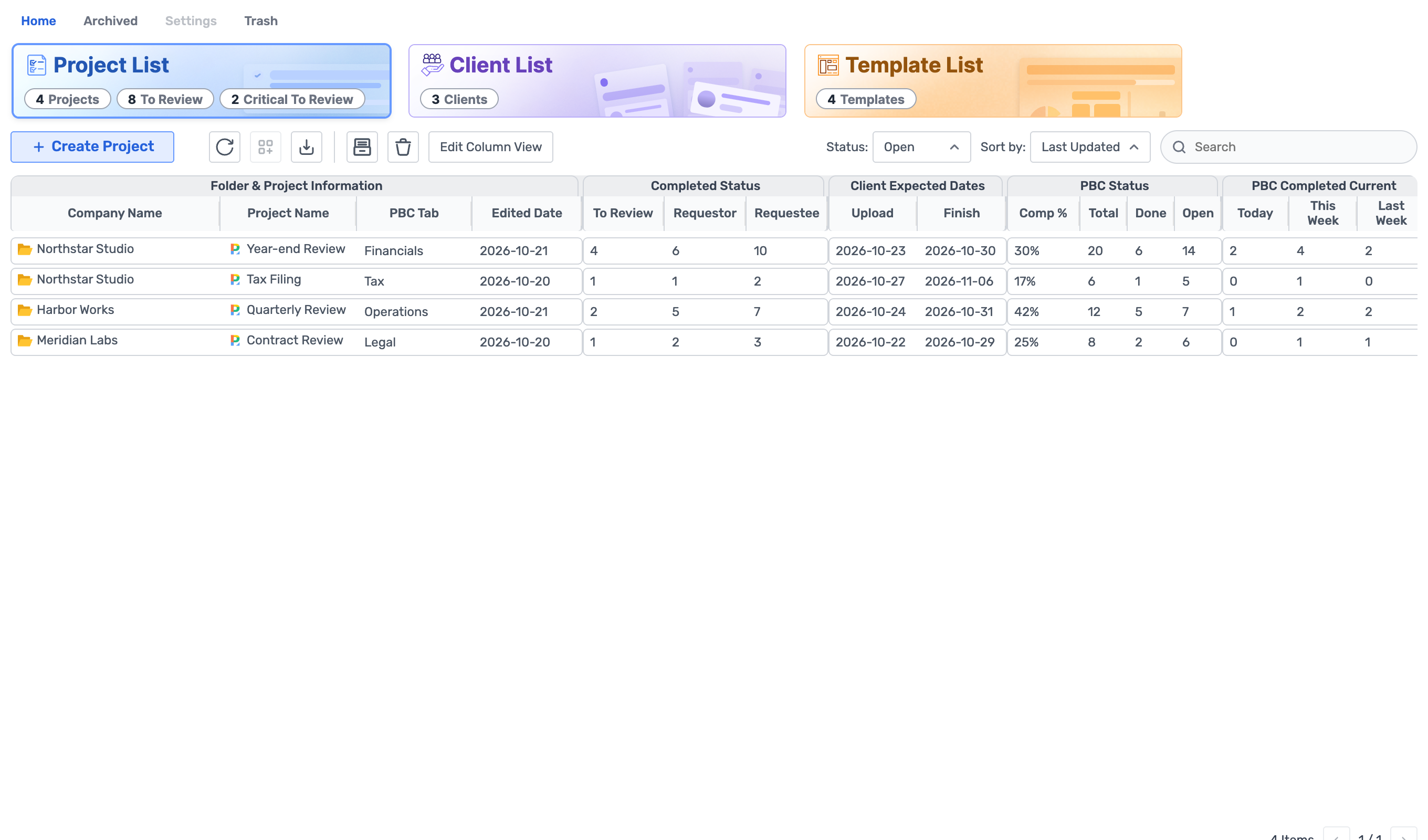
Customers open a project assigned to them in Requestee and upload files and response notes per item. Your team finds materials to review from the To Review section of the Request List and updates the review status separately from the submission status.
ClientCompleted
Your teamTo Review
Customer view shows only assigned project requests
Aggregate submission and review status separately
Documents requiring approval follow the review sequence in WorkFlow.
Document after review is Request signature via E-Signature.
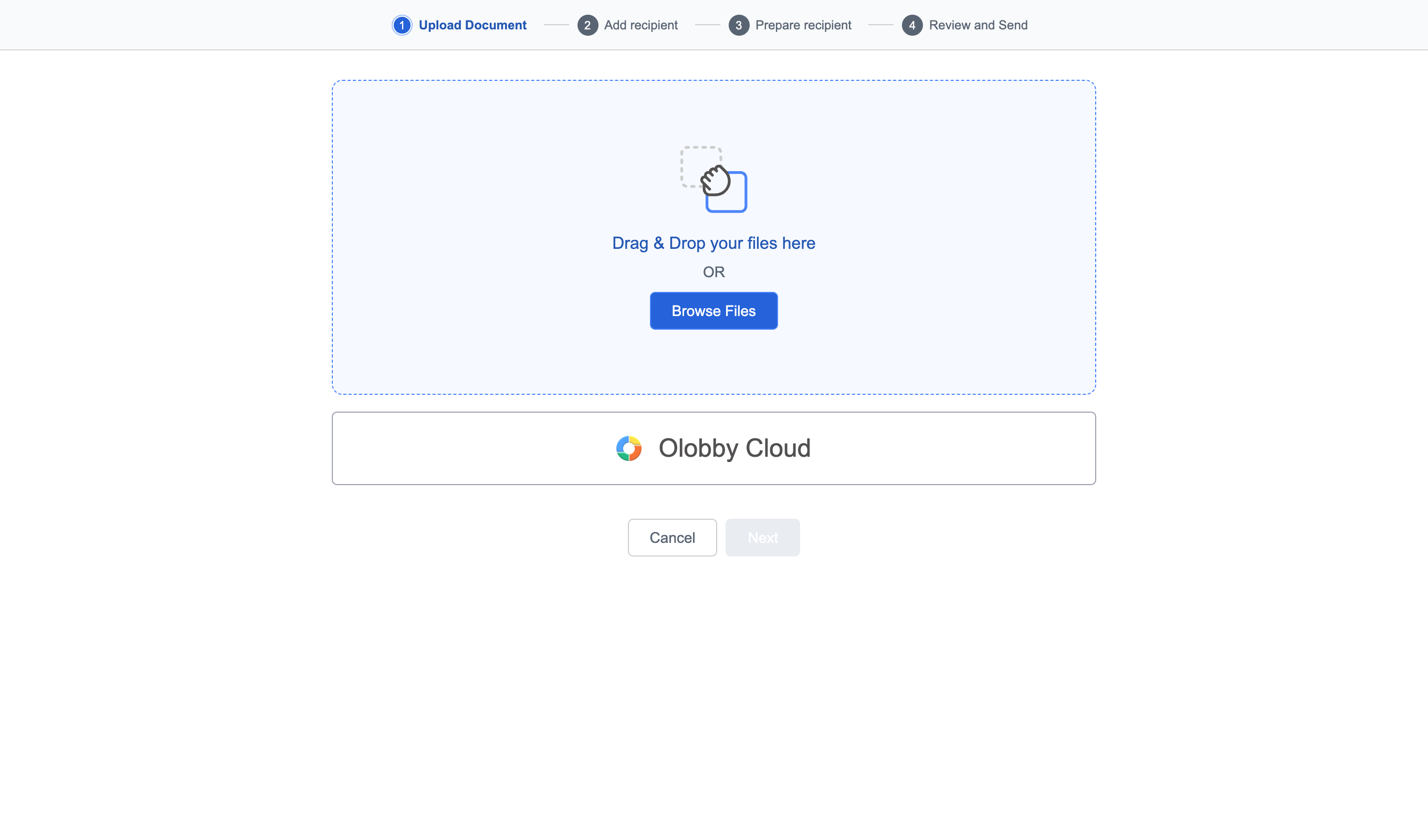
Upload the final document organized in a folder to E-Signature, add recipients, and assign signature fields by person and location before sending.
Contact salesFinal document
Signature holderPending
1Upload Document
2Add recipient
3Prepare recipient
4Review and Send
SignatureInitialsNameDate SignedStampCompanyEmail
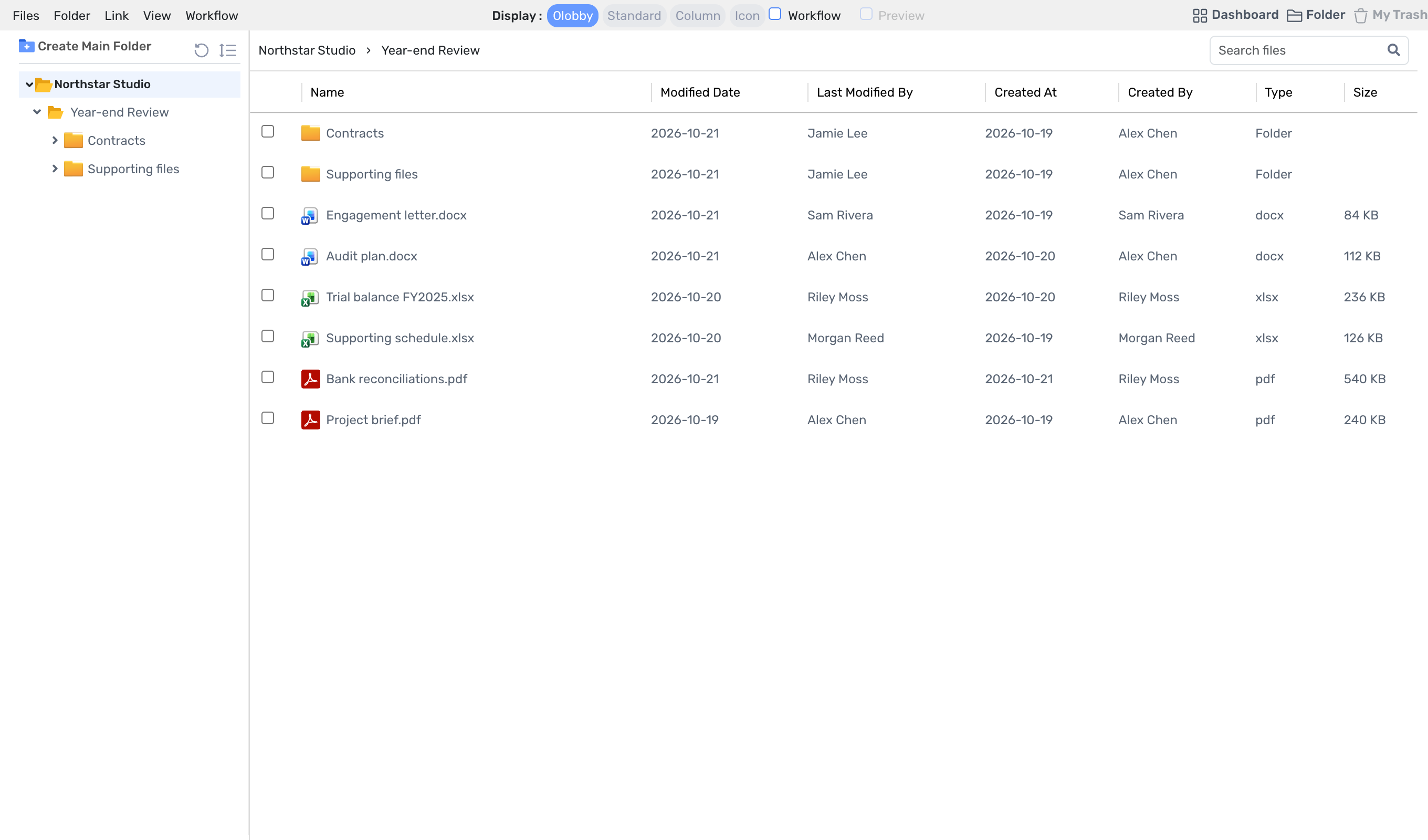
Folder Access · Annual review
E-Signature · Upload Document
Final document for signature
Industry scenarios
Workflows by industry
Typical workflow for a team that receives customer data, reviews it, and finalizes it with signature or retention. This is a product-function-based example scenario, not a specific customer case study.
ScenarioAccounting & Audit Team
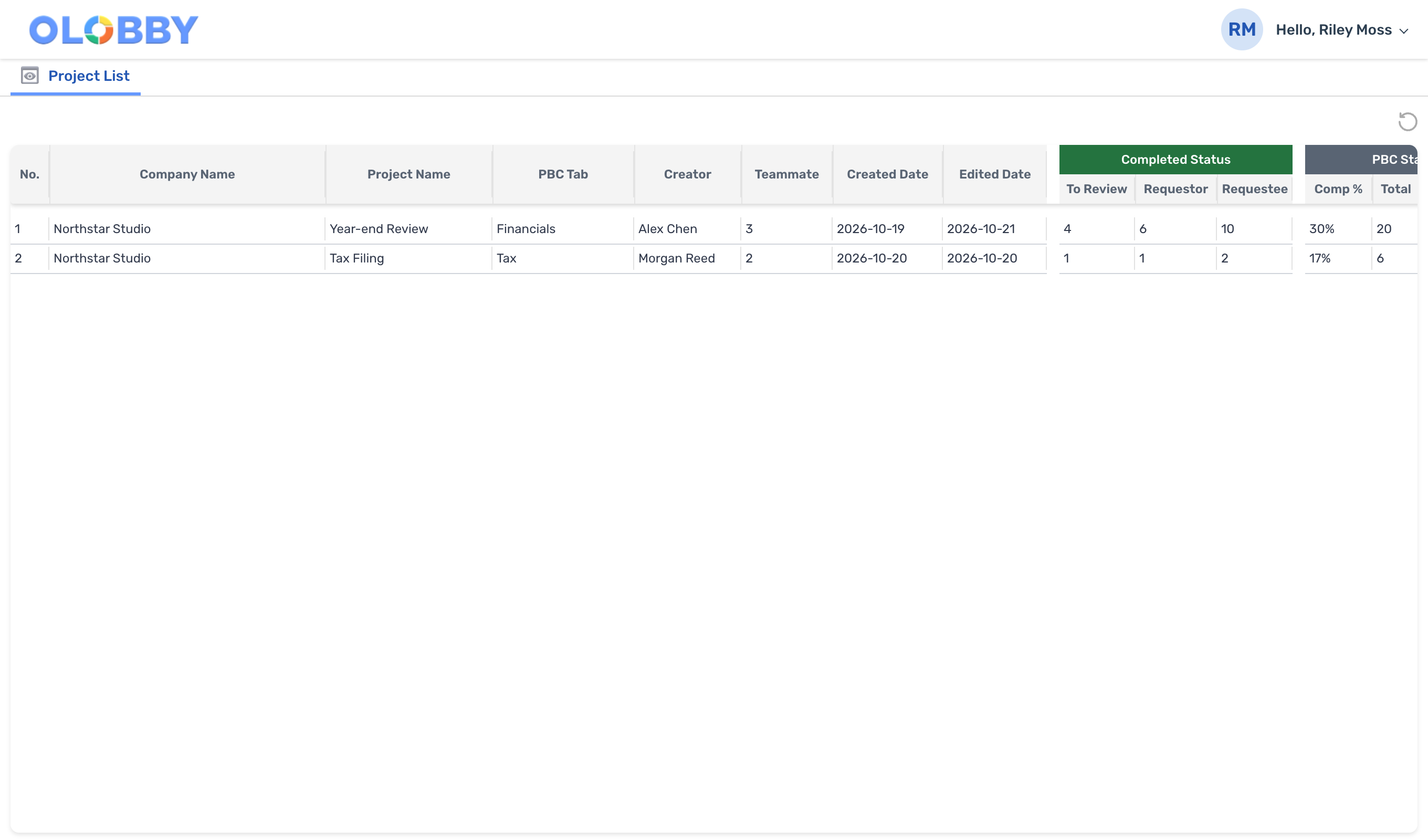
Financial closing audit starts upon PBC request Sign in and sign off.
Send each customer's required document list, complete the workpaper based on received documents, and obtain final signature.
Define PBC request items, deadlines, and responsibles for each customer project. Create a list by importing Excel files or request templates, or past project requests.
PBC Status: Item-by-item completion and remaining count
ScenarioTax team
Same proof each time? Pulling previous request for reissue.
Request the same documentation repeatedly at each reporting period. Create a list using previous project requests or templates, and track remaining materials with deadline reminders and a calendar.
Divide access scope by department, Finalize settlements with approval and signature.
During fiscal closing, you exchange data with multiple departments and external auditors. Divide departmental access scopes and prepare internal approval and external signature workflows according to document requirements.
Internal Approval for internal approvals, external signature via designated recipient signature request.
Approval and signature complete
After internal approval and external signature, the document remains.
SettingsRequest ListWorkFlowE-SignatureApproval and signature complete
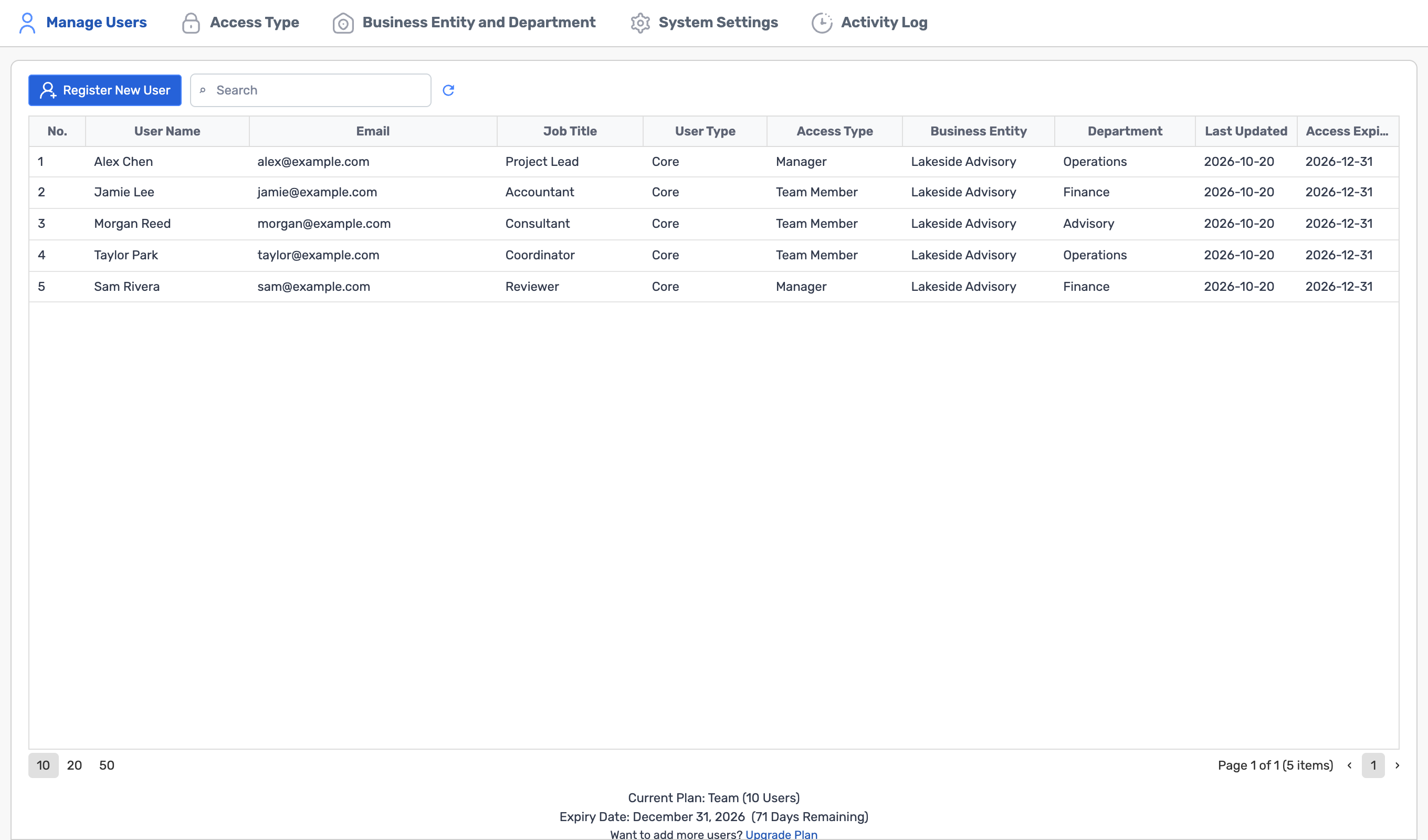
Settings · Manage Users
Access Type and Business Entity by member
Connected across 19 work areas
Choose a module to see its connections.
OLOBBY's work areas are divided into four categories, just like the four colors of a logo. Selecting a module connects you directly to the screen you'd use in real work. All 48 pairs are linked together.
Organize and plan
Home
Review your tasks, schedule, documents, and materials that need signing. Start by identifying pending items, then jump directly to the relevant work screen.
Next screen 8
Home · TasksCheck task lists and completion status by role, then proceed to task details.
A connection links two screens during workflow. Data does not automatically transfer; instead, the responsible user opens the next screen to continue the process.
Home8 connections
Organize and plan2
Manage work4
Communicate and share2
Administration and specialist work0
Start with the workflow you want to improve.
Let us know your current tools and customer data flow, and we'll guide you on the relevant business areas and onboarding approach (cloud or on-premises).



 OL-Chat · Conversation list
 Tasks · Task list
 Signature
 Initials
 Name
 Date Signed
 Stamp
 Company
 Email