


 Calendar
Meetings and deadlines
on one calendar.
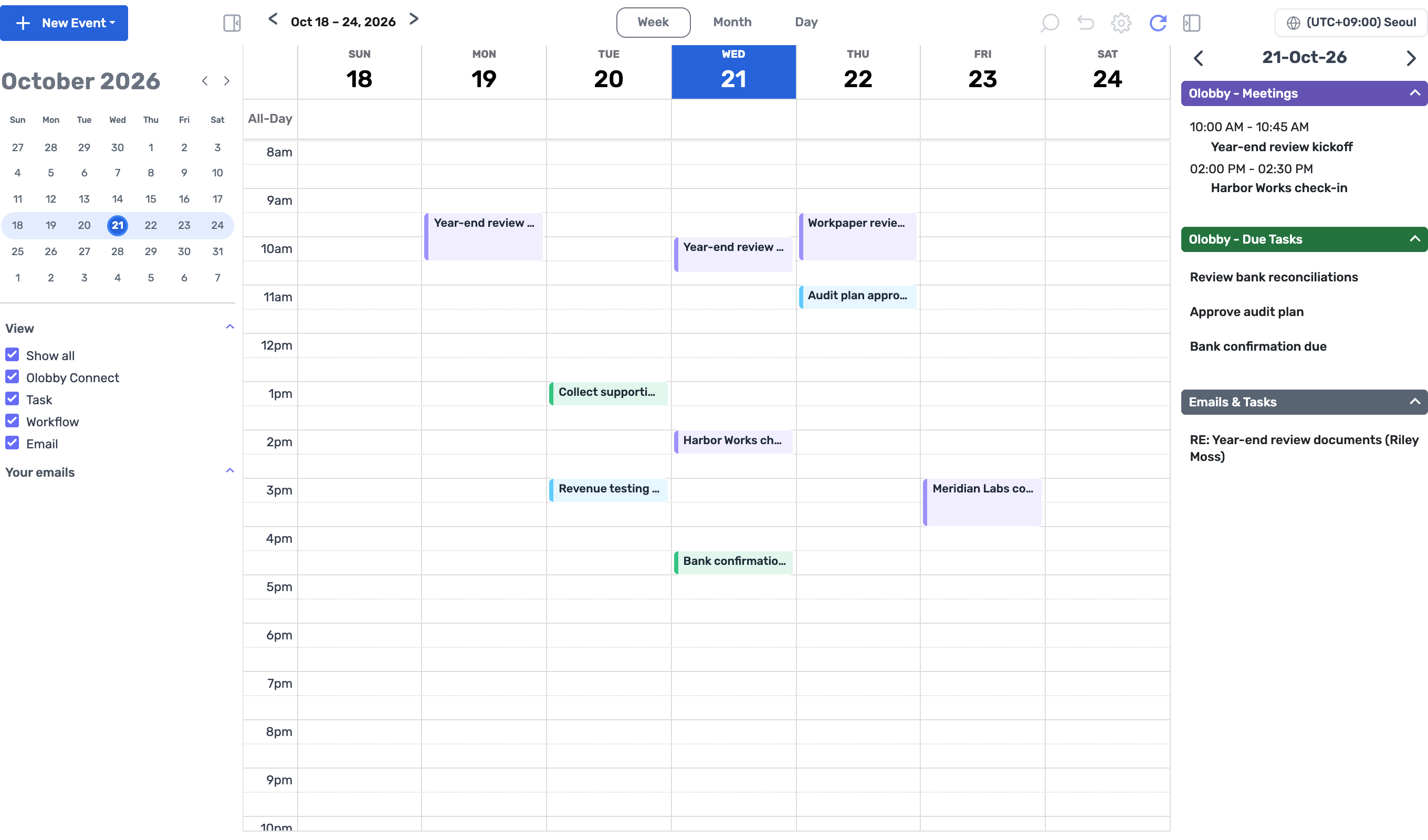
View work and review deadlines, plus meeting-related email account schedules all in one place. Switch between monthly, weekly, and daily views to plan your team's time.
- Use this when needed
- Team schedule sharing and meeting prep
- Where to find it
- Left menu → Calendar
- Classification
- Organize and plan
See meetings and deadlines on one calendar
Share different schedules together
Compare deadlines for tasks, projects, and document reviews against meeting schedules in one calendar.
From one month to today
View monthly, weekly, and daily forecasts to streamline planning and capture today's commitments.
Prepare meetings on the spot
Move from calendar to prepare meetings with time and attendees.
Usage steps
How the workflow fits together
Choose meeting schedules and get ready for your meetings.
- 1
Select meeting schedule
Check the schedule types you need: work, projects, reviews, meetings, emails.
- 2
Meeting and work hour scheduling
Compare deadlines and set meeting times from Monthly, Weekly, or Daily views.
- 3
Attendees and materials preparation
Check attendees, time zone, attached materials, and event details.
- 4
Review changes
Review connected schedules and notification status after edits or cancellations.
Calendar features
View by month, week, or day
Display by month, week, or day based on schedule size.
- Monthly view
- View weekly and daily
- Date navigation
Tasks and project schedules
Check your task's start date and deadline together in the calendar.
- Work schedule
- Project timeline
- Check assignments
Review and approval schedule
Check the document workflow schedule and step-by-step responsible personnel information.
- Workflow schedule
- Step tracking
- Verify assigned user
OL-Connect Meeting Schedule
Create a meeting and view or edit/delete details.
- Create a meeting
- Attendee tracking
- Edit · Cancel
Email account schedule
Query and create or modify events for connected email services.
- Email event inquiry
- Event creation & modification
- Delete event
Time zone and notification setup
Display schedules based on user time zones and assemble attendees and attached materials.
- Select time zone
- Specify attendees
- Attached materials
Export schedule
Provides a path to export selected schedule information for external verification.
- Export schedule data
- Confirm selection range
- Check time zone
What to decide before onboardingShared calendar and notification recipients
Time zone and attendees
Check time zones and meeting schedules for both internal and external attendees.
Source of schedule
Check the scope of access and connected accounts for work, review, meeting, and email schedules.
Changes and cancellations
Specify which event modifications require authorization and change/withdrawal notifications.
CalendarFollowed by 5 modules
 TasksCheck schedule data for tasks and projects.
 WorkFlowCheck your document review schedule and stages.
 OL ConnectCreate, view, edit, or cancel meetings from the calendar.
 MailCheck schedule of connected account and create or modify events.
 HomeView schedule information for work, review, meetings, and emails together.
Calendar
FAQ
Any other questions? ContactLet us know.
What schedules can we view together?
Check schedules for work, project, document reviews, and OLOBBY meeting emails connected to your team.
Yes, you can create meetings in the calendar.
Specify attendees to create an OL-Connect meeting and view or edit/delete the details.
Yes, your team can work with teams in other countries.
Check schedules based on user time zone. Also align external attendees' and connection account time zones.
Yes, all events from external calendars are synchronized.
Your access scope varies based on the connected email account and the supplier's permissions and settings. Check the conditions for viewing, creating, and editing accounts.
Get started with Calendar.
Let us know who you'll be working with and which tasks to improve first, and we'll guide you on the required modules and implementation scope.