


 OL Connect
Bring the team together
on a video call.
Invite team members and external collaborators to meetings and share your screen. Review messages, meeting details, and discussion all in one place.
- Use this when needed
- Connect teams and meetings across multiple locations
- Where to find it
- Left menu → OL Connect
- Classification
- Communicate and share
Find your meeting and return to its decisions
Invite someone to join
Set meeting schedules and attendees, and manage external guest requests together.
Screen walkthrough together
Discuss together by sharing video, audio, and screen sharing with your materials.
Record to review after meeting
You can review the content decided in the conversation record and summary, as well as follow-up actions.
Usage steps
Before, during and after the meeting
From invitation to discussion, we'll get you ready to collaborate.
- 1
Meeting design
Review meeting time, attendees, agenda, and materials; summarize, script, email, and recording options.
- 2
Access check
Internal users log in via account path; external guests enter through request and acceptance flow.
- 3
Let's discuss
Use microphone, camera, screen sharing, and meeting chat. When enabled, view subtitles and translations together.
- 4
Key check
Review decision, action, and question reports; verify original sources and snapshots if needed.
- 5
Follow-up delivery
After the meeting ends, review and export the allowed reports, then process a summary email according to the selected recipient policy.
OL Connect features
Meeting prep and invitations
Prepare meeting topics, schedule, attendees, time zones, and materials in advance.
- Title · Issue · Start/End date and time · Time zone
- Search and invite attendees
- View, edit, or cancel meetings
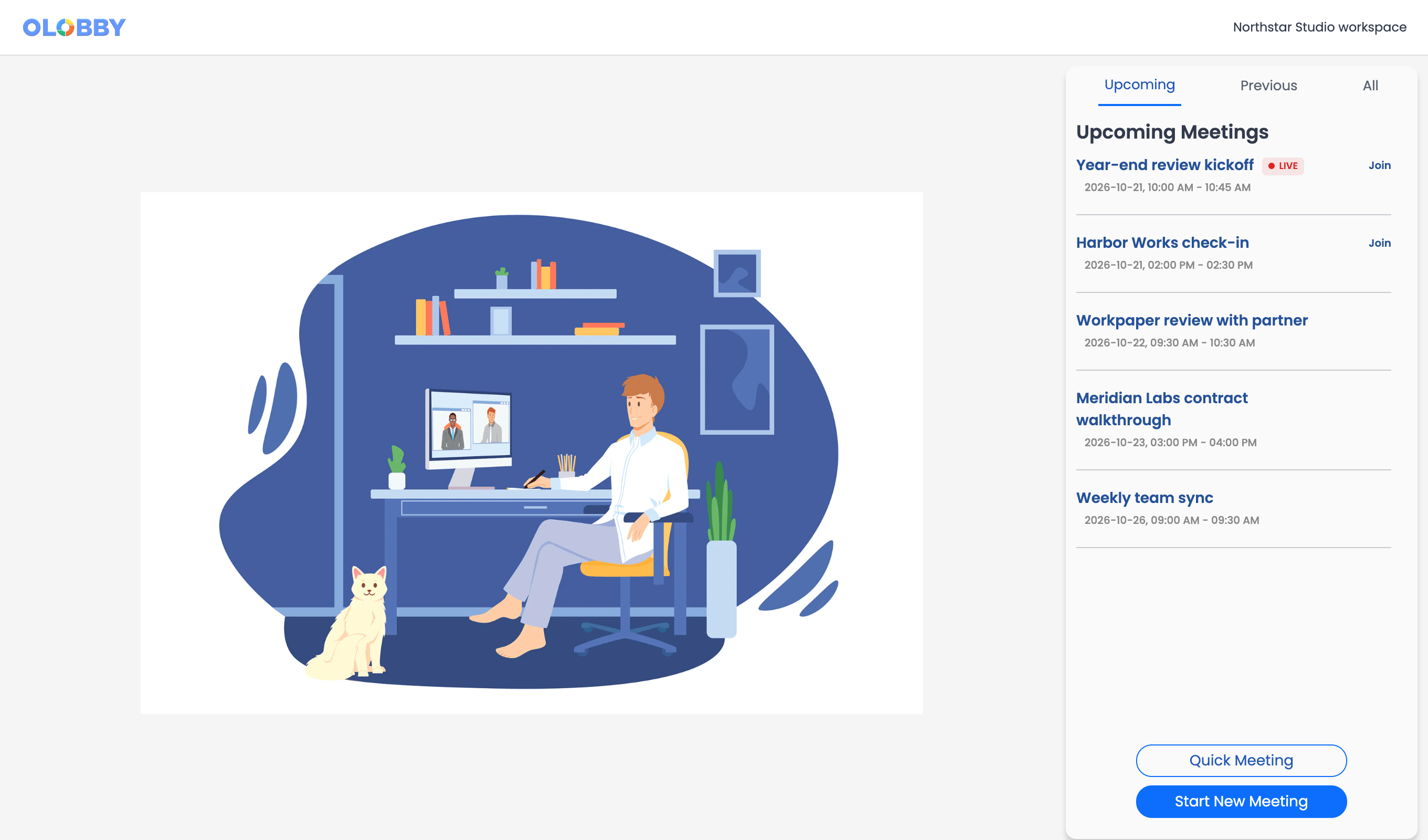
Scheduled & past meetings, and full list
Upcoming · Previous · All to find a meeting, then prepare it with Quick Meeting or Start New Meeting.
- Upcoming · Previous · All
- Quick Meeting: Basic 30 minutes
- Start New Meeting for detailed settings
Internal users and external guests
Check the participation path and meeting status, then join the meeting.
- Account user onboarding path
- Request and accept participation from external guests
- Handle expiration, termination, and permission errors separately
Speak, view, and share together
Adjusts video, audio, and shared screen for meeting context.
- Turn camera on/off, turn mic on/off
- Screen share · End share
- Fixed participants and focused view
Messages and participants in the meeting
Leave content aside and check meeting details.
- Participant list
- Compose message during meeting
- Case and Meeting Details Panel
- Participants · Messages · AI · Details
Camera background setup
Adjust based on current camera view and selected background.
- Select virtual background
- Current implementation context check
- Display based on camera status
Real-time subtitles and translationVaries by organization
Available meeting AI settings and the service connection determine which speech features are available.
- Original · Translation · View Together
- Adjust subtitle font size, lines, and position
- Go to real-time location and show unread captions
Meeting report with decisions and actions separatedVaries by organization
Identify information that needs verification by category.
- Action · Decision · Request · Question · Response
- Risks, disagreements, constraints, key comments, citations
- Pending | Processing | Partially processed | Failed | No original document
Verify source documentation in the reportVaries by organization
Check which original document each reported item is linked to, within your permission scope.
- Item-by-item original link
- Access permission and retention expiration status
- If speaker information is not specified
Progress records and snapshotsVaries by organization
We review meeting summaries and recordings at specific time points.
- Real-time reports and processing status
- Summary snapshot creation·list
- Compare two snapshots
After meeting: share and exportVaries by organization
Send email from meeting AI panel and export report in required format from report view.
- AI Panel email flow
- Report as PDF · DOCX · TXT · CSV · COPY
Cloud recording with conditionsVaries by organization
Provided at a meeting where host selection, pre-implementation consent, and server readiness are confirmed.
- Select recording during meeting creation and agree to instructions
- Progress | Final approval | Preparation | Failure | Expiration
- Download permission settings and expiring links
What to decide before onboardingParticipation environment · External invitation · Screen sharing
Attendance format
Prepare topics, agendas, times, and materials for internal users and external guests.
Record options
Select your team and receive summary, captions, and translation based on your preferences.
Recording and storage
Recording requires separate permission settings, host selection, and consent to instructions. Also check storage and download conditions.
OL ConnectFollowed by 6 modules
 OL-ChatFetch chat participant info to prepare the meeting and share the access link.
 CalendarSync meeting schedules for viewing, creation, editing, and cancellation in the calendar.
 MailSet the recipient range for meeting invitations and summaries based on your meeting options.
 TasksAfter verifying decisions and actions, the responsible party registers follow-up tasks.
 HomeCheck your OLOBBY meeting schedule along with task deadlines and review schedules.
 NotesMeeting agreement details are noted by the responsible party and stored as team knowledge.
OL Connect
FAQ
Any other questions? ContactLet us know.
Can external participants join a meeting?
Guest entry paths and participation requests/acceptance are available. External guests do not have automatic access to all reports and files.
Are captions enabled automatically in all meetings?
Provided based on meeting summary/script options and service connection status. Verify settings aligned with meeting purpose and participants.
What can you verify in meeting minutes?
You can verify reports by category such as decision, action, question, risk, along with original sources. You can also check for incomplete or unsupported content.
Yes, recording is included by default.
Recording is disabled by default and requires host selection, consent guidance, organizational permission settings, and service readiness.
Yes, you can export meeting results to other tools.
Export reports as PDF, Word, text, or CSV, or copy and use in follow-up tasks.
Get started with OL Connect.
Let us know who you'll be working with and which tasks to improve first, and we'll guide you on the required modules and implementation scope.