


 Folder Access
Find the file.
Take the next step.
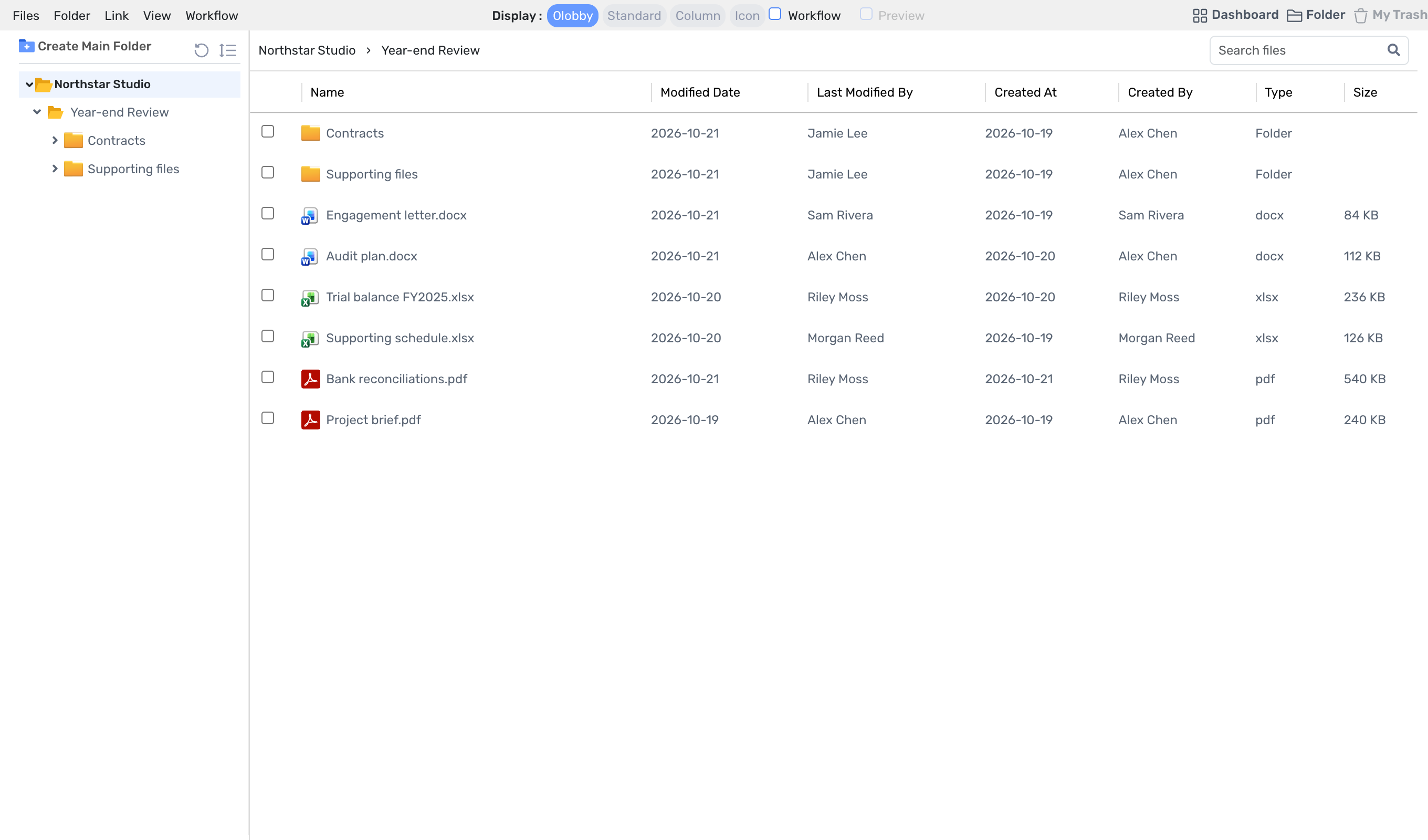
Collect documents in your work folder and connect people and tasks. Move from finding files to editing and reviewing.
- Use this when needed
- Project materials organization and document work
- Where to find it
- Left menu → Folder Access
- Classification
- Organize and plan
See where a document lives and where it stands
Data placement is clear
Organize folders and access targets according to your team structure, specifying who can view each file and where it's located.
Tasks next to document
View tasks and review stages linked to a file, locate materials, and track remaining actions.
Edit with familiar tools
Choose the right editor—Online Editor or Synclobby—based on your document type, and view editing status and history.
Usage steps
Start work from a project file
Collect files in a folder and continue work across documents.
- 1
Folder setup
Create folders tailored to your project and assign users or departments.
- 2
Register materials
Upload a file and organize it with name, document type, and other context.
- 3
Work connection
Edit documents or progress connected tasks and approval stages.
- 4
Results delivery
Share the document via link, attachment, or ZIP.
Folder Access features
Organize your work folder systematically
Configure folder creation and movement/copy, list navigation in the same workflow.
- Explore subfolders and files
- Create, edit, move, copy folders
- Folder sorting and hierarchy browsing
File upload and re-upload
Register the document name and basic information, then upload the file.
- General and large file uploads
- Upload multiple files
- Update existing documents
Folders needed by your team only
Folder-level user and organizational unit assignment workflow.
- User Assignment • Unassigned List
- Folder assignment by business entity and department
- View, register, edit, delete, download permissions
Start your work with the document
Create tasks from files and connect the write and review stages.
- Create Task linked to file
- Add or modify document approval workflow
- Completed workflow document change restriction
Edit based on current status
After verifying the opening status of the selected document, proceed to the appropriate editor.
- Online editor · Select Synclobby
- Microsoft 365 · Google Workspace integration
- Editing user/editing status check
Version and recovery basisVaries by organization
Check the version history of the selected document based on the conditions. Do not expand the My Trash and conflict resolution API into the active document menu.
- Version History: Selection & Permission Conditions
- Portal Trash vs. Internal My Trash
Delivered the way you need
Send files via link or attachment, and export folders as ZIP.
- Copy download link
- Email attachment / link selection
- Folder ZIP generation progress
Quick find again
Provides a flow to reopen frequently used and recently accessed materials.
- Register recent items
- Add or remove to favorites
- Refresh folder and file list
What to decide before onboardingSupported OS, document software, folder permissions
Folders and access levels
Set folder structure and view, register, download permissions by organization, business entity, or department.
Edit file
Check main file extensions and sizes, and verify Office, Google, or local program usage.
Change and recovery
Prepare editing settings, save history, delete/restore, and conflict resolution guidelines.
Folder AccessModule 10 and onward
 TasksSend the selected document to the responsible party to link tasks.
 WorkFlowSpecify review and approval stages and track processing status and history.
 File ShareProvides a workflow to pull attached files into internal work documents.
 Document and email integrationsShare document and folder information with Microsoft 365 or Google Editor.
 SynclobbyOpen and save the same document in the desktop program.
 NotesSelect your existing OLOBBY document and pull it to the notebook.
 E-SignaturePrepare the original for signing and use the completed PDF as part of your required workflow materials.
 MailSave the email attachment to your work folder to use as a document.
 SettingsUse business unit, department, and user setup for folder access assignment.
 Audit LobbySeparates general collaboration documents from audit workpapers. Does not assume bidirectional synchronization.
Folder Access
FAQ
Any other questions? ContactLet us know.
Yes, all users can view when you share a document.
Follow folder user and department assignments, plus file operation permissions. Set view, register, edit, delete, and download scopes based on team roles.
Yes, you can find previous file contents.
View and download document version history. Retention period varies by environment policy. Contact sales for details.
Yes, you can use existing Office documents.
Use file format compatibility with Microsoft 365, Google Workspace, online editors, or Synclobby. Check account, license, and file format support.
Yes, you can create tasks from files.
Send the selected document to workflow to have the responsible party continue work with context.
Get started with Folder Access.
Let us know who you'll be working with and which tasks to improve first, and we'll guide you on the required modules and implementation scope.