


 Sticky Notes
Capture a thought.
Find it when you need it.
Jot down quick thoughts or tasks to check. Organize by topic and search, or share notes with your team.
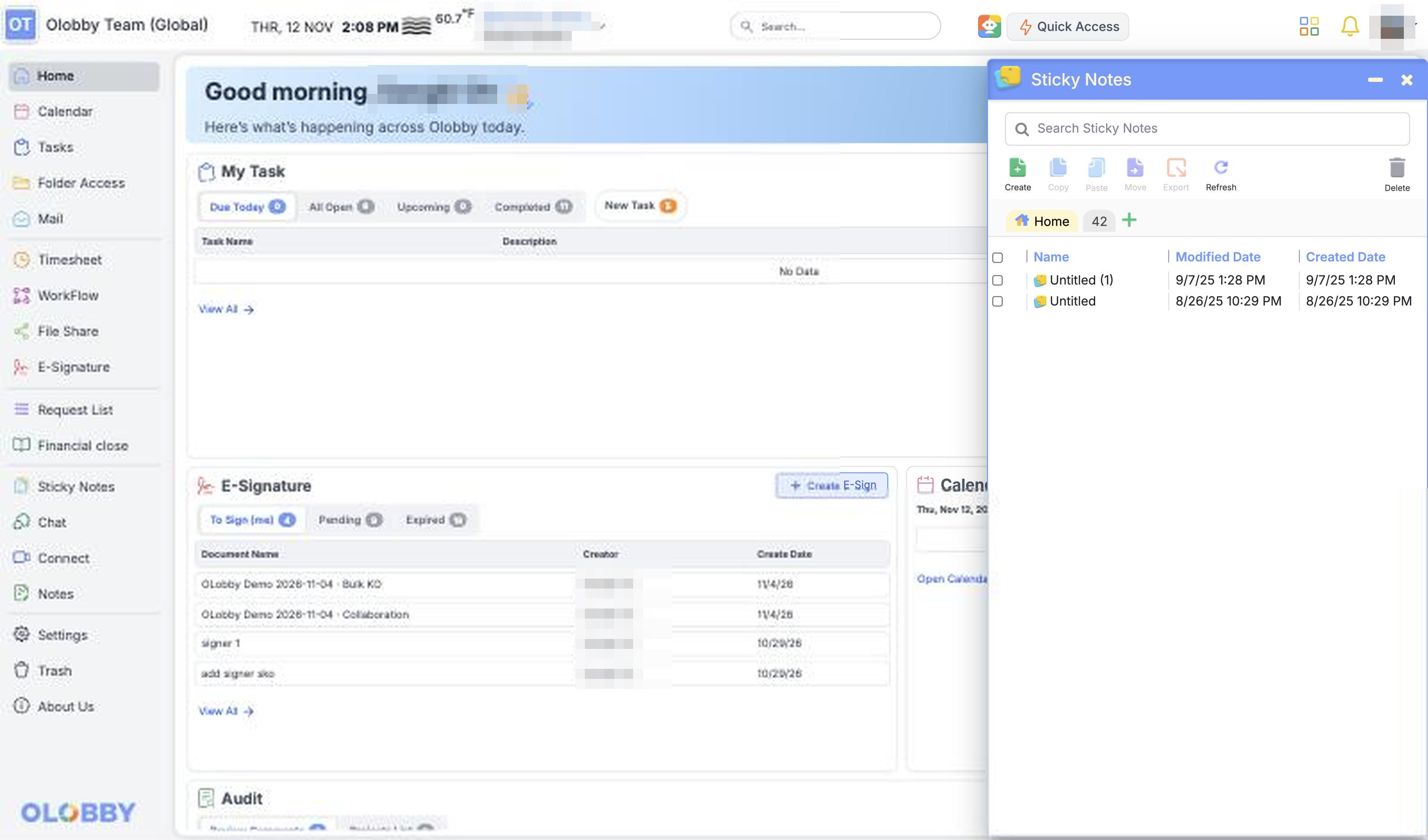
- 1Capture the content immediatelyOpen the work memo panel to jot down key notes.
- 2Group by topicSelect a group and chapter/section to organize your notes.
- 3Share with your team or deliverAuthorized owner shares memo and checks read/edit scope.
- 4Find records againSearch and group lookup to find records and organize old notes.
- Use this when needed
- Easy-to-miss to-dos and thought notes
- Where to find it
- Left menu → Sticky Notes
- Classification
- Organize and plan
Capture a thought and find it when you need it
On the go, take notes
Open the memo panel in the work screen and briefly note any thoughts or tasks to check.
Find accumulated notes easily
Group, book, section by topic to find notes by title and content.
Personal note, shared note
Separate personal records from team-reference notes and share them with needed colleagues.
Usage steps
How the workflow fits together
Note it when you start, look it up when you need it.
- 1
Capture the content immediately
Open the work memo panel to jot down key notes.
- 2
Group by topic
Select a group and chapter/section to organize your notes.
- 3
Share with your team or deliver
Authorized owner shares memo and checks read/edit scope.
- 4
Find records again
Search and group lookup to find records and organize old notes.
Sticky Notes features
Quick notes anywhere, anytime
Record quick thoughts and checks even while using other modules.
- Common screen memo panel
- Create or edit memo
- Open memo again
Group, book, section organization
Group notes by topic and team, then search by hierarchy.
- Group creation & modification
- Notebook structure
- Section notes
Share notes with team members
Select items for the owner to share and create notes for team members to reference.
- Select sharing recipient
- Owner and shared scope verification
- Shared memo
Search and sort
Check the accumulated notes for the required title and content.
- Memo search
- Sort by date
- Group-wise view
Note summary and deletion
Tidy up unnecessary notes and groups.
- Delete memo
- Edit or delete group
- Check change conflict conditions
What to decide before onboardingPersonal notes vs. team-shared records
Quick take notes
Separate temporary check items from records intended for long-term retention.
Share and Owner
Check group, book, and section structure and shared targets per note.
Storage method
Define criteria for organizing, sharing, and deleting notes.
Sticky Notes
FAQ
Any other questions? ContactLet us know.
Where can you take notes?
Open the memo panel in the common work screen to record essential notes while working on other tasks.
Can you share this with your team?
The memo owner selects the shared target. Actual read and edit permissions follow user and organization settings.
Yes, you can receive memos as files.
OLOBBY does not include Word export by default. Please check the editing tool and individual feature scope.
How do you organize your notes?
Organize and search by group, book, or section, then sort by date to find the notes you need.
Get started with Sticky Notes.
Let us know who you'll be working with and which tasks to improve first, and we'll guide you on the required modules and implementation scope.