Getting started

Choose how to
run OLOBBY.

You don't have to implement all modules at once. Choose your operating mode and start with the people you'll be working with and the tasks you'd like to improve.

OLOBBY Cloud Managed by OLOBBY Your team Client Assigned items Microsoft 365 · Google

Cloud

Start your work space online. Check your onboarding requirements based on user count and collaboration scope.

  • Usage modules and user scope
  • How to share documents with external customers and partners
  • Integration conditions with existing document tools
Your infrastructure OLOBBY Run by your team Your team Client Link + sign-in

On-premises

Install according to your organization's operating environment. Review your on-premises installation environment and applicable scope to align with your existing operations.

  • Installation environment and system operations responsibility
  • Organization's access and retention policy
  • Integration scope and maintenance conditions

Document and email integrations

Keep the tools you use.
Keep the files in OLOBBY.

When you open the document with a familiar editing tool, the saved content is reflected in the original folder's document.

  • Microsoft 365

    Open Office files in a browser editor that matches the format, then reflect the edited content back to the original document.

    File type distinction, editing lock
  • Google Docs tool

    Open a selected document in Google editing tools. Does not sync your entire personal drive.

    Open before access verification, change notifications
  • Synclobby

    Open a document from the web, open it in your computer's app, check the last saved timestamp, and complete your work.

    Auto-save, backup folder quick link
  • Mail account

    Connect your Gmail or Microsoft 365 email account and save attached files as documents in your work folder.

    Check your connected account's schedule in Calendar

Document and email integrations detailsSynclobby detailsMail details

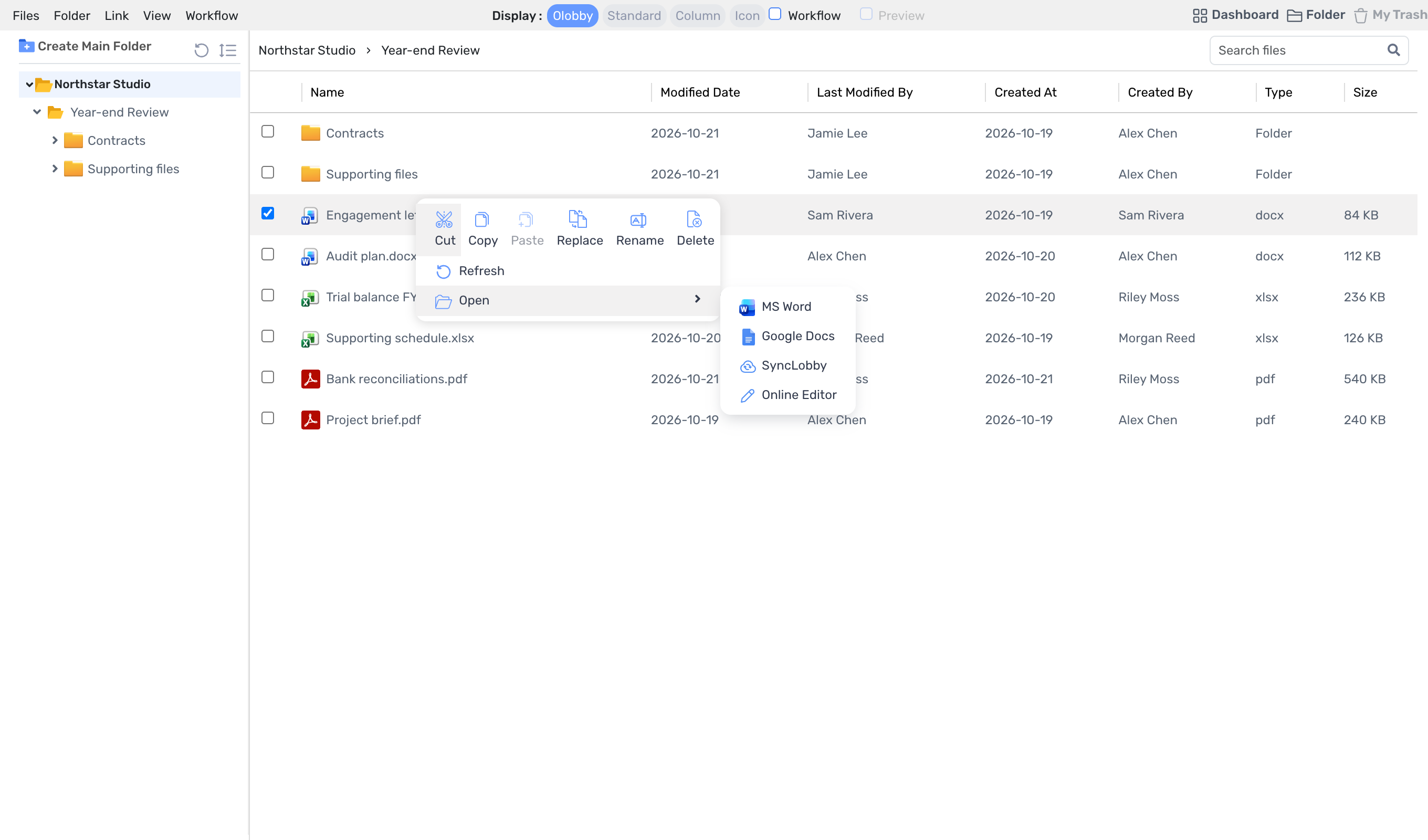
Select a document from Folder Access and choose Open to view the original screen
Open menu: MS Word, Google Docs, SyncLobby, Online Editor

Select edit tools from the Open menu

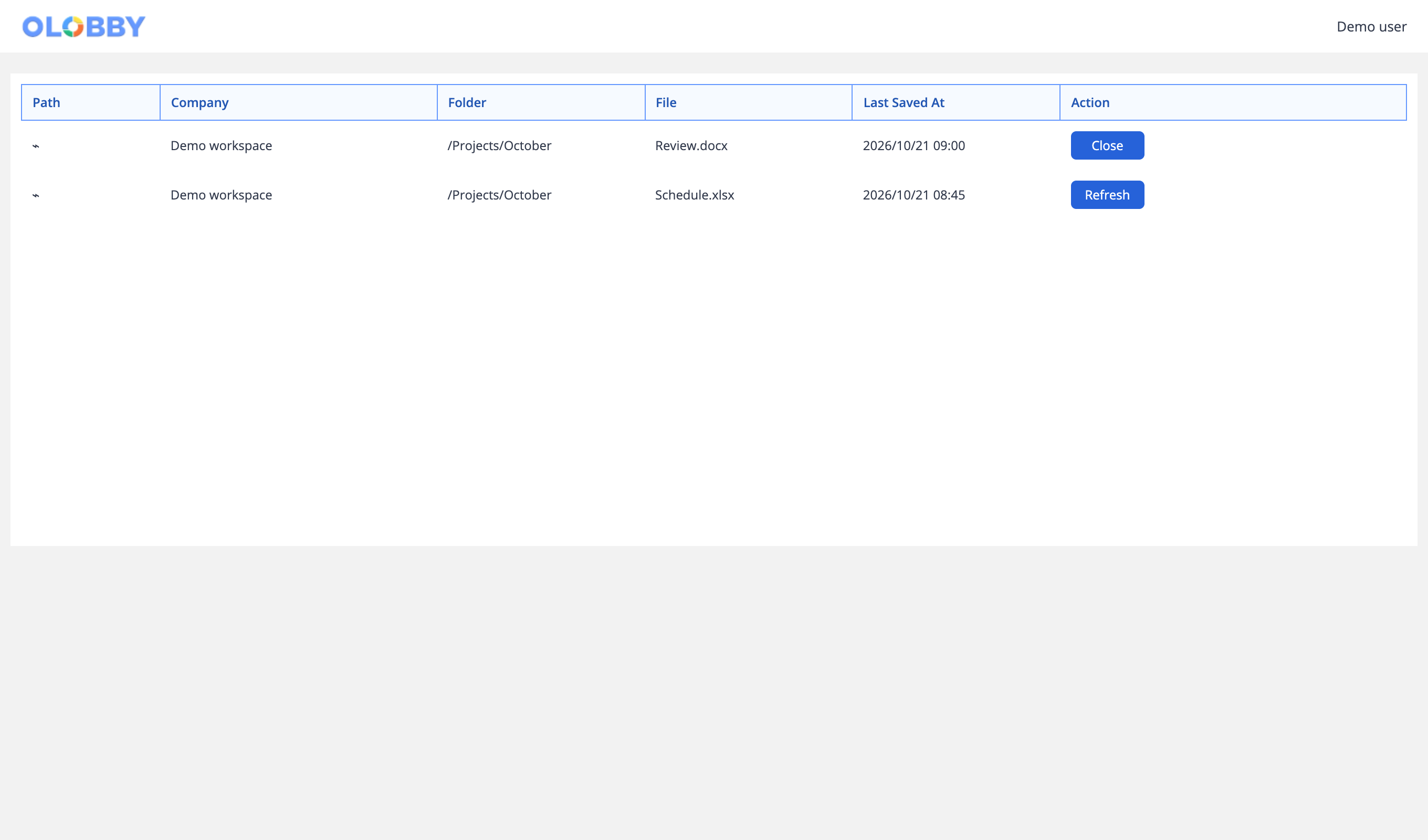
OLOBBY's open document list: file, last saved time, Close and Refresh

Last saved time

Onboarding steps

Start with one team.
Expand at your pace.

Take you from request to signature, follow through, and get your organization ready to adopt.

  1. 1

    Determine scope of work

    First, define the tasks to implement, responsible teams, and review outcomes. Example: Monthly recurring customer data requests.

  2. 2

    Environment and access scope verification

    Review operating model, internal and external users, and integration with existing document tools.

  3. 3

    Key responsibilities for review

    Let's walk through the actual process: request → submit → review → sign.

  4. 4

    Getting ready for organization adoption

    We'll coordinate on document consolidation, operations responsibilities, and user onboarding support.

What to prepare

What to prepare

  • Settings

    Organizational Structure

    Organize separate organizational and project assignments for businesses, departments, and users by module.

  • Settings

    Roles and permissions

    Check the menu and view access, as well as add, edit, and delete permissions for administrators and regular users.

  • Settings

    Personal and organizational setup

    Separate common operation settings from individual language, time zone, editor, and notification settings.

  • Document and email integrations

    Account and Terms of Use

    Verify your Microsoft 365 or Google account, organization license, and external service consent scopes.

  • Document and email integrations

    Document type

    Open and edit actual Word, Excel, PowerPoint files to verify display quality.

  • Document and email integrations

    Save & co-edit

    Completed saved. Check for conflicts or permission expiration if you need to reopen the original or edit.

  • Requestee

    Assignment and account

    Review the requested account, access link, and assigned project.

  • Requestee

    Submission materials

    Read the request details, deadline, and example attachments, then prepare the file and response note accordingly.

  • Requestee

    Completion confirmed

    After verifying the upload result, mark submission as complete and confirm the requester's follow-up instructions.

Before you
get started

Any other questions? ContactLet us know.

Do you need to adopt all features at once?

No. Start with the tasks you'd like to improve. Consult on which modules and conditions to apply, based on your user count, organization environment, and collaboration scope.

Yes, you can share documents with external customers.

You can view file sharing file transfers and requests, as well as data requests and external submissions in Request List. Invitation methods and access scopes vary based on module and organizational settings.

Can you connect to document tools you're currently using?

Explore Microsoft 365 and Google integration with Synclobby's desktop document workflow. Verify the connection scope that aligns with your file formats and usage environment.

What to verify before transferring existing data?

Organize document format, size, storage location, and user access scopes. Confirm previous methods and support ranges based on the modules in use.

How do I check introduction cost and schedule?

Please inquire about user count, business modules, and integration scope. We'll provide you with the conditions and schedule tailored to your required application scope.

Does your entire personal drive sync?

Flow for opening and saving a document from OLOBBY in an external editor. Separate from full synchronization with personal OneDrive or Google Drive.

Yes, changes are reflected in your OLOBBY document once saved.

Upload edit results and refresh the original document. Check Save completed and reopen original.

Yes, available for both Windows and Mac.

Verify the deployment package and supported versions for your operating system. Also check the open, save, and close workflows in the demo.

Contact sales for a consultation tailored to your team

Let us know your user count and priority tasks, and we'll guide you on the right modules and implementation scope.

Contact