
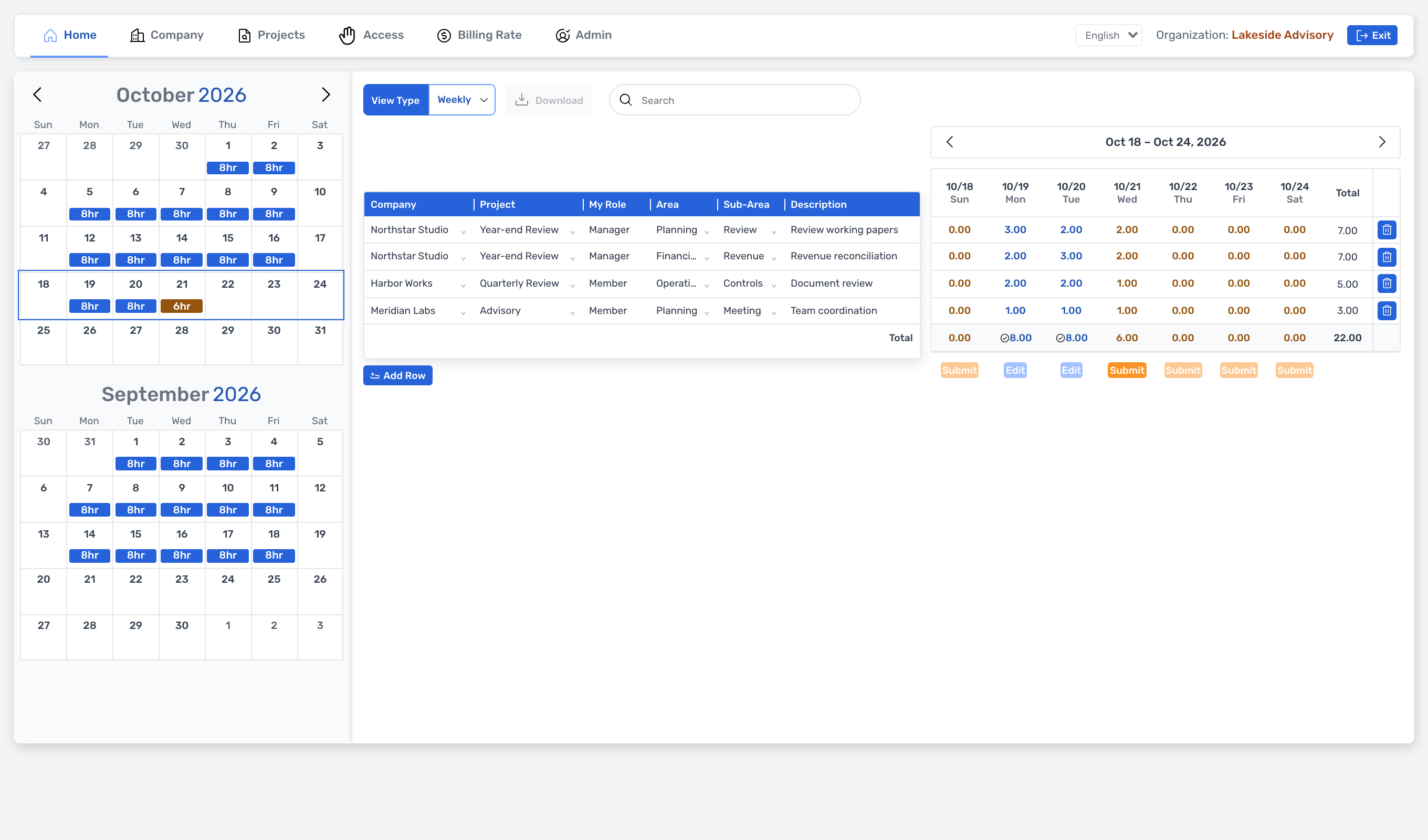
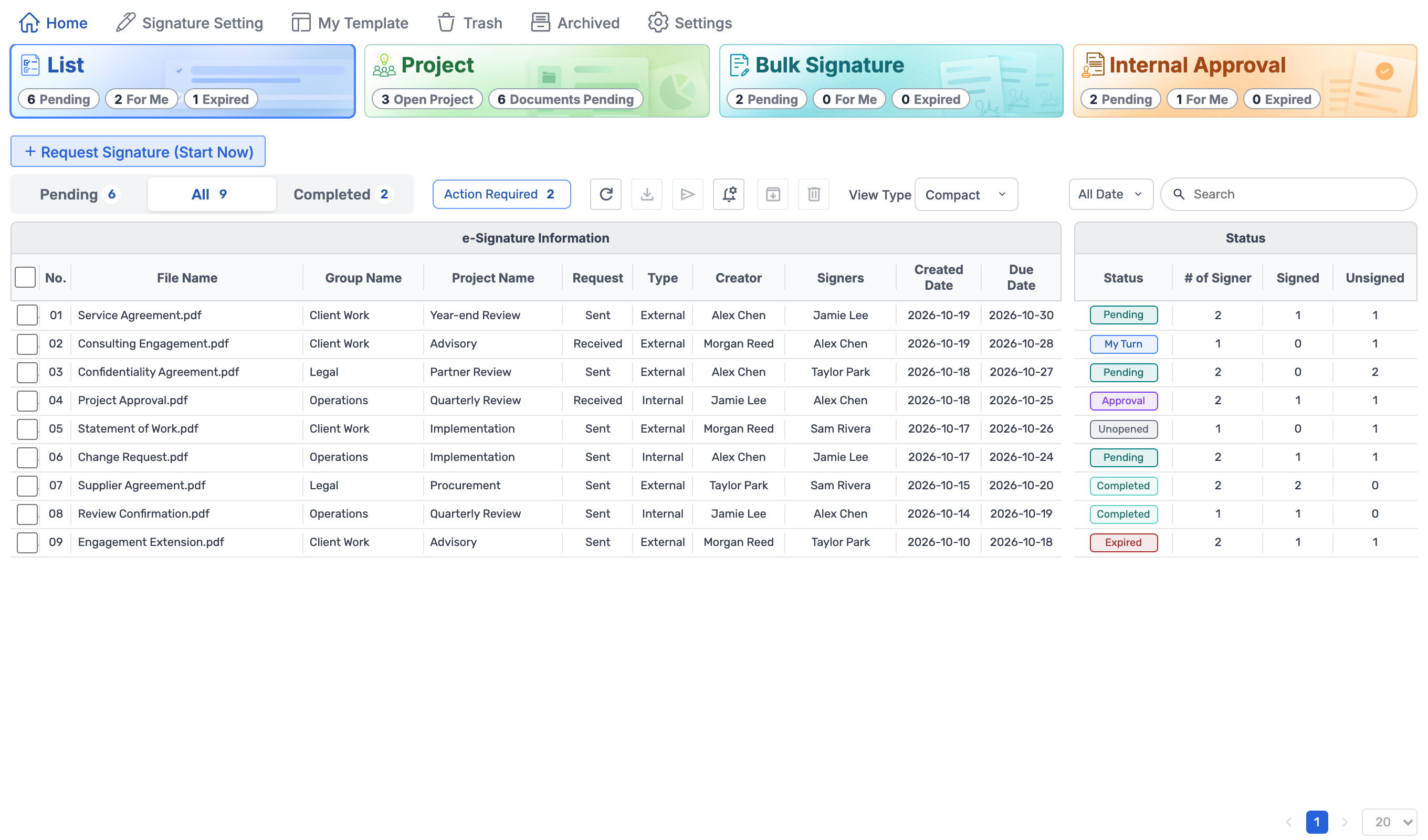
All your work, connected.

Assign work after a meeting or take a client document from review to signature. Choose the tools that fit your team.

A calendar, headset, client files and time record meet on one desk, then give way to OLOBBY Home. Jamie takes the review. The team checks the client’s response and places a signature field on the document. Watch the 90-second film

Six workflows in the product

Watch a 15-second film

Workflow steps

Folder AccessSample data1 / 4
Folder Access workspace

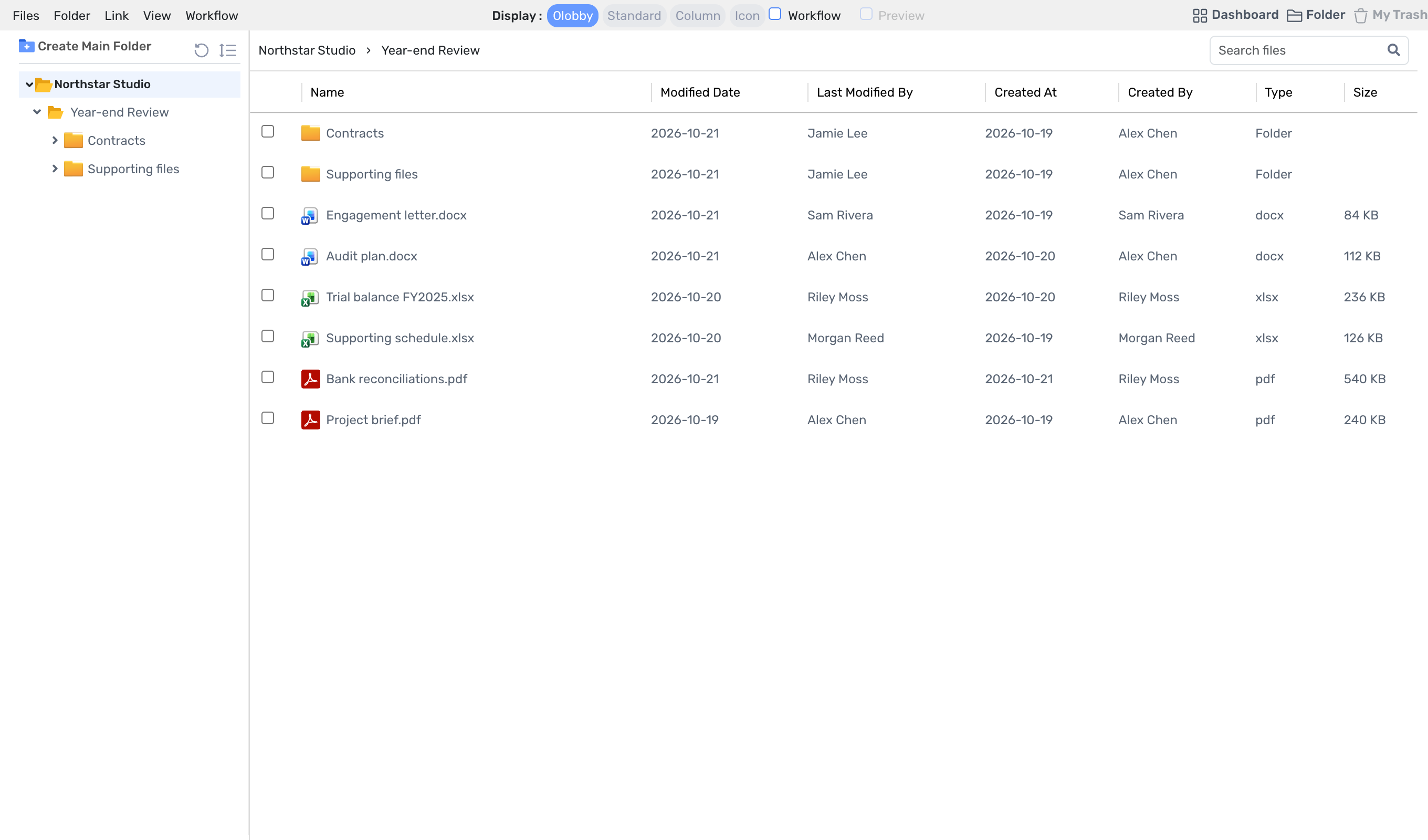
Find documents to review in customer or project folders.

View full workflow

Currently using tool

Bring your team's work
into one workspace.

Email, messenger, shared folder, request form, signature service, workplace tools, time tracking sheet. See which module in OLOBBY covers the tools your team uses together. You can start by switching from one tool to another.

Tools you're using now 7

OLOBBY in One office space, 9 modules

  1. EmailRequest and resubmitAt OLOBBY, we offer
  2. MessengerStatus checkAt OLOBBY, we offer
  3. Shared folder linkMaterial sharingAt OLOBBY, we offer
  4. Spreadsheet request formMissing reconciliationAt OLOBBY, we offer
  5. Separate e-signature serviceSignatureAt OLOBBY, we offer
  6. Business management toolTo-do and approvalAt OLOBBY, we offer
  7. Time tracking sheetDeployment timeAt OLOBBY, we offer
  1. Handle anything from start to finish, all in one place.

    19 work areas connected through 48 integrations. Documents move through review and signature; meetings progress as tasks; requests go through submission and review—all ending in the same place.

  2. Customers see the same thing.

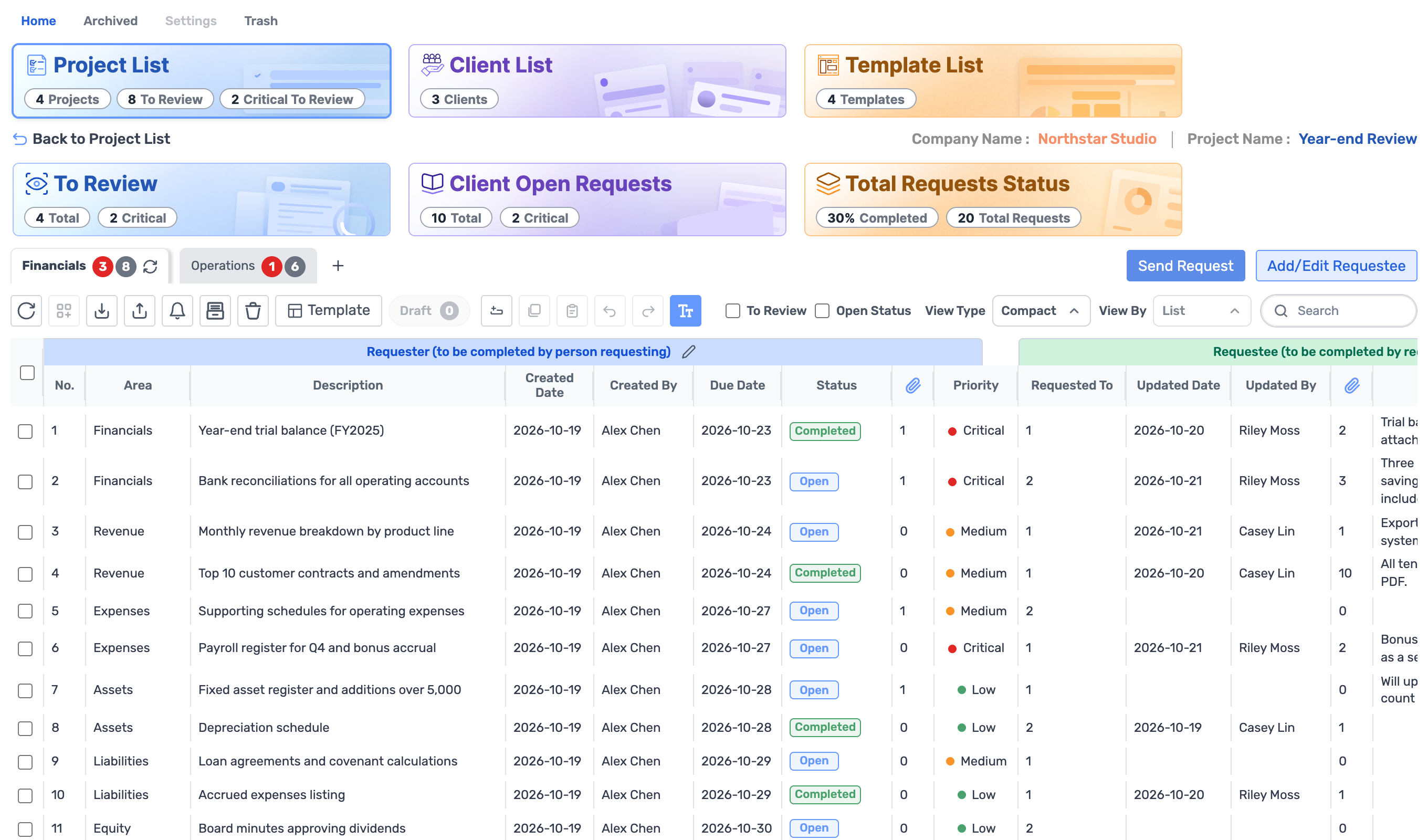
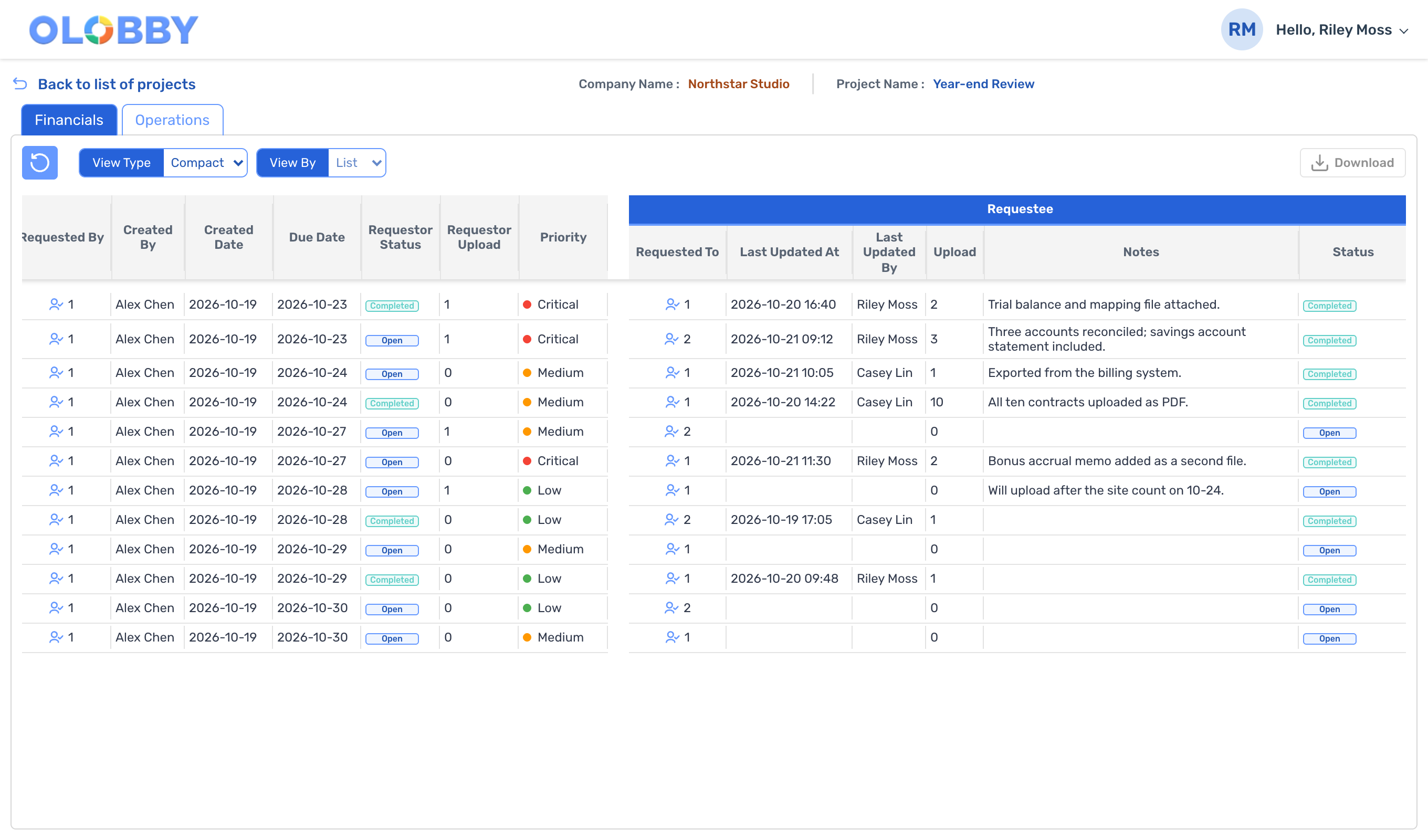
    Customers submit materials to requests assigned to Requestees and share files via File Share. Your team sees the same content on the workbench.

  3. Workpaper and time tracking too.

    Manage thank-you workpapers, review comments, sign-off, and project-specific time tracking in one place.

View feature comparison table

The left seven are examples of tools commonly used by teams. Function-specific evaluations and rationale, service type comparisons, are available on the comparison page.

Follow a workflow on screen

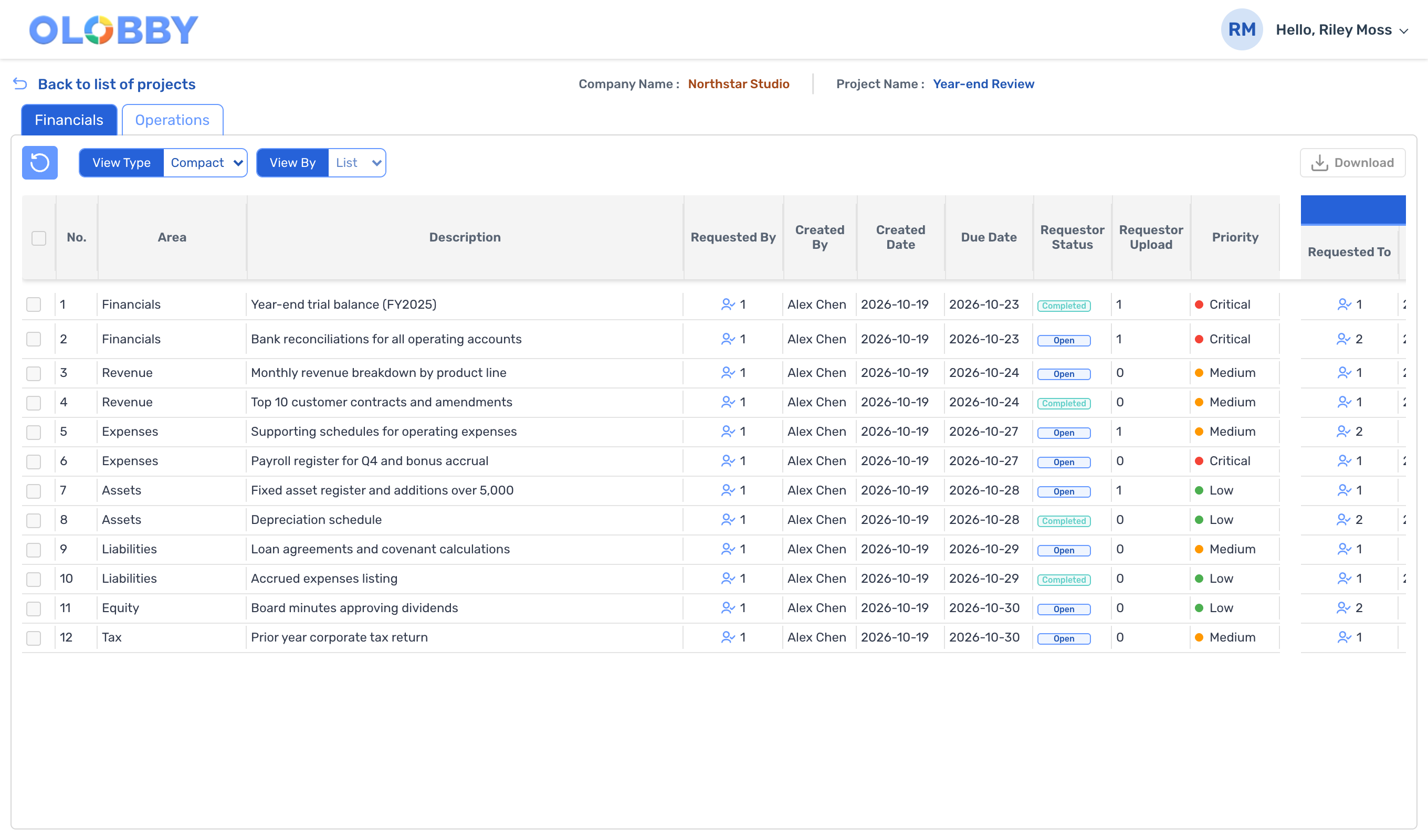
Pick one: document review, customer document request, meeting follow-up, time tracking. See which screen is used at each stage.

Find documents in a folder, make edits, review in order, and get signature.

  1. Folder Access
  2. Document and email integrations
  3. WorkFlow
  4. E-Signature
  5. Signature completed
  1. 1Folder Access

    Find documents in project folder.

    Collect documents in customer or project folders, then edit and review directly from the file location.

    Folder Access details
    Folder tree and documents in the Year-end Review folder.
  2. 2Document and email integrations

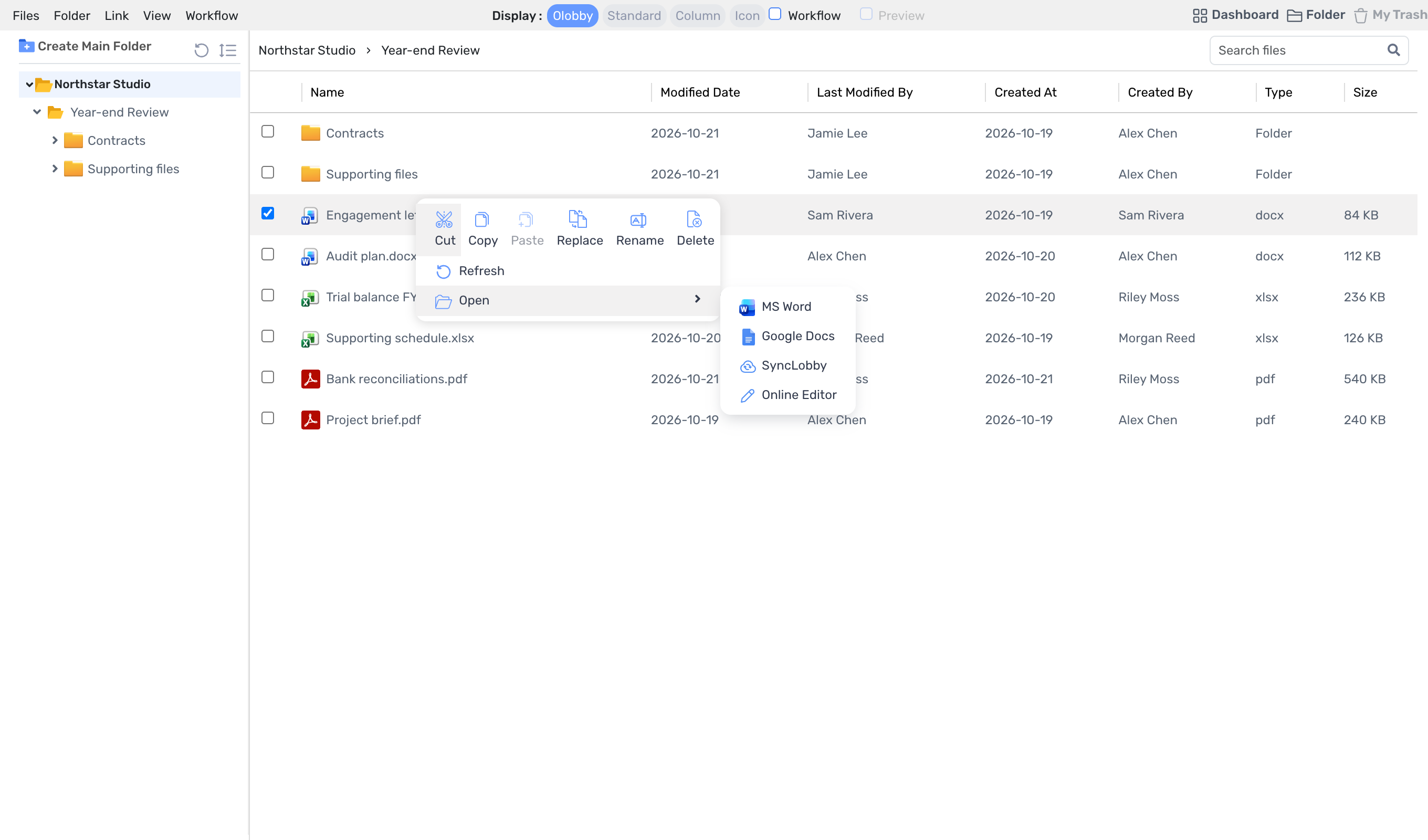
    Open with your editing tool and make changes.

    Select from MS Word, Google Docs, Synclobby, or Online Editor in the Open menu. Saved content is reflected in the original folder document.

    Document and email integrations details
    Select a document from Folder Access and click Open. MS Word, Google Docs, SyncLobby, Online Editor are displayed.
  3. 3WorkFlow

    Review in order to get approval.

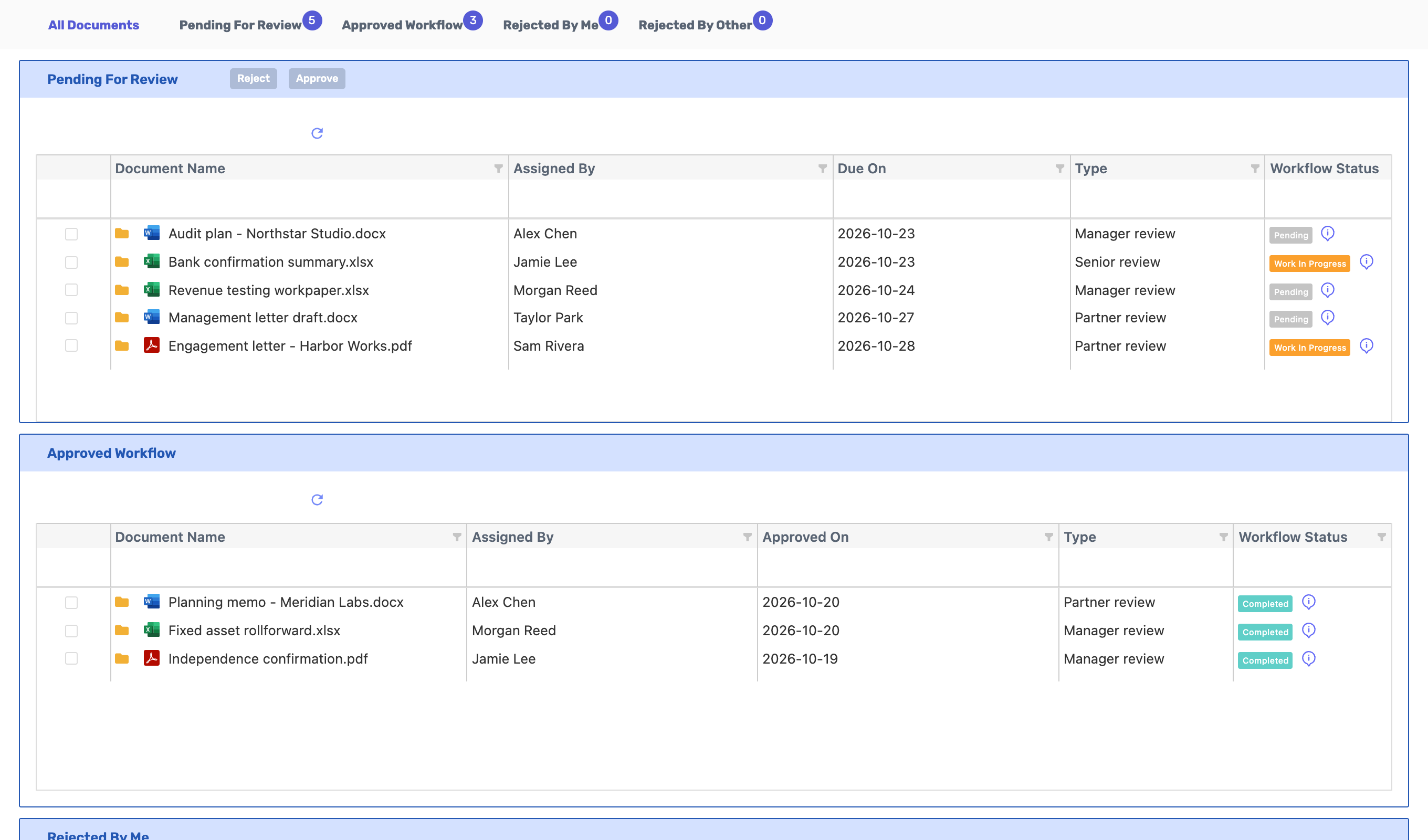
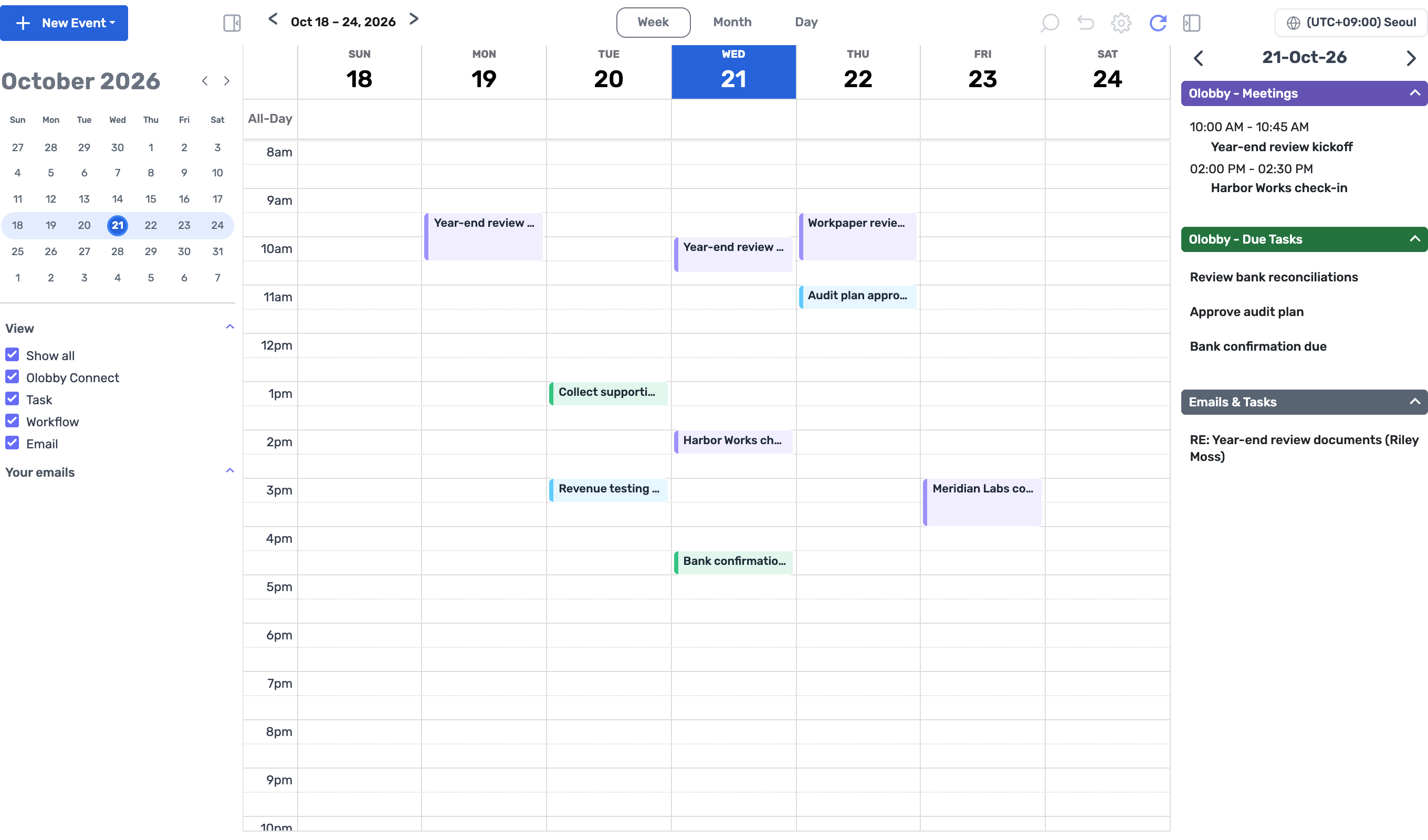
    Set review stages and assign reviewers, then route for waiting, approval, or return for changes. Review schedules are also viewable in Calendar.

    WorkFlow details
    Workflow's Pending For Review list. Displays document name, assigned to, deadline, and review type.
  4. 4E-Signature

    Place signature location on document and request.

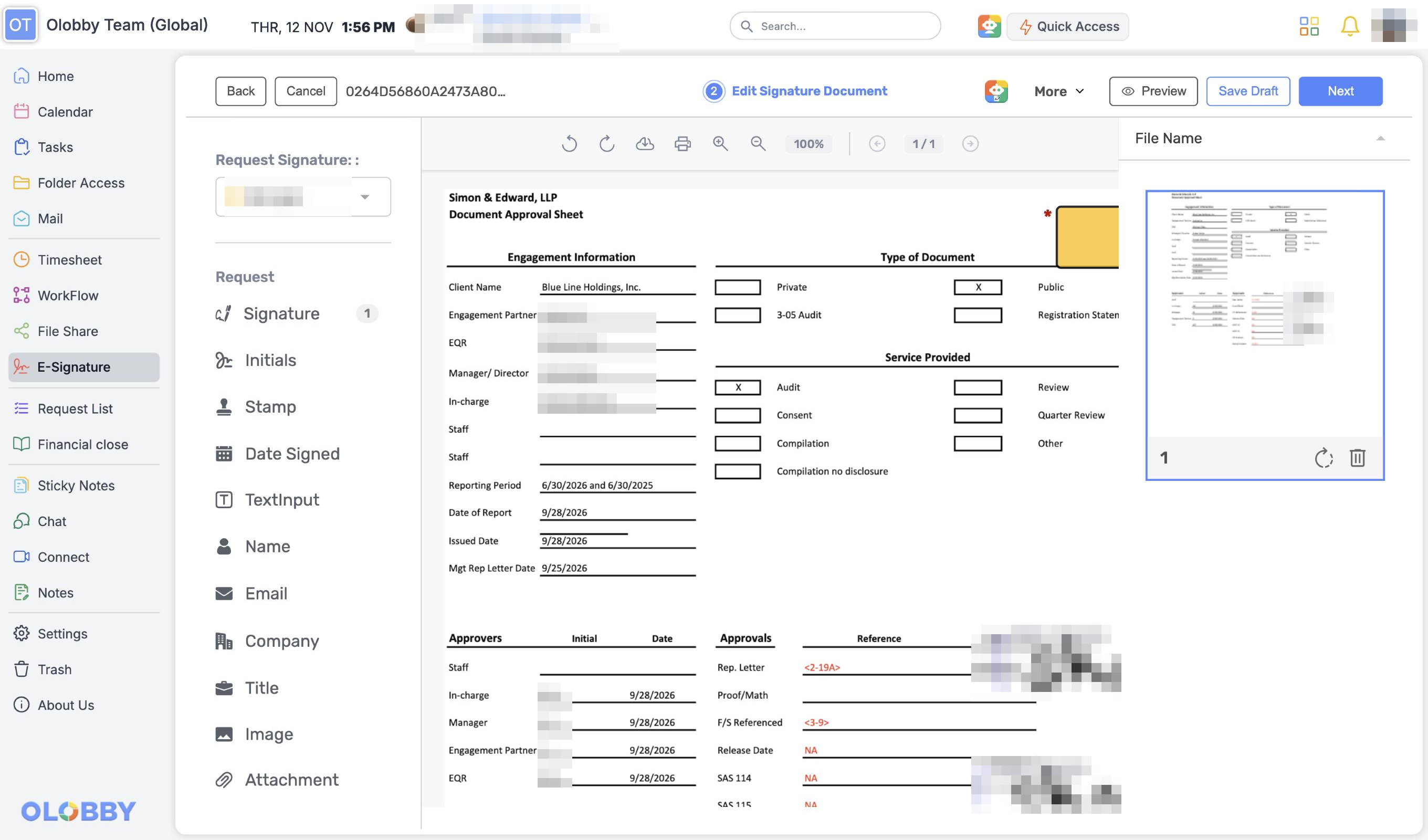
    Upload the document and select the recipient, then add fields like signature, initial, stamp, and date to review and send. A signature request does not automatically appear after review is complete.

    E-Signature details
    E-Signature in progress: signature placement screen. On the left, a list of fields including Signature, Initials, Stamp, Date Signed. In the center, the document displays the signature field. Name and signature are displayed in a translucent format.

Signature completedCompleted

After signing, the document is saved as a completed PDF and a signature certificate. Download and organize the documents in your project folder.

View other tasks

Key screen

Explore four
everyday workspaces.

Click the number on the screen or hover over the description below to highlight the feature location.

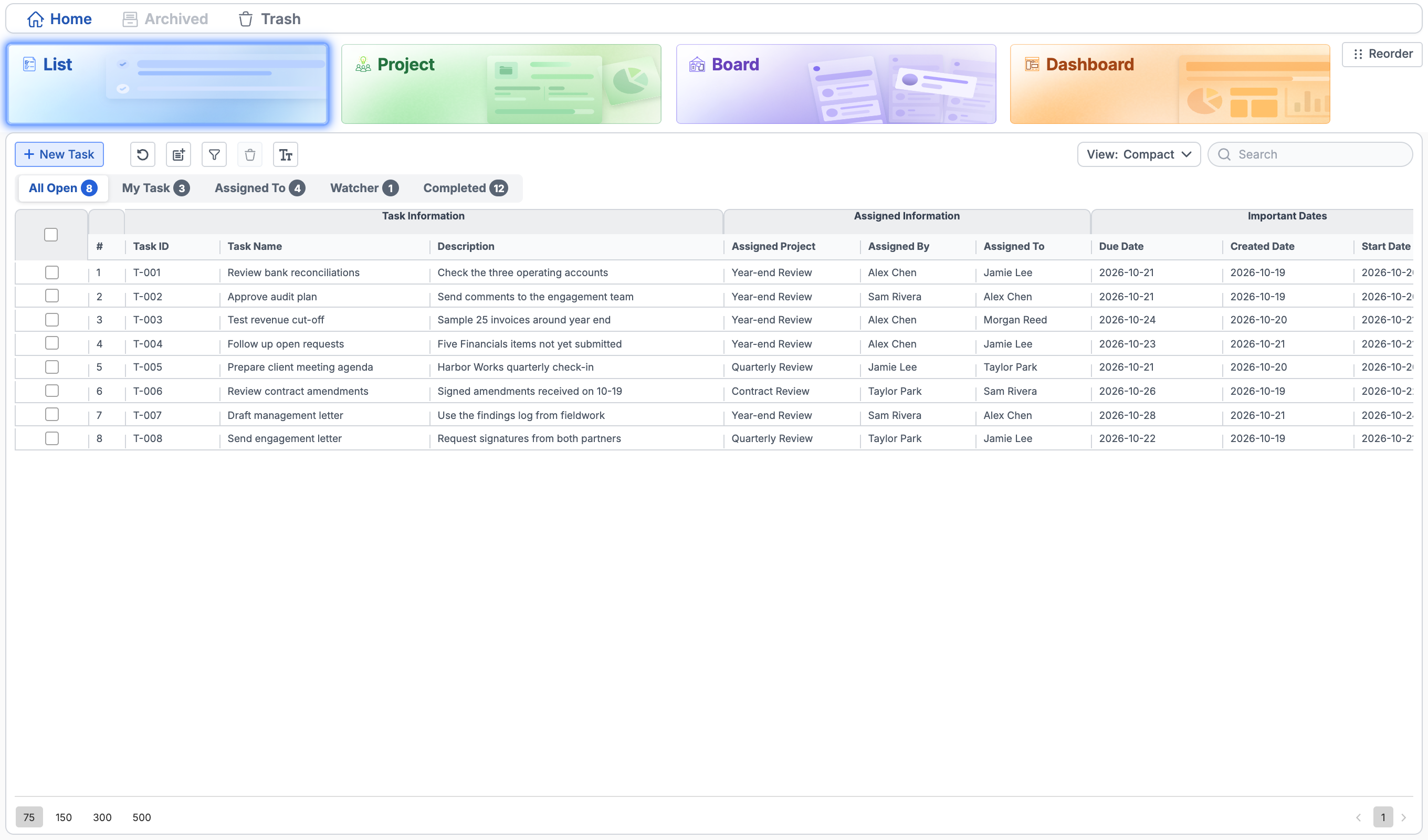
Tasks · List
Tasks task list original view. Shows list, project, board, dashboard view with task name, assigned project, assigned person, and deadline. List · Project · Board · DashboardSame task, three views New TaskOwner, deadline, public scope, reminder My Task · Assigned To · WatcherMy tasks, assigned tasks, and monitored tasks Important DatesDue date, creation date, start date
  1. 1
    Three options

    See the same progress status in lists, projects, boards, and dashboards.

  2. 2
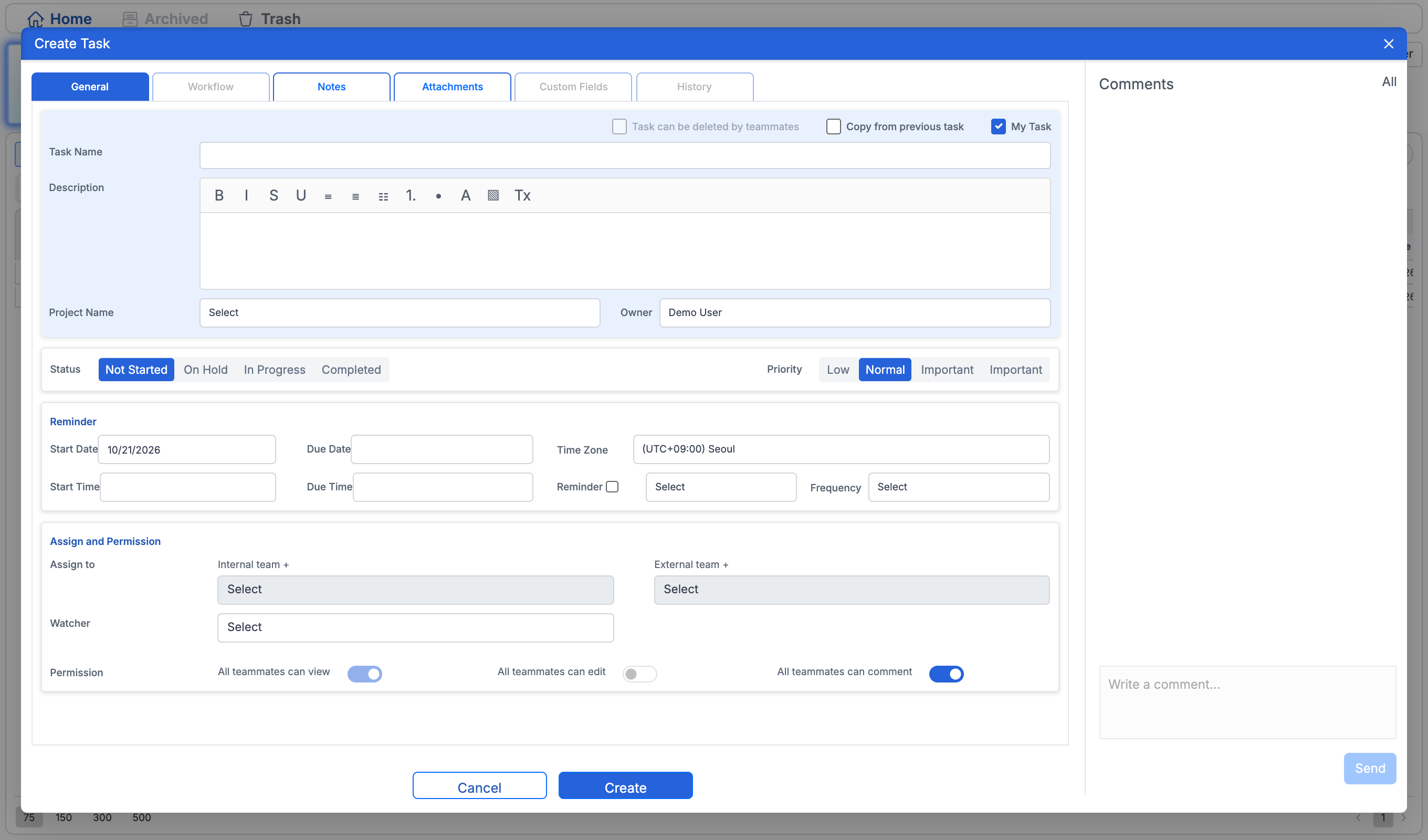
    Create a workflow

    Set contact person, deadline, internal/external team members, public scope, and reminder together.

  3. 3
    My tasks and assigned tasks

    My Task, Assigned To, Watcher distinguish my tasks from assigned tasks.

  4. 4
    One date per line

    Check deadline and start date alongside project and assignee.

Tasks details

19 work areas

Explore all 19 modules

Select your business area to explore features alongside the product interface.

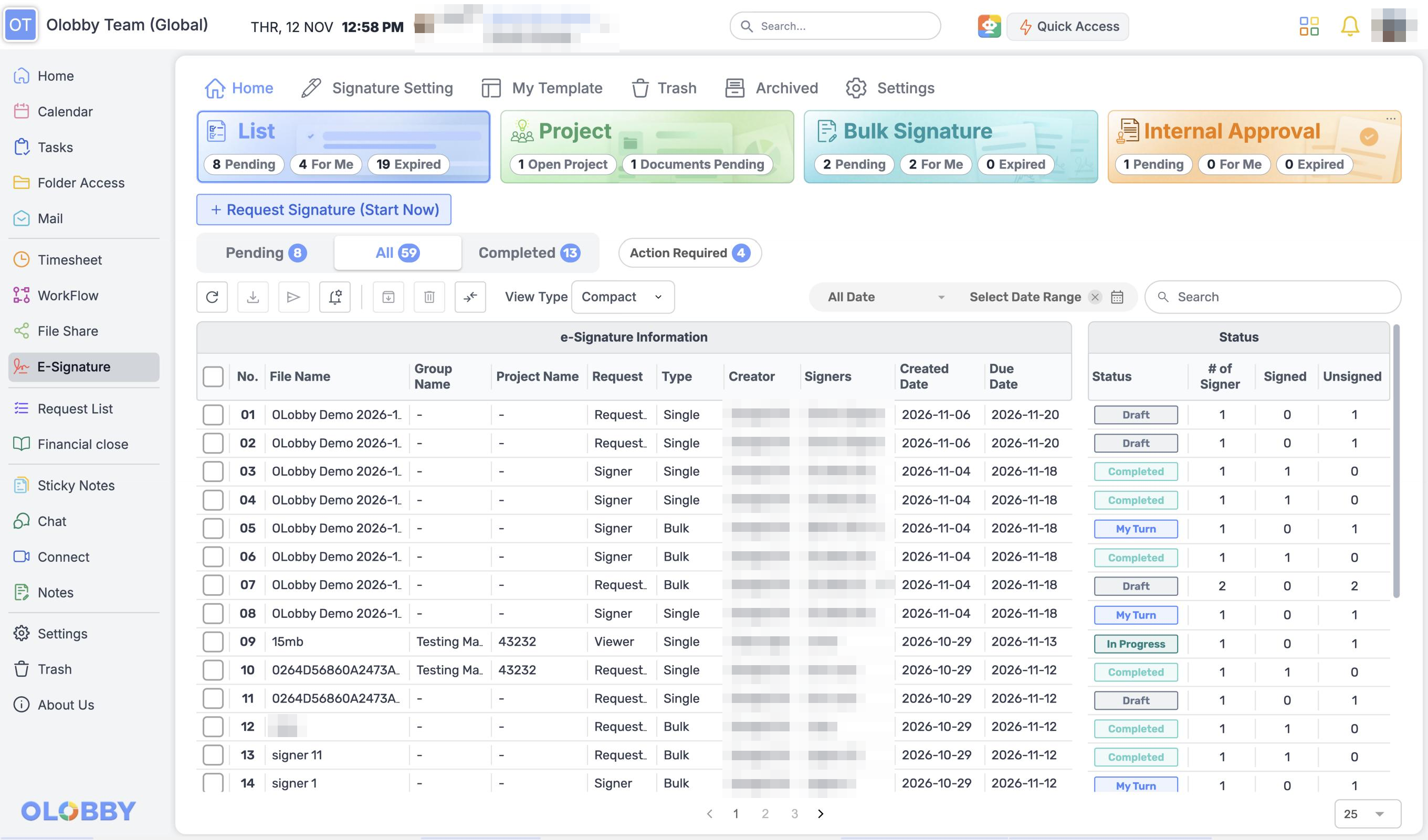
app.olobby.com · E-Signature
OLOBBY dashboard in operation. On the left, full menu includes Home, Calendar, Tasks, Folder Access, Mail, Timesheet, WorkFlow, File Share, E-Signature, Request List. On the right, E-Signature document list and status are displayed.
Service screenshotAccess all work areas from a single menu. Captured from Operations Service on 2026-11-12; names and location details are blurred.

Organize and plan

Home

See today’s tasks, appointments, signature requests and document requests.

Home workspace

Home detailsView all connections

See how teams work in OLOBBY

Where do client files go for review? Who picks up the work after a meeting? Follow each workflow in 15 seconds.

A client request, from both sides0:00 / 0:15

Follow a document request from the project lead to the client and back to the review queue.

  1. Chapters

Role-based screen

What each person sees

Managers check progress, assignees track their tasks, and customers review submitted documents.

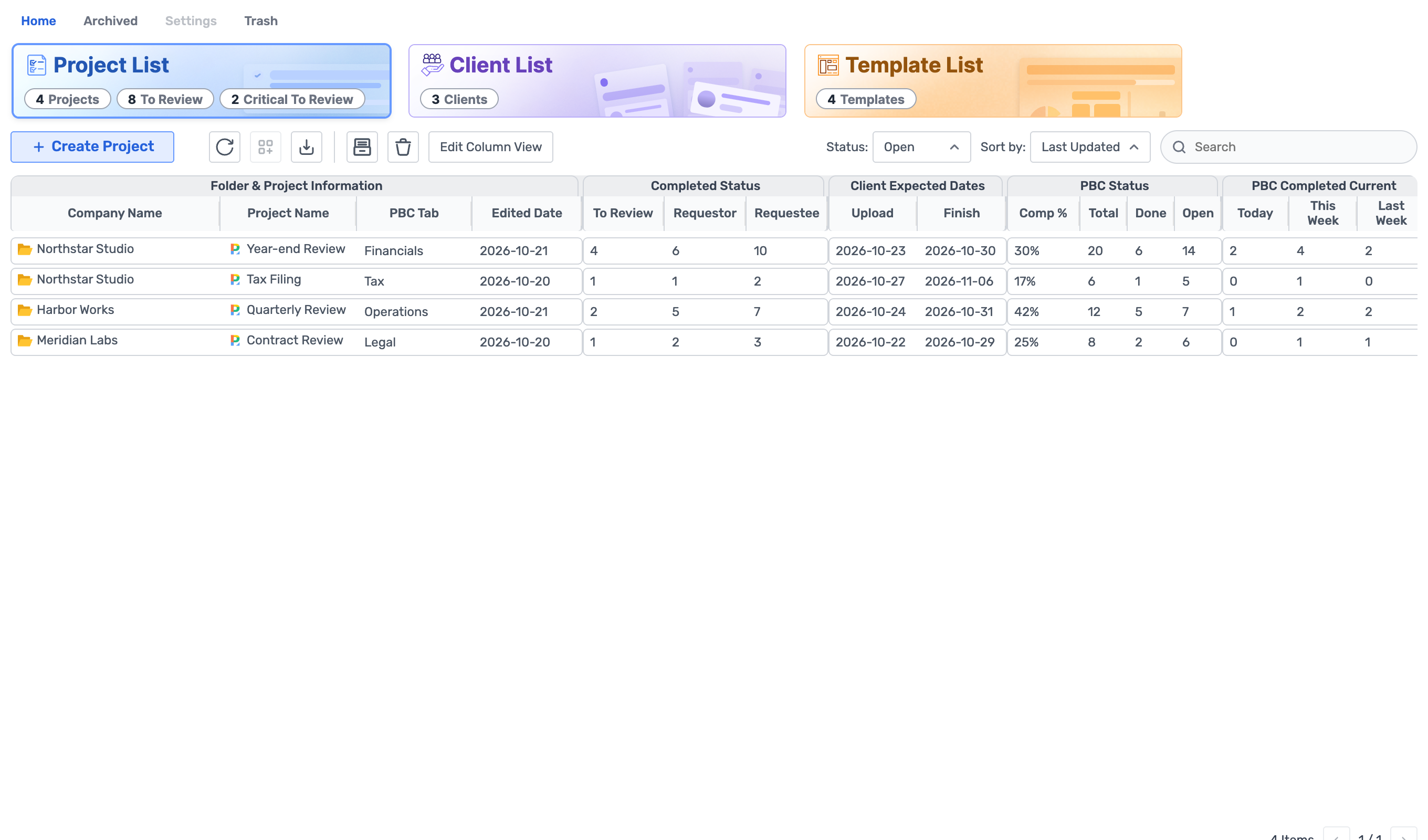
Track progress for multiple clients on a single dashboard.

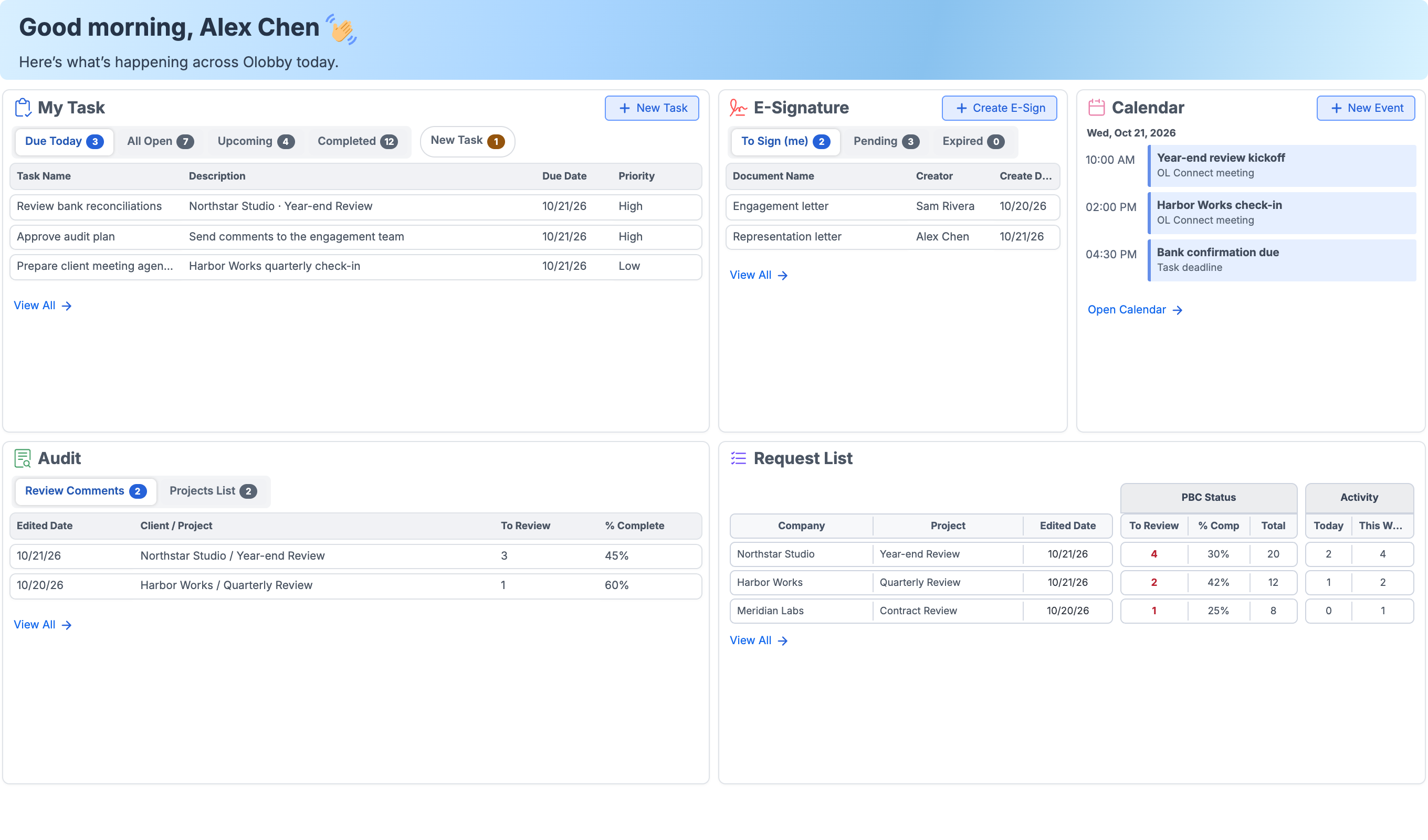
View your tasks, documents to sign, schedules, and request project progress all in one card. Jump directly to the module if you spot delayed work.

  • Check documents requiring your signature
  • Check To Review and completion rate for data request projects from Audit card
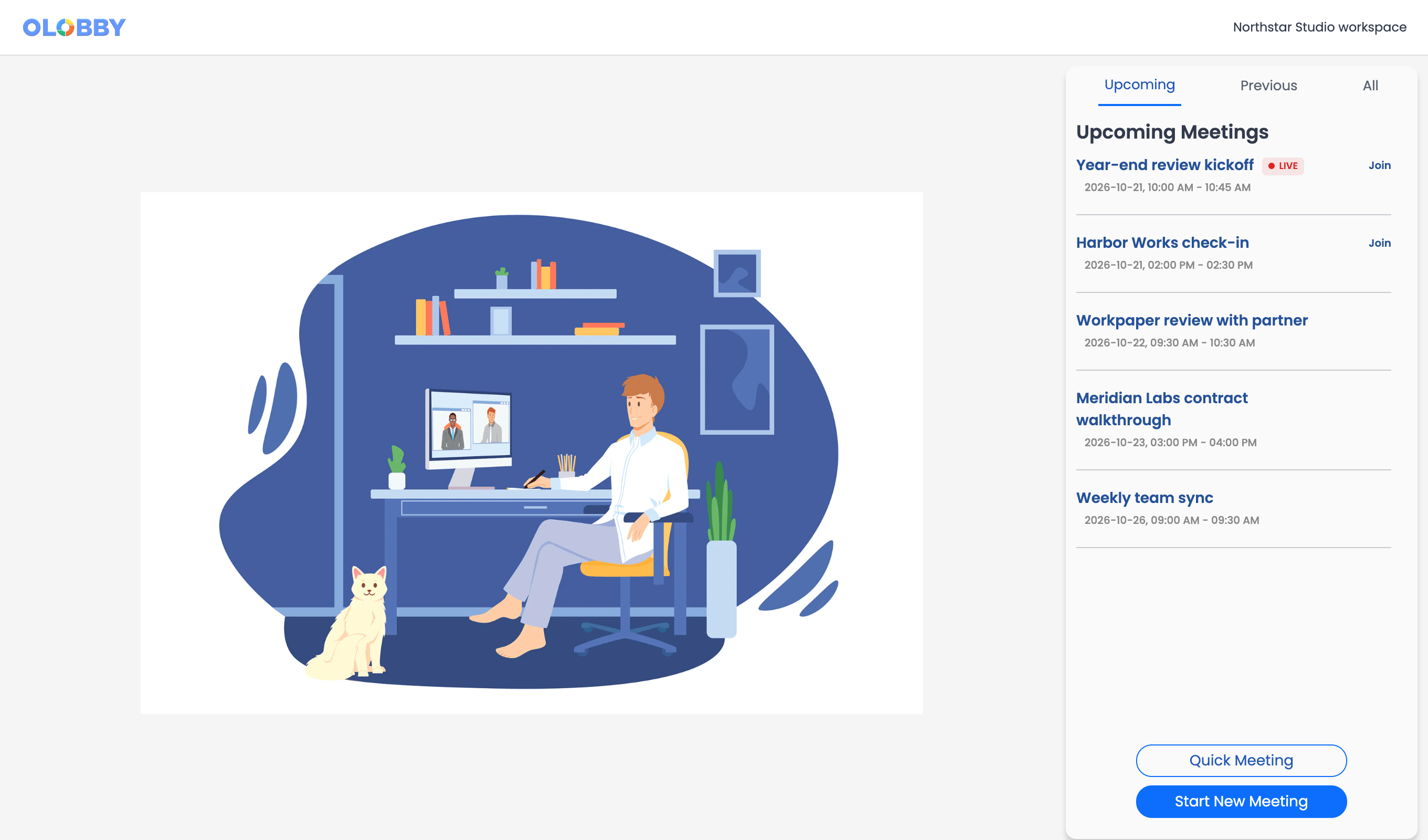
  • Check today's schedule and deadlines from the Calendar card

HomeE-SignatureRequest List

Home details

Home screen viewed first by partners and managers. Shows My Task, documents requiring signature, and today's schedule.
Customer-wise project and review/completion status in Request List

Document and email integrations

Keep the tools you use.
Keep the files in OLOBBY.

You can open documents saved in OLOBBY using an editing tool. Check supported file formats and storage methods in the connected environment.

  • Microsoft 365

    Open Office files in a browser editor that matches the format, then reflect the edited content back to the original document.

  • Google Docs tool

    Open a selected document in Google editing tools. Does not sync your entire personal drive.

  • Synclobby

    Open a document from the web, open it in your computer's app, check the save status, and proceed to Release.

  • Mail account

    Connect your Gmail or Microsoft 365 email account and save attached files as documents in your work folder.

Document and email integrations detailsSynclobby detailsCheck before connecting

Select a document from Folder Access and choose Open to view the original screen
Open menu: MS Word, Google Docs, SyncLobby, Online Editor

Select edit tools from the Open menu

Security

Give each person
the right access.

Regardless of external customers or document exchanges, access rights are defined by your organization, roles, and project assignments. Switch perspectives.

OrganizationSettingsBusiness, department, member

RolePage and task permissions

ProjectAssigned representative

Assigned request items Submit file & notes Review status • Internal notes Project folder

External customersAssignment email or access link → login or OTP authentication

Team members see requests, review status and folders for their assigned projects according to their role.

Access link is manageable
Access links sent to external parties can be issued, replaced, or revoked. Access links alone do not grant access to all projects.
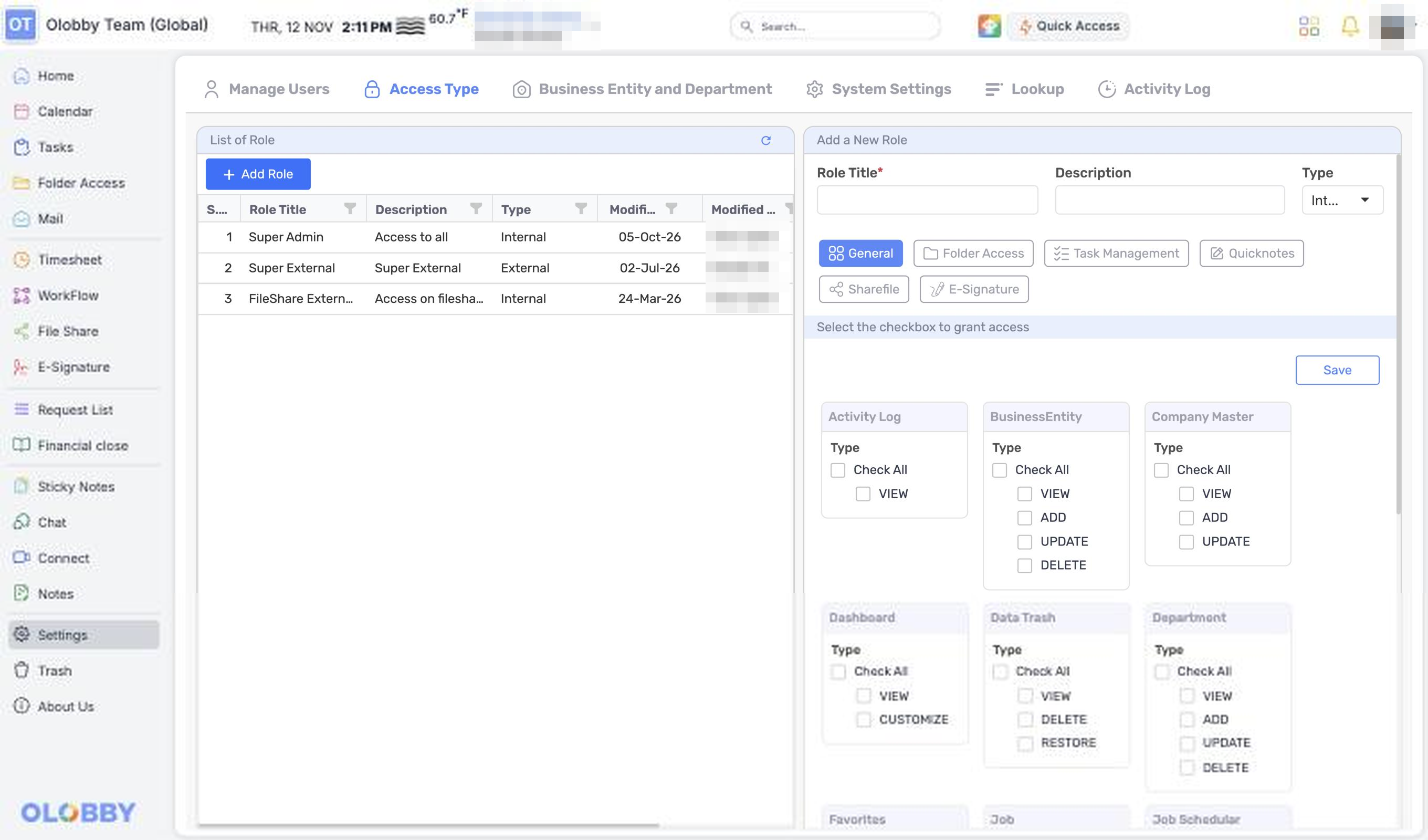
Role-based permissions
Divide pages and task permissions by role, and set separate permissions for view, add, edit, and delete.
Remaining records
Authorized managers view activity logs. Signed documents are reviewed separately as PDF in progress, PDF completed, and signature certificate.
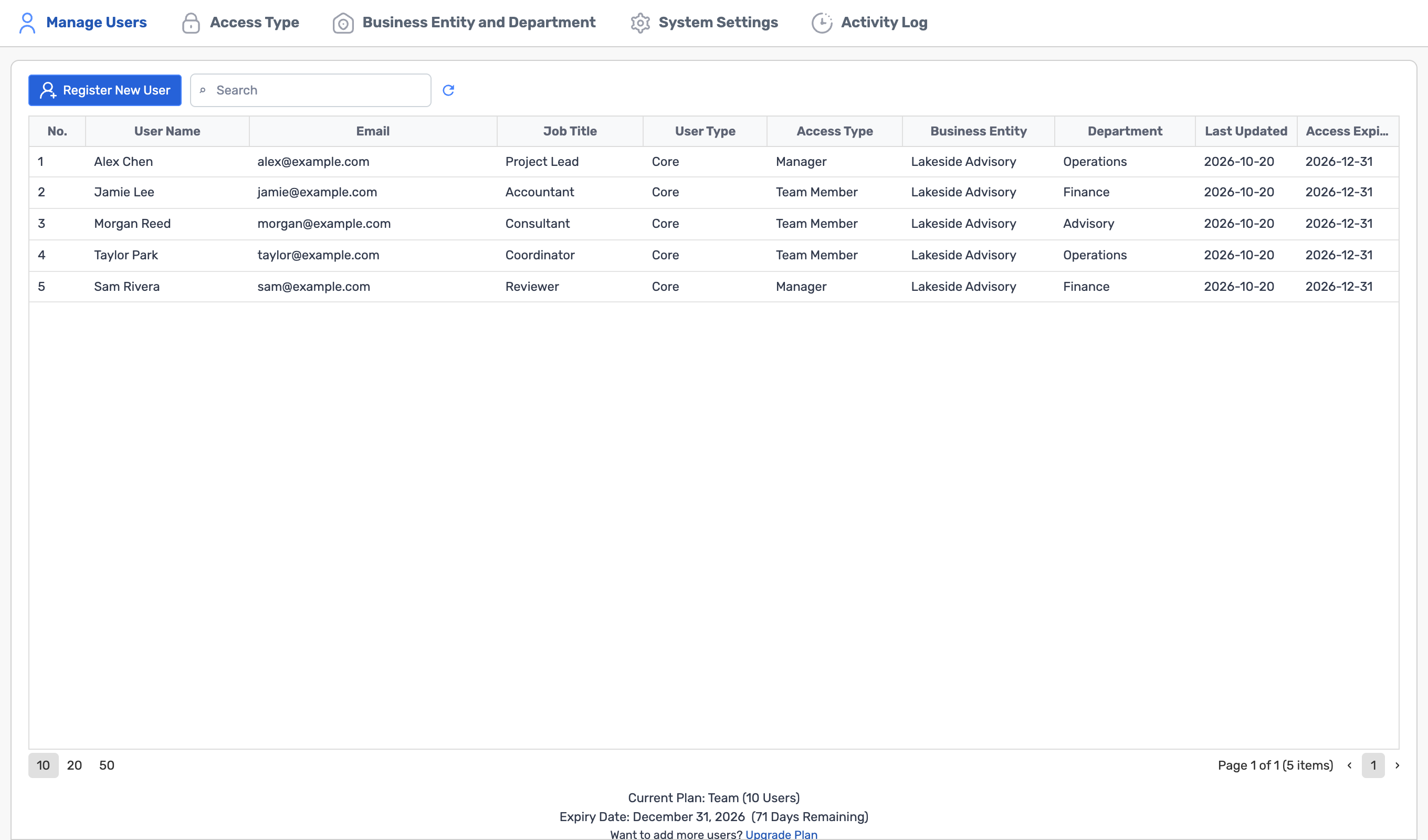
Settings · Manage Users
Settings > Manage Users  
Displays a table with user name, email, role, user type, Access Type, and organization.

Member management, customer access stage, view detailed records remaining

Getting started

Choose how to
run OLOBBY.

You don't have to implement all modules at once. Just identify the people who will use them and the processes you'd like to improve.

OLOBBY Cloud Managed by OLOBBY Your team Client Assigned items Microsoft 365 · Google

Cloud

Start your work space online. Check your onboarding requirements based on user count and collaboration scope.

  • Usage modules and user scope
  • How to share documents with external customers and partners
  • Integration conditions with existing document tools
Your infrastructure OLOBBY Run by your team Your team Client Link + sign-in

On-premises

Install according to your organization's operating environment. Review your on-premises installation environment and applicable scope to align with your existing operations.

  • Installation environment and system operations responsibility
  • Organization's access and retention policy
  • Integration scope and maintenance conditions

Recommended onboarding sequence

  1. 1Determine scope of work
  2. 2Environment and access scope verification
  3. 3Key responsibilities for review
  4. 4Getting ready for organization adoption
Step-by-step preparation guide

Before you
get started

Any other questions? ContactLet us know.

Security and access inquiriesContact sales questionsDifference from other tools

Can I start with only some modules?

Yes. First, identify the people who will be using it and the processes to improve, then start with the necessary modules and gradually expand usage. Specific configurations will be determined during onboarding consultation.

Can you connect to your document tool?

You can review Microsoft 365 and Google Docs integration, as well as desktop document work with Synclobby. Confirm the connection scope tailored to your file formats and usage environment during your consultation.

Which email account can you connect?

Connect Gmail and Microsoft 365 accounts. Attachments are saved as documents in your work folder, and schedules from connected accounts are viewable in Calendar. Check account permissions and usage scope within the connected environment.

Do all users see the same content?

No. The information displayed depends on the logged-in user, the organization's user scope, and role-based permissions. Each role has separate permissions for viewing, adding, editing, and deleting modules.

Yes, tasks created during meetings or conversations are automatically assigned.

Not automatically generated. Tasks are created by team members based on meeting and conversation notes, and assigned with responsible personnel and deadlines.

How do external customers get in?

Log in or complete OTP authentication using the assigned email or access link. The link alone does not grant access to all projects; access is restricted to the requested projects.

Yes, is review completed after submission?

No. We manage customer submission status and our team's review status separately. After reviewing submitted files and response notes, we update the review status.

Yes, after review is complete, a signature request is automatically sent.

Review and signature requests are separate steps. After confirming the review results, the responsible party selects the document and recipient in E-Signature to request the signature.

Yes, multiple people can sign in sequence.

You can set up sequential and non-sequential signatures. To send the same document to many people, use bulk signing with Excel or CSV to import recipients.

OLOBBY Co., Ltd.

OLOBBY provides a workspace where your team can organize project documents and tasks, share files with customers, and complete approvals and signatures.

Address
29F Parnas Tower, 521 Teheran-ro, Gangnam-gu, Seoul, South Korea

Contact sales for a consultation tailored to your team

Let us know your user count and priority workflows so we can outline your onboarding scope and timeline.