


 Synclobby
Cloud files,
desktop tools.
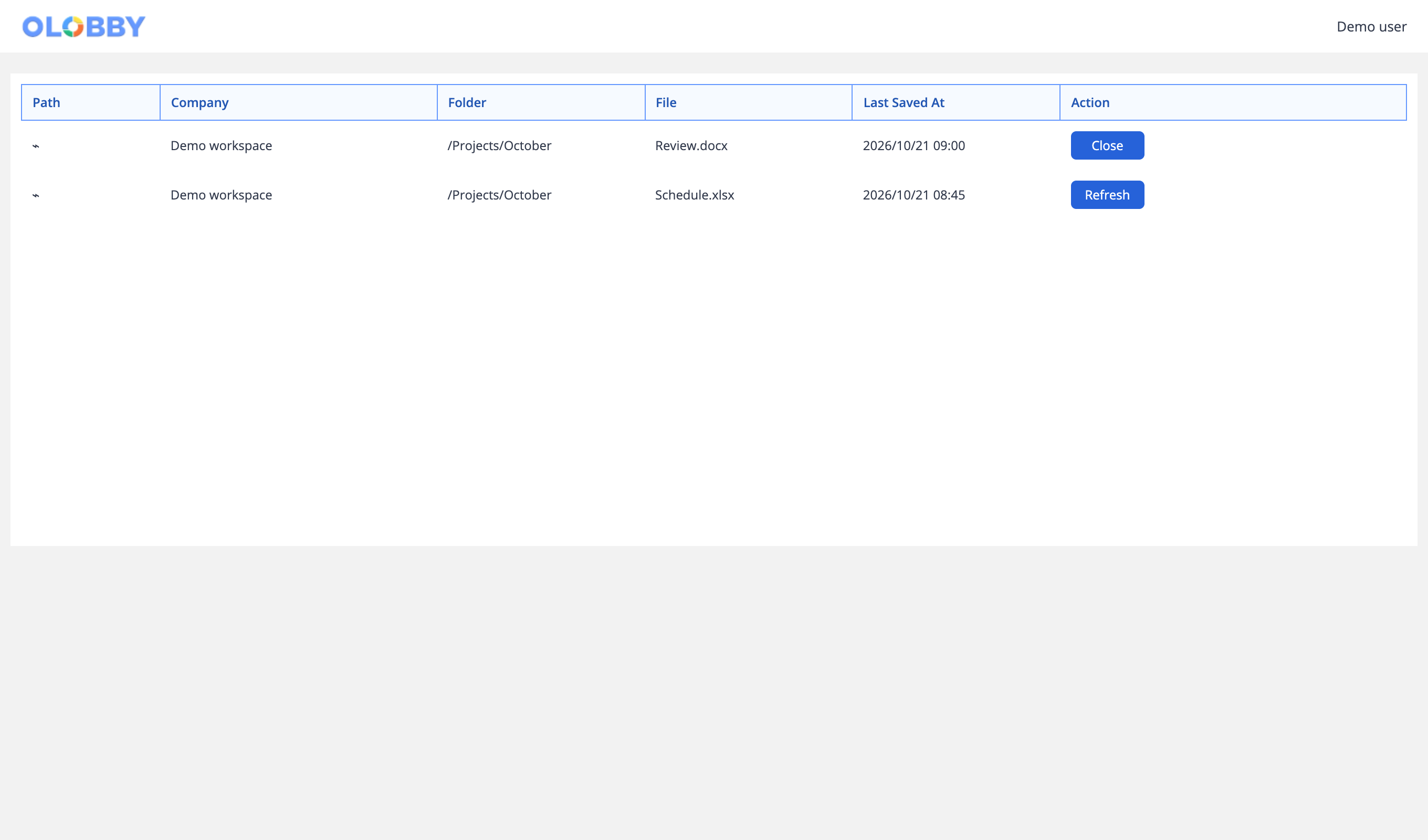
Open the document you selected in the local app and work on it. View the open file and its save status to continue your work seamlessly across web and desktop.
- 1Choose onlineSelect a file in Folder Access and open it in Synclobby.
- 2Edit locallyEdit content in the connected desktop app.
- 3Check save statusCheck save actions and last saved time from the document list.
- 4Close and continueAfter ending the editing session, proceed with follow-up tasks in the OLOBBY document.
- Use this when needed
- Desktop for opening, editing, and syncing documents
- Where to find it
- Profile → Download OLOBBY / Open on Desktop
- Classification
- Administration and specialist work
Work on cloud documents from your desktop
Work in a familiar program
Open selected documents in the local app and work with your usual tools.
See all open documents at a glance
View the list of documents you're currently working on along with their statuses to identify which file to proceed with.
Until work is closed
Check the save status and finalize the action with Release or Cancel to prepare the document for its next use.
Usage steps
How the workflow fits together
Open in the browser, work on your desktop, and check the status.
- 1
Choose online
Select a file in Folder Access and open it in Synclobby.
- 2
Edit locally
Edit content in the connected desktop app.
- 3
Check save status
Check save actions and last saved time from the document list.
- 4
Close and continue
After ending the editing session, proceed with follow-up tasks in the OLOBBY document.
Synclobby features
Convert web documents to local app
Deliver selected OLOBBY document information to desktop editing flow.
- Document and folder identifier
- Open locally by file type
- Maintain OLOBBY account context
Open document list
View and check edit history and save points in a single list.
- Document name and status
- Last saved time
- Action buttons by document
Release and CancelVaries by organization
Check the status of open document processing and proceed with the Release to close and save flow. Cancel is displayed based on the progress status.
- Cancel: Cancellable state
- Last Saved At verified
Change review and auto-save
Check file changes from local files while online and continue automatic saving.
- Check local edit timestamp
- Auto-upload & save
- Update document list
Refresh and RemoveVaries by organization
Refresh the document list and organize local items based on conditions.
- Refresh
- Remove
- Check permissions, document status, and execution results
Backup location link
Provides desktop workflow for accessing edit files and backup folders.
- Open document folder
- Open backup folder
What to decide before onboardingUser · Permissions · Scope of Provision
Operating system and software
Check the app version, operating system, and basic document editing program.
Network & Storage
Prepare procedures to check when connectivity is lost and conditions for online storage and automatic synchronization.
Editing complete and recovery
Check the last save time and close. Also specify the backup location and recovery method.
Synclobby
FAQ
Any other questions? ContactLet us know.
Sync all folders on your computer?
Connects local editing, saving, and closing for OLOBBY documents. Does not guide you to sync with any random folder or entire disk.
What happens if the internet connection drops?
Distinguish between local editing and server-stored versions. After reconnecting, check the last saved timestamp and document content on the server.
Yes, available for both Windows and Mac.
Verify the deployment package and supported versions for your operating system. Also check the open, save, and close workflows in the demo.
Where do you check backups?
You can navigate to the backup folder from the app or tray menu. Set retention period and recovery procedures according to your deployment environment.
Get started with Synclobby.
Let us know who you'll be working with and which tasks to improve first, and we'll guide you on the required modules and implementation scope.