


 Request List
Track requests and reviews
in one place
Set requests, contacts, and deadlines by customer and project. Separate external submissions from internal reviews and track progress item by item.
- Use this when needed
- Request, submit, review workflow for document request management
- Where to find it
- Left menu → Request List
- Classification
- Manage work
Check submissions and reviews item by item
Know exactly what you're getting
Prepare a clear list including request details and reference materials, point of contact, and deadline.
Separate submission and review for viewing
Separate material submission and internal review statuses to identify pending items.
Repeat requests are reused.
Leverage templates and past project requests, and organize numerous items in Excel.
Usage steps
Create a request and review the response
Create a request list and proceed with submission and review.
- 1
Customer & Project Setup
Create customers and projects, and organize your team members and request tabs.
- 2
Configure request list
Enter industry, description, and deadline, or import from Excel template or previous project.
- 3
Account assignment & request delivery
Assign a requester and share the assignment email or designated access link with the external contact.
- 4
Submission • Internal Review
Check respondent's file, notes, and submission status, then update the requester's review status.
- 5
Deadline • Storage • Reuse
Track remaining items with a reminder and save completed tasks for future project reuse.
Request List features
Organize customers and projects together
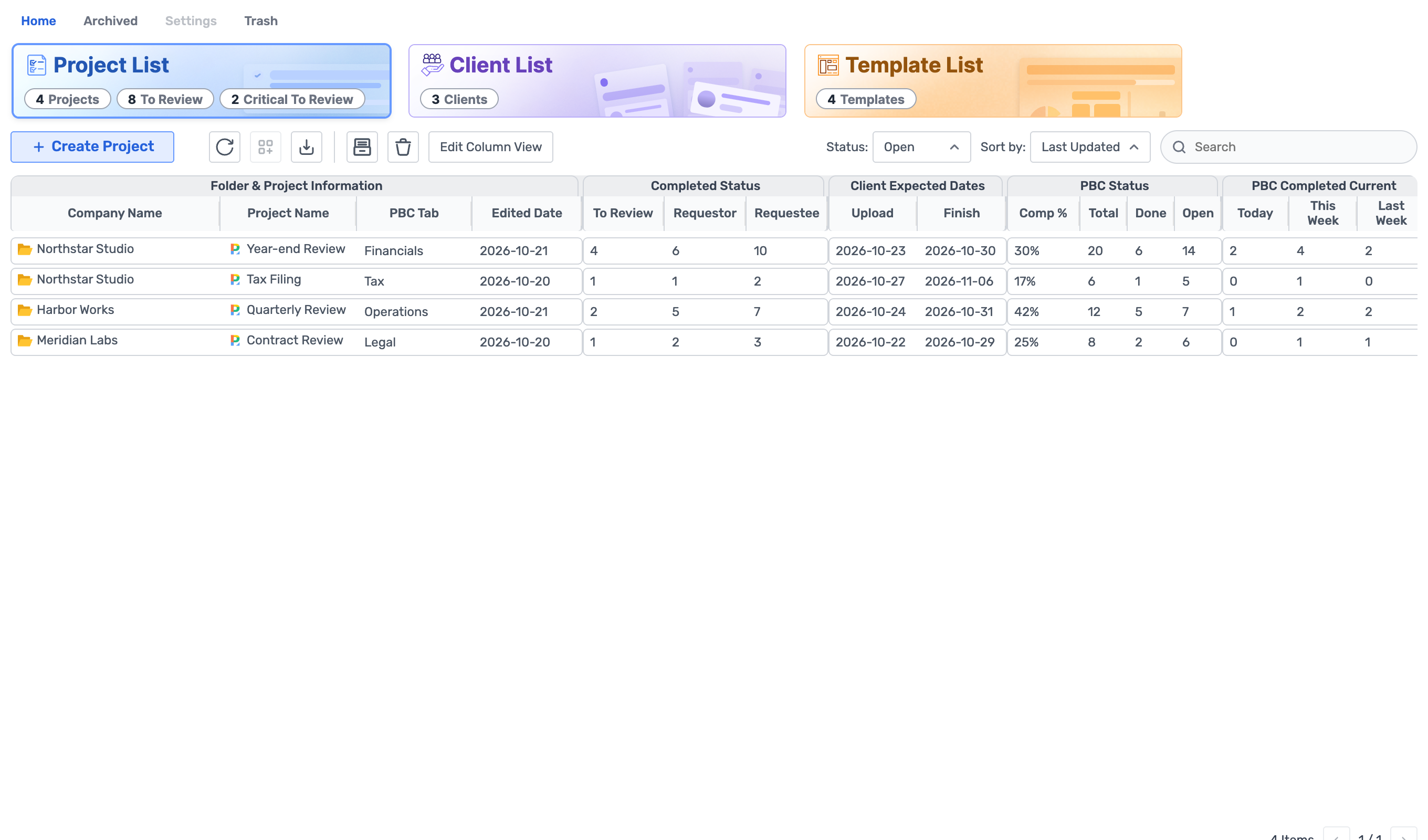
Group document requests by customer and project, track progress by initiative.
- Customer list · create · edit
- Project list and home summary
- Project-specific request tab and assigned team member
By-industry PBC request list
Provide specific reasons and submission criteria for each item.
- Area·Request Description·Notes
- Number and parent/child request structure
- Deadline, priority, requester and responder assignment
Row edit and view mode
Adjusts the grid for handling many items in line with practical use.
- Add · Copy · Paste · Delete
- Undo/Redo for change history
- View toggle and font size adjustment
Import and export in Excel
Leverage your existing request list and download the review list as a file.
- Get Excel request list
- Download Excel template
- Export to grid
Repeat task request template
Manage recurring checklists and apply them to new projects.
- Template creation, editing, and storage
- Template item configuration
- Apply to selected items in the Project/Request tab
Reuse from previous projects and requests
Leverage the structure of existing projects as a starting point for the following tasks.
- Project Request Tab Original Selection
- Create a new project or add a tab to an existing project
- Copy request item and attach copy option
Requestor materials vs. submitted materials
Distinguish between attachment for explanation and submission proof in the same request.
- File counts for requesters and respondents
- View and download attachments by request
- Add, edit, or delete files
Sales assignment and external requests
Assigns requests to your team and external stakeholders, providing access pathways.
- Invite external users · Manage project stakeholders
- Request selection and user assignment email
- Access link issuance, replacement, or cancellation
Track submission and review statuses separately
Distinguish between submission completion and internal review completion to reduce requests.
- Manage requestor and responder statuses separately
- Last response updated time and user
- Review target · Incomplete · All request aggregation entry
Deadline reminder and completion notification
Send request reminders and submission completion notifications.
- Reminder before or on deadline
- Set daily for once or until completion
- Role-based entry links for request email and completion email
Storage and recovery
Separate ongoing tasks from stored materials, check status, and recover as needed.
- Customer & project retention and release
- Request · Request Tab · Account Manager · Project Trash Flow
- Check changes made by other users
AI PBC request assistanceVaries by organization
Document analysis and request list review UI available only in authorized environments.
- Check availability and start
- Continue reviewing analysis and pending tasks
- Use requested list after review
What to decide before onboardingUser · Permissions · Scope of Provision
Request list
Organize customer, project, and industry-specific requests and explanations, deadlines, and priorities.
Internal & external stakeholders
Assign requestors and respondents, and prepare access link and attachment instructions.
Submission and review criteria
Response completed and internal review completed: define meanings, reminders, and retention criteria respectively.
Shared module
Give the team and its client a shared list of requests
Request ListFollowed by 6 modules
 RequesteeSee the description, assignee, attachments, response notes, and submission status carried over from the same request.
 MailProvides role-specific access paths for assignment, deadline, and completion notifications.
 TasksRegister follow-up tasks after document review.
 HomeCheck your project's name, status, and completion rate from Home.
 File ShareChoose file sharing and PBC request management based on your workflow. Request status and permissions are managed per module.
 Audit LobbyReview the evidence collected via data request and have the responsible party use it in the workpaper for the audit project.
Request List
FAQ
Any other questions? ContactLet us know.
Yes, once the respondent completes submission, internal review is also completed.
Submission and reviewer approval statuses are separate. The process involves reviewing submitted files and notes, then consolidating internal review status.
Can you reuse requests from previous projects?
Template application and copy paths for previous projects/requests are available. Check storage support conditions and selection options for attached copies.
How do external parties get access?
You'll receive an assignment email and an access link. After verifying the link status, proceed to login or OTP setup, and you'll need project assignment and permissions.
How do you deliver deadline reminders?
Check daily reminders set for before or on the same day, up to one completion per day. Actual send time and delivery conditions are subject to your onboarding environment.
Yes, AI request creation is available in all environments.
Varying by AI PBC setup and permissions on the server.
What happens to deleted or archived items?
Storage and trash/bin are separate paths. The actions available depend on object type, parent item status, permissions, and current version.
Get started with Request List.
Let us know who you'll be working with and which tasks to improve first, and we'll guide you on the required modules and implementation scope.