


 Notes
Notes your team
can find again
Collect your ideas and meeting notes in one place—right in your desktop and notebook. Share records with your team, review them together, and keep the most frequently accessed content easily accessible.
- 1Bundle into a bookshelfSet up a bookshelf and notebook tailored to your project or team.
- 2Share recordsOrganize background, discussion points, and next actions for each page and tab.
- 3View shared historySeparate received records from shared records to find what you need.
- 4Take note againAccess your records quickly with favorites and list filters.
- Use this when needed
- Meeting notes and team knowledge consolidation
- Where to find it
- Left menu → Notes
- Classification
- Organize and plan
Keep notes in bookshelves and notebooks
Records accumulated by topic
Organizes scattered records into a single structure using bookshelves and notebooks, pages and tabs.
Distinguish view history
I organize my shared records and records shared with me to identify key points for my team to reference.
Frequently accessed content is nearby
Save frequently referenced records to your favorites for quick access in future tasks.
Usage steps
Find a note and share it with a colleague
Organize, tidy up, and pull out together.
- 1
Bundle into a bookshelf
Set up a bookshelf and notebook tailored to your project or team.
- 2
Share records
Organize background, discussion points, and next actions for each page and tab.
- 3
View shared history
Separate received records from shared records to find what you need.
- 4
Take note again
Access your records quickly with favorites and list filters.
Notes features
Organize with bookshelf and notebook
Organize your team's records into themed folders and view the notebooks you need at a glance.
- My Bookshelf's hierarchical list
- Create New Bookshelf: Name and Share With
- Create New Notebook: Name·Folder·Description
View all records on one screen
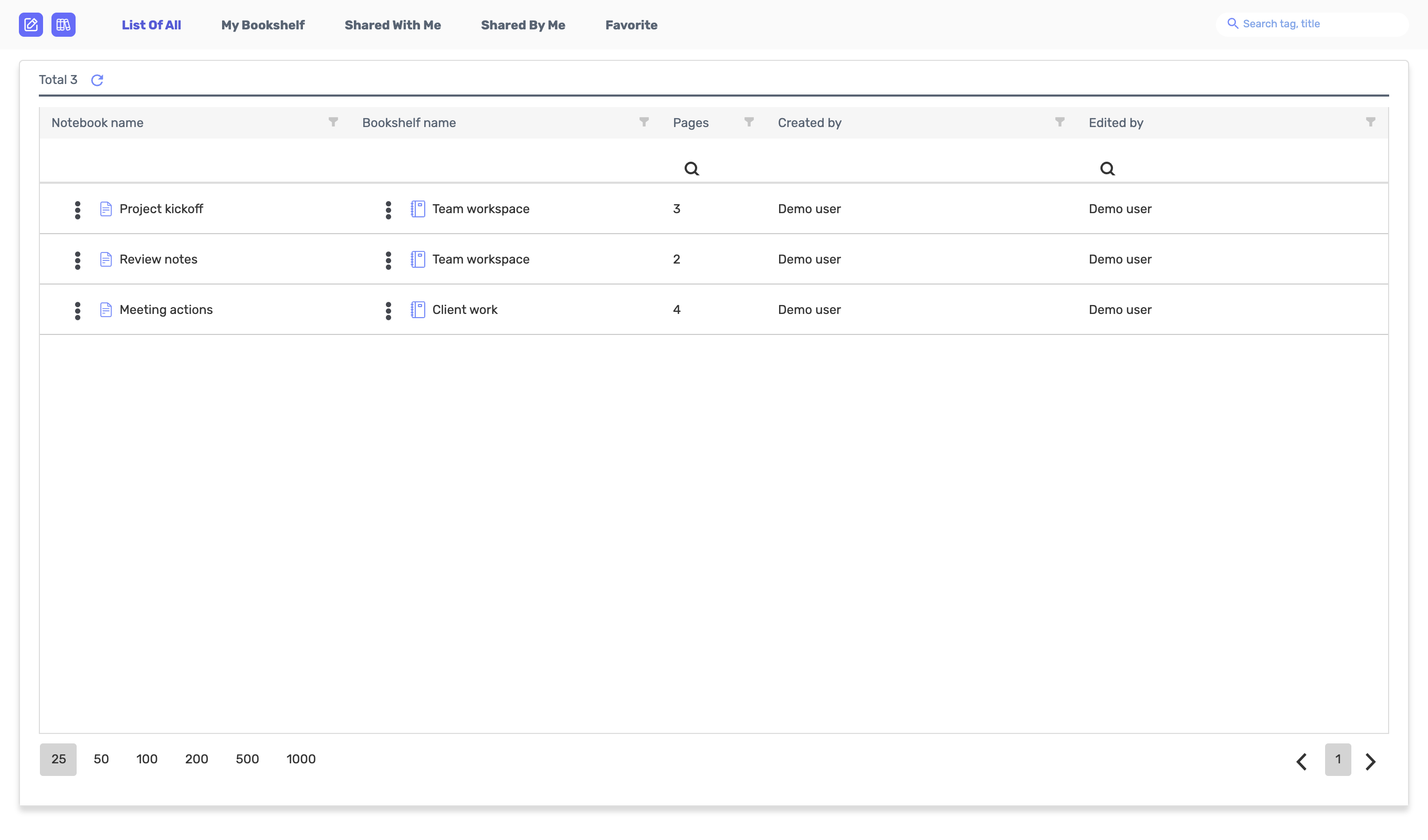
Check notebook name and shelf, page count, and editor.
- List Of All
- Notebook name · Bookshelf name · Pages
- Filter by category and page size selection
Configure records with pages and tabsVaries by organization
Split your records into pages and tabs within one notebook, aligned to each topic.
- Page and tab creation and renaming
- Content editing & saving
- Editing: lock and unlock
View based on sharing directionVaries by organization
Compare records you received with those you shared.
- Shared With Me · Shared By Me
- NoteBook · Page · Tab view
- User selection and sharing scope management
Access your frequently used records
Save your frequently referenced notebooks and pages to favorites.
- Favorite
- Add or remove to favorites
- Check list item creation and editing information
Document retrieval and reuseVaries by organization
Gather materials needed for records, copy and move pages and tabs to organize.
- Local file · OLOBBY document import path
- Copy notebook, page, tab
- Page and tab navigation and deletion
What to decide before onboardingNote categorization and shared members
Structure of knowledge
Set your team's standard for bookshelf, notebook, page, and tab.
Shared record
Distinguish personal and team records, and verify read and edit permissions.
Files to bring
Prepare existing document format and target notebook, copy/move/trash usage guidelines.
NotesFour modules and onward
 Folder AccessSelect your existing OLOBBY document and pull it to the notebook.
 SettingsSplit records by user and shared permissions.
 OL ConnectMeeting agreement details are noted by the responsible party and stored as team knowledge.
 Sticky NotesUse quick notes for fast input and long-term records for permanent storage.
Notes
FAQ
Any other questions? ContactLet us know.
How is it different from Sticky Notes?
Notes organize records into folders, notebooks, pages, and tabs. Sticky Notes focus on quick memos and grouping. The Notes tab in a chat room also has its own features.
How do I find records?
Find by section, shelf, records you've shared, records shared with you, or favorites. Use column filters in the table.
Can you edit together?
You can reference shared records together, and the edit page includes lock and save/restore workflows. This differs from real-time co-editing and requires verification of permissions and usage environment.
Is the notebook shared immediately upon creation?
You can select the shared recipient in the creation template. Actual sharing results and save outcomes can be verified in the product demo within your organization's environment.
Get started with Notes.
Let us know who you'll be working with and which tasks to improve first, and we'll guide you on the required modules and implementation scope.