


 E-Signature
From signature request
to signed document
Prepare the document for signing and specify the recipient and signing location. Use templates for repeated requests, and document-specific status and history for progress checks.
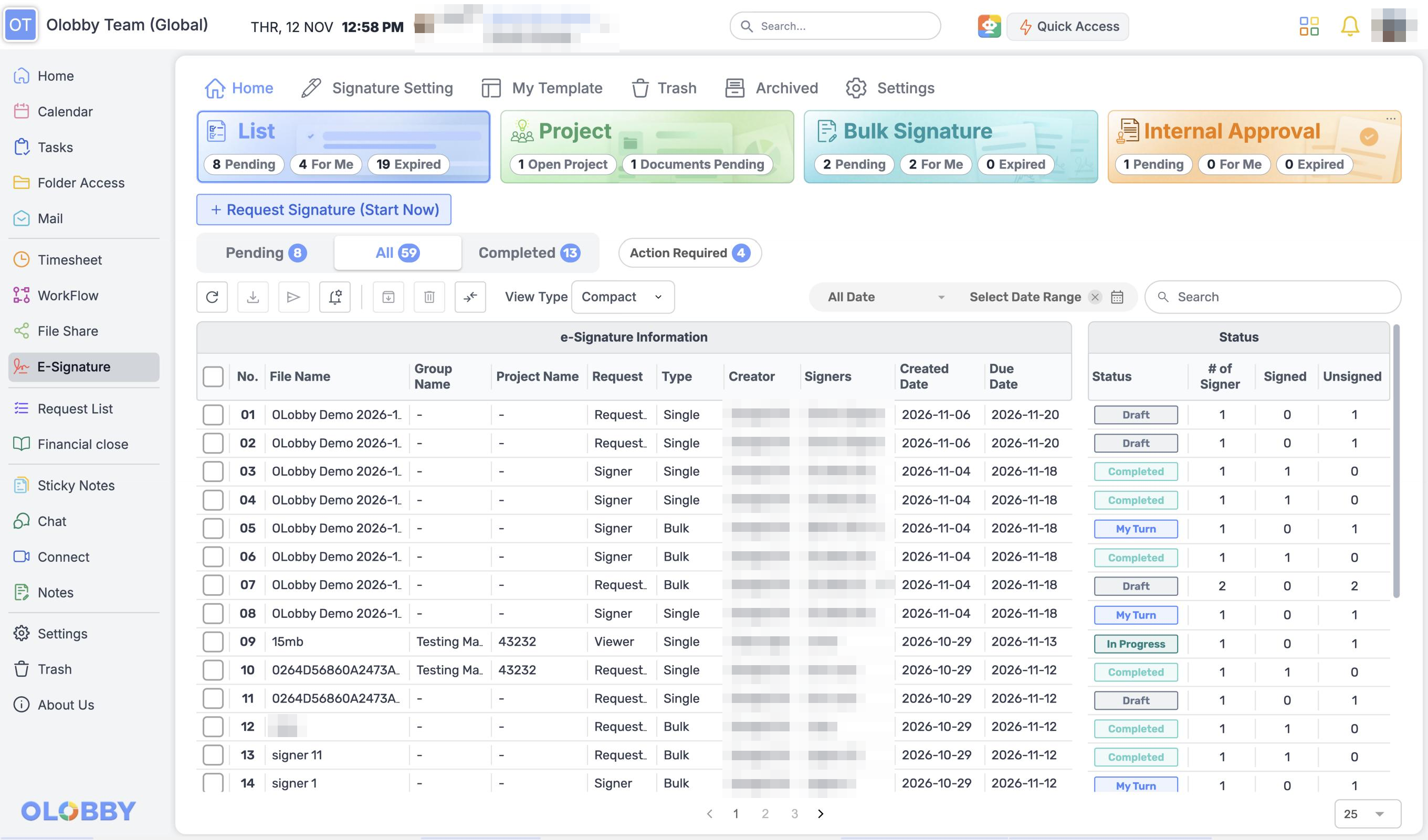
List · Project · Bulk Signature · Internal Approval
- Use this when needed
- Repeated signature requests and document sharing
- Where to find it
- Left menu → E-Signature
- Classification
- Manage work
Choose recipients and track signatures
Who signs where?
Configure recipients and document fields together to clearly define who signs where.
Repeat documents as templates
Use frequently used documents and field configurations for your next request to reduce preparation time.
What happens after your request
Reviewing ongoing documents and requests, tracking document status and history.
Usage steps
From preparing the document to checking its status
Prepare the document and select the person and location for signing.
- 1
Select document or template
Upload a file or prepare a new signing task from a saved template.
- 2
Recipient & Field Configuration
Specify recipient, signature method, and document field inputs.
- 3
Review approval and delivery conditions
Confirm your approval workflow, deadlines, scheduling, and email settings, then request access.
- 4
Track signature progress
Check recipient status and notify or cancel pending items based on conditions.
- 5
Completed version · Certificate storage
Review completed PDF and history, then apply appropriate retention or project classification.
E-Signature features
Document upload and preparation
Upload the original file to prepare the signature document.
- Upload and conversion progress with error notifications
- Select multiple files · Reorder path
- Distinguish between the original file and the edited result
Recipient setup and signer experience
Designate document recipients and processing order, and after recipient authentication, allow signature, temporary save, or rejection.
- Add recipients and assign team members
- Sequential or non-sequential signature
- Self-signature and co-completion document option
- Recipient authentication and document-specific additional authentication conditions
- Signature input temporary save or reject path
Edit signature field
Place the recipient's input location and content directly on the document.
- Signature • Initial • Seal • Signature Date
- Text · Name · Email · Company · Position
- Image or attachment request field
Shipping, expiration, reminder
Summarize request timing and instructions, and manage follow-up for incomplete recipients.
- Reservation dispatch & document expiration settings
- Document-specific email settings
- Re-notify all or specific recipients
- Basic and document-specific reminder settings
- Request a new draft of the required document
Template reuseVaries by organization
Start a new signing task with recurring documents and recipient setup.
- Template create, save, edit
- Signature field and document settings reuse
- General/Volume/Approval Template Path
Bulk signature
Organize recipient lists and manage multiple signature requests by work unit.
- Get Excel/CSV recipients
- Error verification and list editing by recipient
- Progress, retry, pause, row-level cancel
Internal approval and approval chain
Internal Approval has separate views for all documents, items awaiting your approval, requests you have sent, templates and approval sequences.
- Create and edit approval chains
- Designate or remove approval lines in documents
- Check approval, return, and progress status
Project and team permissions
From the home project card, navigate to groups and project areas. Manage folder additions and project team permissions together.
- Project configuration under group
- Project team members and permissions
- Project template and signature document management
Signature & Stamp Assets
Manage recurring signatures and stamps and use authorized assets.
- Signature and stamp generation and search
- Distinguish your owned assets from available assets
- View and update sharing recipients
Confirm completion document and history
Distinguish and verify signature results from in-progress results.
- Part signature PDF vs. completed PDF
- Download signature certificate
- PDF Verification Screen
Document retention and trash bin
Stores completed tasks and provides next steps based on user roles.
- Shared document storage and individual user storage
- Move, recover, or permanently delete trash path
- Task restrictions based on status and permissions
Requestor document review assistanceVaries by organization
Requestor uses AI review assistance within allowed documents and provided environment.
- Currently checking file, session, and access permissions
- Manual review entry
- AI review and signature distinction
What to decide before onboardingDocument type · signing method · authentication conditions
Documents and signers
Specify original file, recipient order, required input fields, and authentication method.
Shipping conditions
Email content, expiration, reminder, internal approval, and bulk sending: verify recipient lists.
Completion result
Permissions to store and download completed PDFs and certificates. Specify how documents will be used after completion.
E-SignatureFollowed by 5 modules
 SettingsSelect team members and recipients using organizational user information.
 MailRequest a signature using a sending account and document-specific instructions.
 Folder AccessPrepare the original for signing and use the completed PDF as part of your required workflow materials.
 HomeCheck signing status, documents awaiting your review, and expiring documents.
 WorkFlowUse reviewed documents for signature requests. Document review completion and signature dispatch are separate steps.
E-Signature
FAQ
Any other questions? ContactLet us know.
Yes, multiple people can sign in sequence.
You can set up sequential or non-sequential signatures. With non-sequential general signatures, you can also select the option to provide the document to multiple recipients, and verify recipient details and permission conditions.
Can you request the same document for many people?
Prepare repeat requests with bulk signing and Excel/CSV recipient imports. Check your organization's settings for recipient limits and usage scope.
Can you set up both internal approvals and external signatures?
Manage document review and approval stages within internal approval workflows. After approval, signature sequence must be verified based on document type, template, and settings.
Check completion documents and signature history in the document workflow section.
Distinguish between in-progress PDF, completed PDF, and signature proof. Verify completion status and access permissions, then download.
Can all signers use AI review?
Requestor review and signer access scopes differ. AI review is used within an environment where access permissions and provisioning settings are verified.
Yes, the completed PDF is automatically saved to the original OLOBBY folder.
Completed PDF can be verified and downloaded from E-Signature. Separate verification is required to confirm automatic saving to the existing file folder.
Get started with E-Signature.
Let us know who you'll be working with and which tasks to improve first, and we'll guide you on the required modules and implementation scope.