
 SettingsActivity history
- Authorized manager views activity log list
- Starting point for managing change tracking
- Display menu items only for authorized users
Organize and plan
 HomeSee today’s tasks, appointments, signature requests and document requests.
 Folder AccessOrganize project files and start a task or review from a document.
 CalendarPlan meetings and track task deadlines on one calendar.
 NotesOrganize notes on bookshelves, share them and save favorites.
 Sticky NotesCapture a quick note and find it later.
Manage work
 TasksTrack each task alongside its owner, due date and files.
 WorkFlowSee the review steps and status for each document.
 E-SignaturePrepare documents, choose recipients and track signatures.
 Request ListRequest client documents and review each submission.
 TimesheetRecord and submit time by project.
Communicate and share
 MailRead messages and manage attachments across connected accounts.
 OL-ChatKeep messages, threads, files and notes together in a chat.
 OL ConnectMeet with teammates and external collaborators.
 File ShareSend files, request documents and manage sharing links.
 RequesteeUpload files and add notes to the requests assigned to you.
Administration and specialist work
SettingsSet up people, roles and access across your organization. Document and email integrationsOpen project documents in Microsoft 365 or Google editors.
 SynclobbyOpen cloud files with the applications on your desktop.
 Audit LobbyKeep workpapers, review comments and project progress together.
Security
Regardless of external customers or document exchanges, access rights are determined by your organization, roles, and project assignments. Switch the view and check it out.
OrganizationSettingsBusiness, department, member
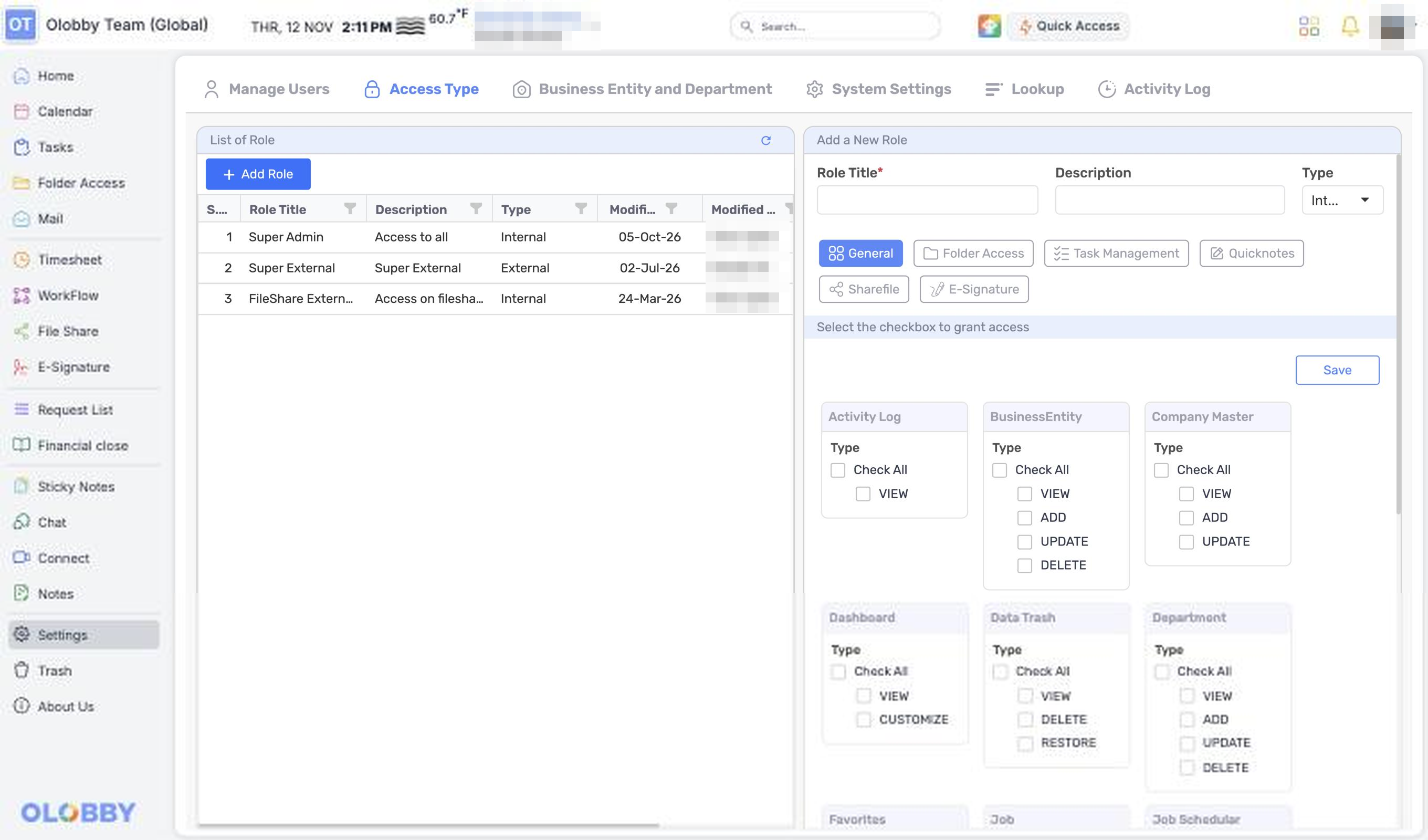
RolePage and task permissions: view, add, edit, delete
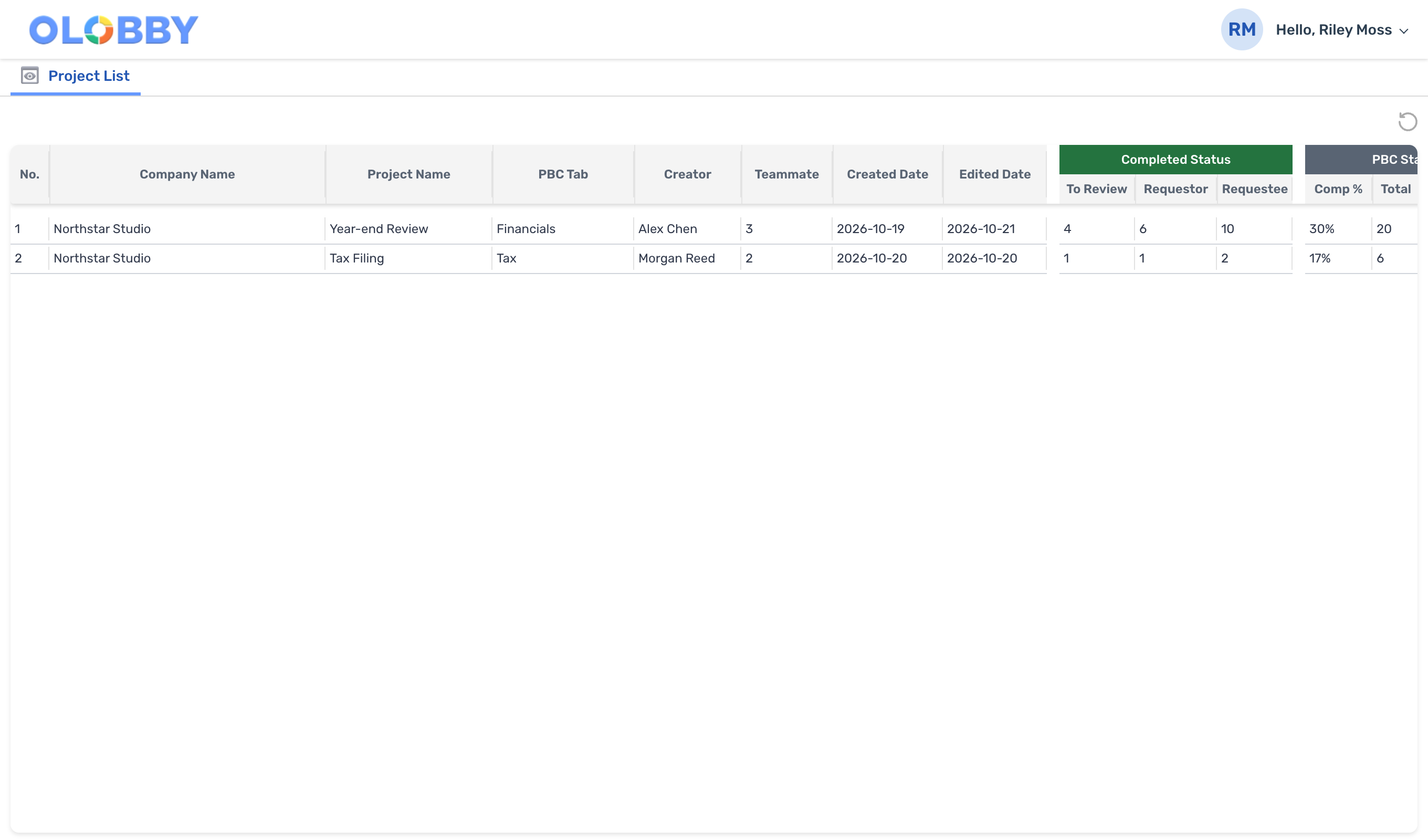
ProjectAssigned contact and external users
External customersAssignment email or access link → login or OTP authentication → assigned request
Team members see requests, review status and folders for their assigned projects according to their role.
Settings
Set access scopes by member, department, and role. Manage the organization's common standards and individual language, time zone, and editing environments together.
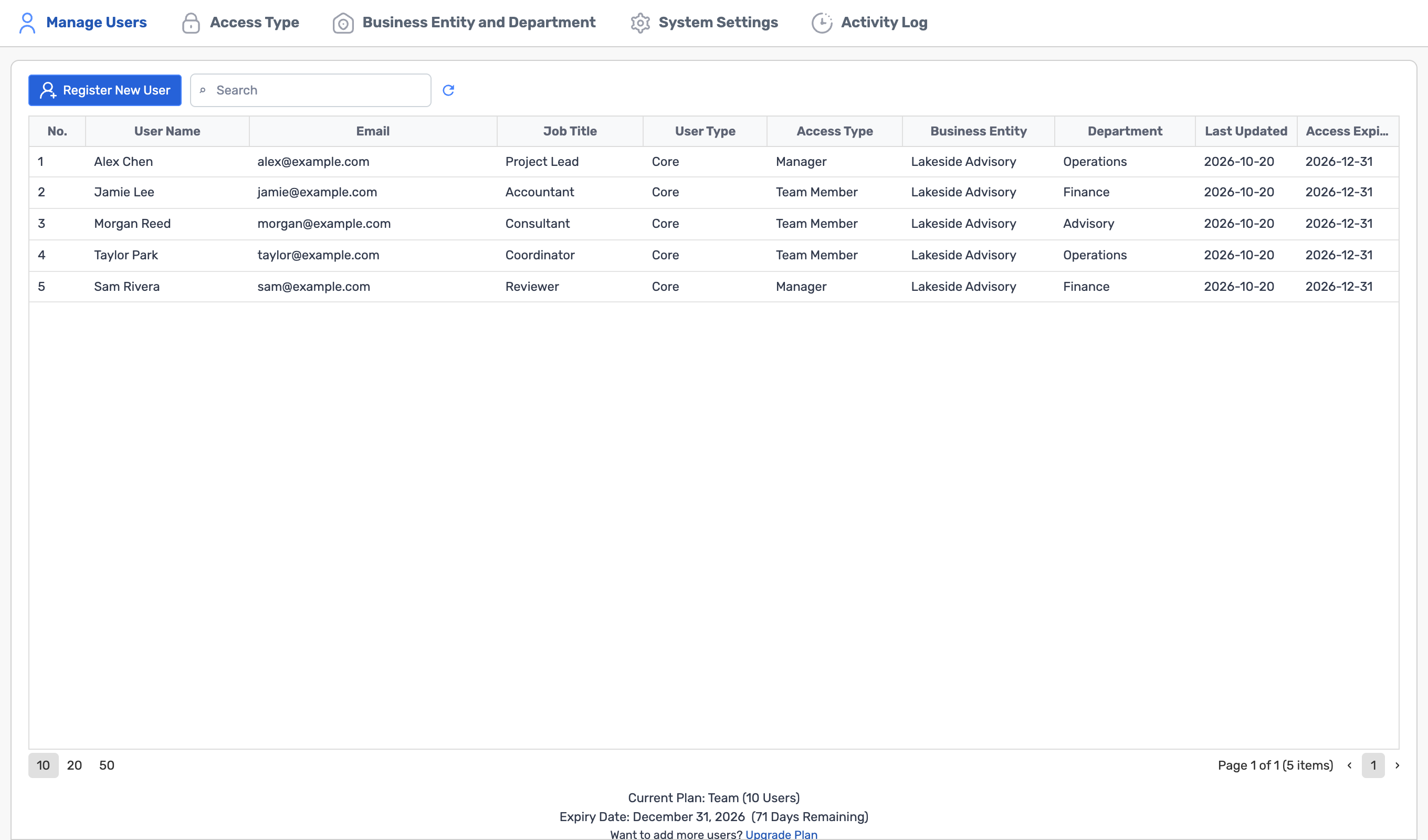 Manage UsersRegister, edit, and assign roles to team membersAccess TypeRole-based page & task permissionsBusiness Entity and DepartmentBusiness and department structureSystem SettingsOrganizational Common SettingsActivity LogAuthorized manager views activity log
Manage user lists and handle registration, editing, and role assignment.
Configure roles based on page and task-level permission lists.
Leverage organizational structure for task access assignment.
Query and save organization-wide common settings.
Authorized manager views activity log.
External customer access
Access links sent to external parties can be issued, replaced, or revoked. Customers access only the requests assigned to them after authentication.
Once assigned, send an assignment email to the external contact or provide the access link.
Check the link status and target account. The link alone does not grant access to all projects.
Log in or go through OTP procedure. If the existing account differs from the target account, verify account transition.
See only the request description, deadline, and attached materials from the requester assigned to you.
Upload a file and response note for each request, then mark as submitted.
Remaining records
Management changes are logged in activity history, document submissions are recorded with the last editor and timestamp, and signatures are saved as stage-by-stage PDFs and certificates.
SettingsActivity historyRequesteeSubmission recordE-SignatureSignature evidenceRecipients sign after authentication. You can set additional authentication conditions per document.
E-Signature detailsOperating environment
Choose between cloud and on-premises based on your organization's access, retention policies, and operational responsibilities. Integration environment and scope are reviewed together during onboarding consultation.
View introduction options in detailWhat to align with your organization's security policy ContactLet us know.
After verifying the link's status and account, you'll gain access to your assigned request. Simply accessing the link does not grant access to all projects.
You can view and download the attachment for your assigned request.
We manage respondent submission and requester review statuses separately. Internal verification may still be pending after submission.
You'll receive an assignment email and an access link. After verifying the link status, proceed to login or OTP setup, and you'll need project assignment and permissions.
User, role, organization, system settings, and activity logs are governed by role-based access permissions.
Separate from common users and roles, there are organization- and project-level assignments for Timesheet, E-Signature, Audit, etc. Configure module-level access scopes together.
Distinguish between in-progress PDF, completed PDF, and signature proof. Verify completion status and access permissions, then download.
We'll provide tailored setup and onboarding based on your external customers' access scope, role definitions, and operational environment.