


 Tasks
Every task has
an owner and a due date.
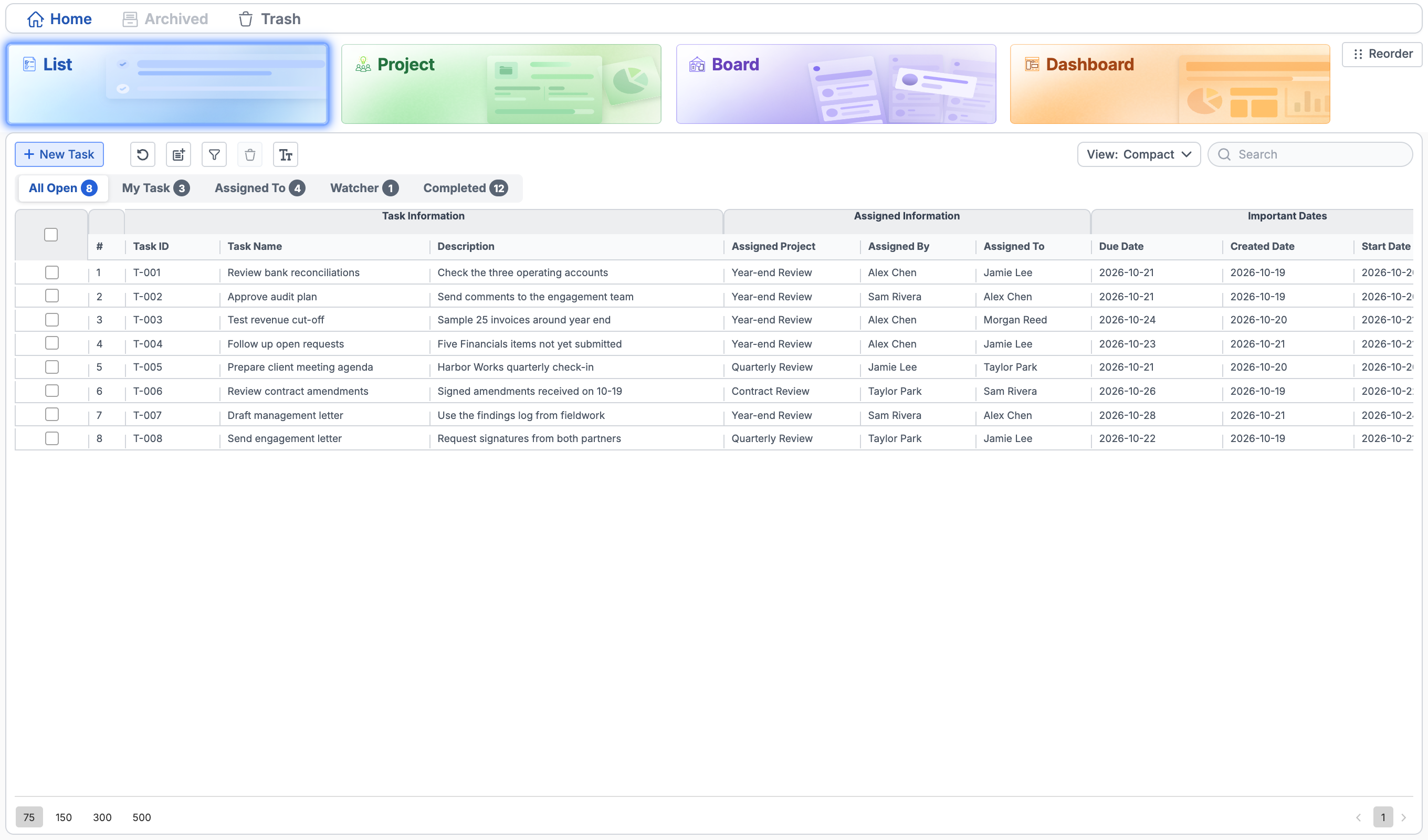
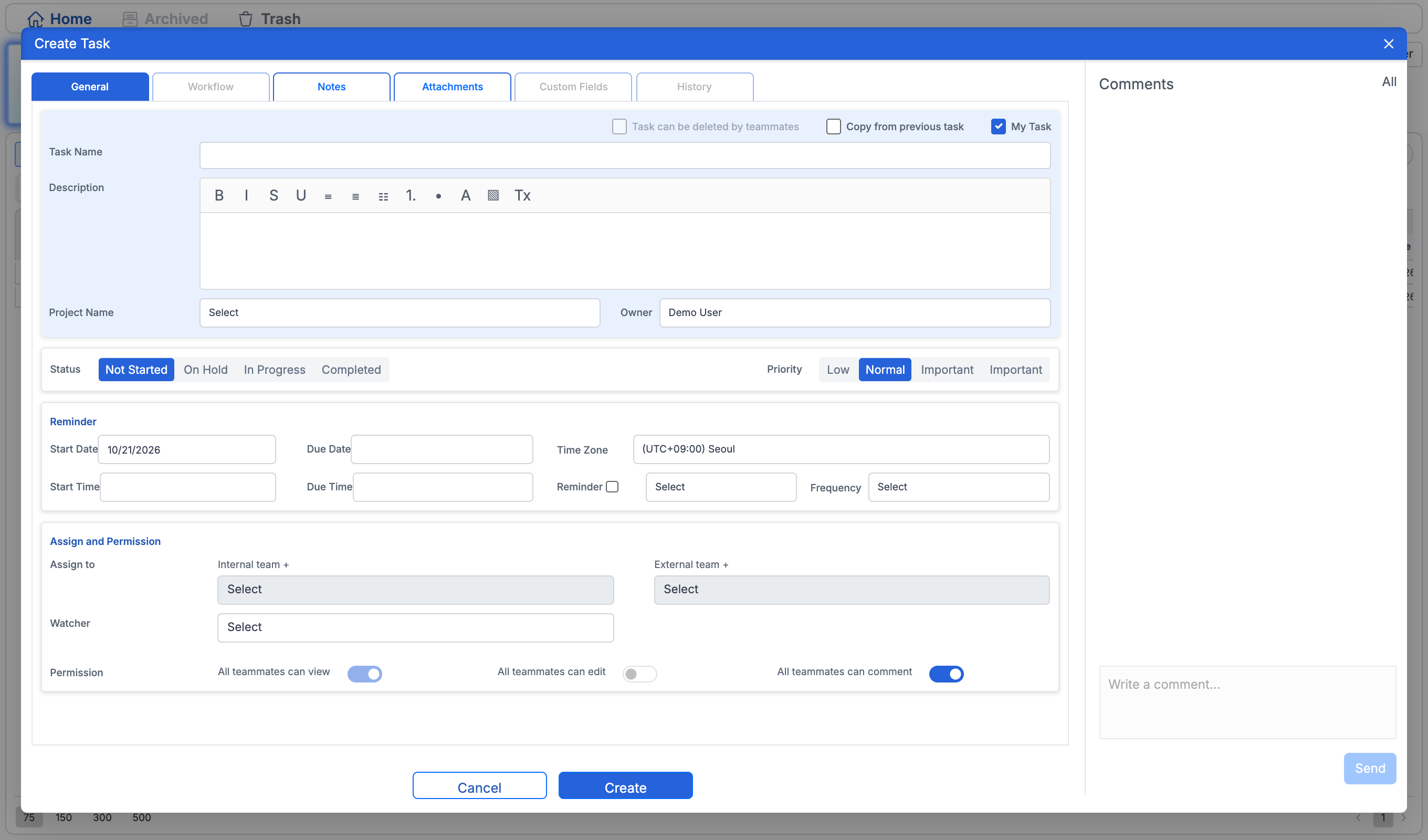
Divide project tasks and assign owners with deadlines. Track progress in the list and board, and gather required files and feedback into each task.
- Use this when needed
- Team project ownership and progress management
- Where to find it
- Left menu → Tasks
- Classification
- Manage work
Give every task an owner and a due date
Who's in charge?
Define subtasks with assignees, references, and deadlines, then break down large projects into individual execution units.
Team viewing progress
In lists, view detailed content; in boards, track task progress by section and share the same status updates.
Notes and materials beside the workflow
Aggregate attached files, existing work documents, and comments for reference alongside task descriptions.
Usage steps
From project kickoff to the next task
Break down the project and tackle one piece at a time.
- 1
Project setup
Set up space, projects, and team members, then configure required fields.
- 2
Execute tasks by work unit
Connects owners, references, and deadlines to tasks and subtasks.
- 3
Gather materials and feedback
Connect documents and attachments, then summarize review items in a comment.
- 4
Update status and close
Manage status on lists and boards, and decide whether to archive after completion.
Tasks features
Space Project Structure
Organize your team's work by dividing it into spaces and projects, and set up folders with assigned team members.
- Space Management
- Project & folder setup
- Team member assignment
List and board
Compare details in the table and organize tasks by section in the board.
- Worklist
- Section creation · name change
- Move cards • Reorder
Tasks and subtasks
Break down big tasks into actionable subtasks and connect them to owners and stakeholders.
- Create or edit workflows
- Parent-child tasks
- Owner • Reference
Deadline, priority, status
Manage start and end dates, priority, and current status together.
- Start/End Date
- Priority
- Status filter
Team-based view criteria
Distinguish between my tasks, assigned tasks, referenced tasks, and completed tasks.
- My tasks
- Assign to another person
- Reference & completion tasks
Custom columns for your workflow
Add fields and groups needed for your project and reorder the columns.
- Add field/group
- Edit field value
- Display and sort saving
Link file to task
Link local attachments and OLOBBY documents together to view necessary materials during work.
- File attachment
- Connect to existing documents
- Disconnect • Download
Comments and conversation context
Follows discussion threads and read receipts to track feedback and follow-up confirmations.
- Comment · Reply
- Comment edit·delete
- reads · comment count
Trash bin and retention periodVaries by organization
Manage items deleted from Trash.
- Trash entry
- Permissions and targets for recovery and deletion
What to decide before onboardingTask classification, assignee, progress status
Project structure
Define criteria for distinguishing spaces, projects, and folders, and specify team member assignments.
Baseline for work
Prepare common rules for Status, Deadline, Priority, and Custom columns.
Collaboration and organization
Check handling guidelines for document linking, assignees & references, comments, completion, and archiving.
Shared module
Keep supporting files and deadlines with the task
TasksFollowed by 7 modules
 Folder AccessConnect existing OLOBBY documents to your workflow for easy reference.
 CalendarCheck start and due dates for tasks and projects on the calendar.
 HomeView the list and count of your tasks, assigned tasks, and referenced tasks.
 OL ConnectRegister follow-up tasks assigned in the meeting as individual actions for execution.
 Request ListRegister follow-up tasks after document review.
 TimesheetRecord time spent on tasks based on project work. Different from automatic time tracking for regular activities.
 OL-ChatRegister follow-up tasks directly in the work module.
Tasks
FAQ
Any other questions? ContactLet us know.
Yes, you can use both lists and boards.
In the table, you compare task details; in the board, you move cards and organize them by section.
Yes, you can have different columns for each project.
Add custom fields and groups needed for your project, and configure column display and order.
Do you need to re-upload your OLOBBY file?
You can connect to existing work documents and attach new files from your computer.
Yes, meeting results are automatically converted into tasks.
Follow the action items from the meeting to register tasks with the responsible party.
Get started with Tasks.
Let us know who you'll be working with and which tasks to improve first, and we'll guide you on the required modules and implementation scope.