


 Document and email integrations
Open your usual editors
from OLOBBY.
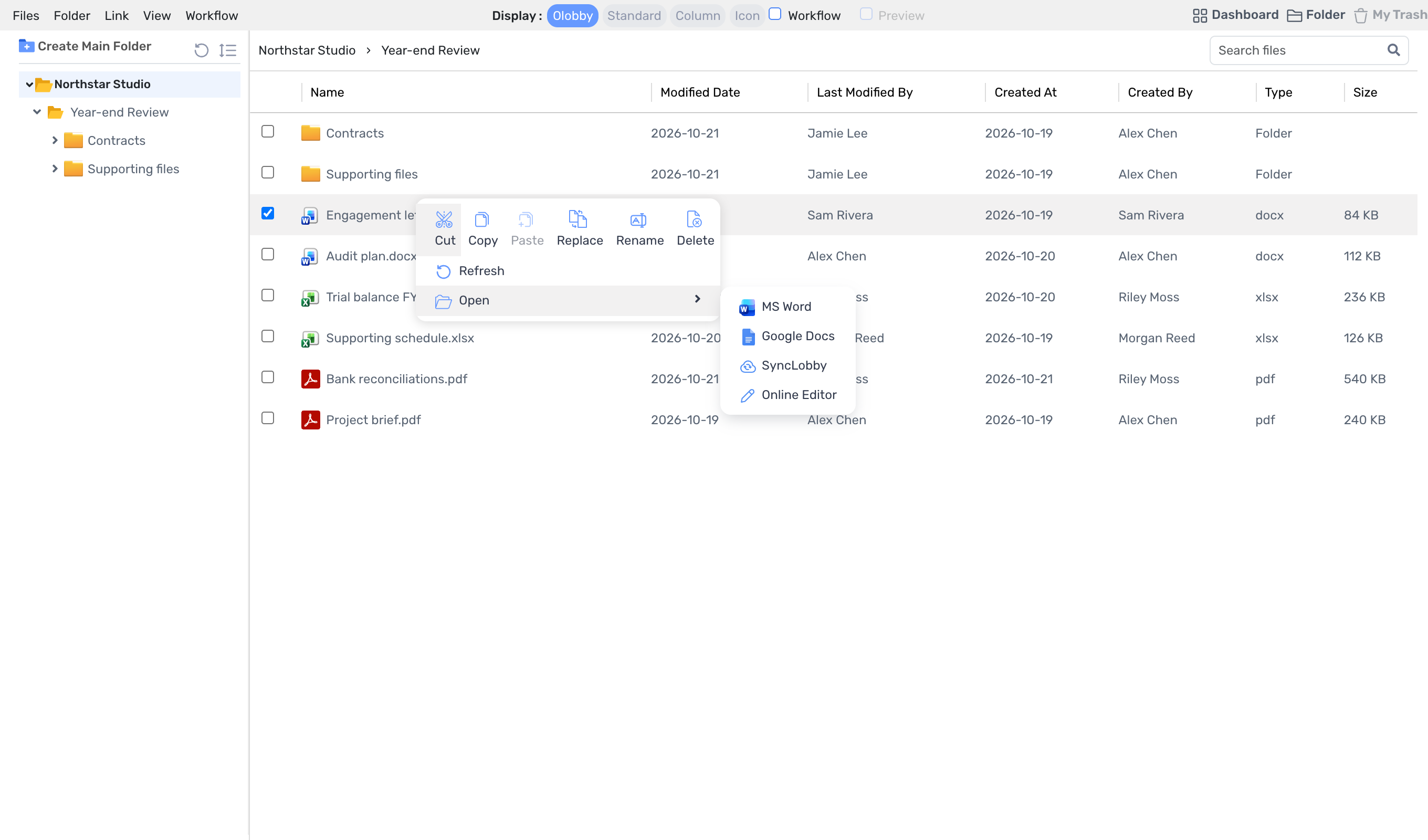
Select an OLOBBY document to edit in Microsoft 365 or Google editing tools. Continue editing while maintaining the folder context and workflow context.
- Use this when needed
- Microsoft 365 & Google Integration and Document Workflows
- Where to find it
- Folder Access → Open Document / User Settings → Account Connection
- Classification
- Administration and specialist work
Use familiar editors and email accounts
Where you found the document
Open selected files from a folder in the editor to connect document searching with editing.
Editing tool you're used to
Use Microsoft 365 or Google's familiar online editing environment.
Editing that flows with your workflow
Maintain the relationship between edited documents and the original folder, and track edit and save status.
Usage steps
How the workflow fits together
Choose a document and continue with a familiar editor.
- 1
Document selection
Select a file to work on from your OLOBBY folder.
- 2
Open editor
Enter through Microsoft 365 or Google Workspace based on file type and user account.
- 3
Document editing
Edit session content and check save status.
- 4
Connect with original
Move through file upload, document updates, and close flow, continuing in OLOBBY documents.
Document and email integrations features
Maintain file context on entry
Passes the selected file and original folder identifier to the edit session.
- Connect document with original folder
- Maintain organizational pathways
- File name and extension delivery
Microsoft 365 document editing
Open Office files in the supported browser editor.
- File type distinction: Word, Excel, PowerPoint
- File information inquiry
- Read/Write and Edit Lock
Edit Google Workspace document
Connect the document selected in OLOBBY to Google editing tools.
- Access check before document opening
- Connect to Google editing screen
- Edit connection status and change notifications
Save results to original document
Upload an edit file to update the information from the OLOBBY original document.
- Preserve original file/folder connections
- Edit file upload
- Update document storage information
Editing complete and session handled
Manage document closing and sync/edit lock status together.
- Synchronize before and after closing
- Check active edit session
- Close and organize file call
User access verification
After verifying the user session, proceed to the external editor.
- Verify login status and maintain session
- Google Drive access error distinction
- Access denied. Please check your credentials and try again.
What to decide before onboardingUser · Permissions · Scope of Provision
Account and Terms of Use
Verify your Microsoft 365 or Google account, organization license, and external service consent scopes.
Document type
Open and edit actual Word, Excel, PowerPoint files to verify display quality.
Save & co-edit
Completed saved. Check for conflicts or permission expiration if you need to reopen the original or edit.
Shared module
Open a project file in the editor you already use
Document and email integrationsFour modules and onward
 Folder AccessEdit and save the document at its original location in OLOBBY.
 SettingsEdit the document using the basic editor and verify account access status.
 SynclobbyChoose either browser editing or local program editing to suit your document and environment.
 MailPrepare permissions for document editing and email account connection, and use familiar tools together.
Document and email integrations
FAQ
Any other questions? ContactLet us know.
Does your entire personal drive sync?
Flow for opening and saving a document from OLOBBY in an external editor. Separate from full synchronization with personal OneDrive or Google Drive.
Yes, multiple users can edit simultaneously.
Editor locking and session behavior vary by file format. Review co-editing and saving results using your actual documents and account.
Yes, changes are reflected in your OLOBBY document once saved.
Upload edit results and refresh the original document. Check Save completed and reopen original.
Yes, we support all file formats.
Editing tools vary by document, spreadsheet, or presentation type. Verify required file extensions and conversion quality upon onboarding.
Get started with Document and email integrations.
Let us know who you'll be working with and which tasks to improve first, and we'll guide you on the required modules and implementation scope.