
Document requests and signatures
Two ways to work

Compare the process of requesting, reviewing, and signing materials using general tools versus OLOBBY.

Service comparison is Based on publicly available information.

Comparing client document workflows26 seconds · Silent · Work example

From client requests to time records

Select a step to compare the typical tool combinations for general workflows and OLOBBY, and where to check progress status.

General tool combo

Organize requested materials in the request form and attach them in the email.

  • Spreadsheet request form
  • Email

View progressEmail sent with request form attached

First stepPrepare a request form and email separately

OLOBBYRequest List

Create a request item from the Request List and set an assignee and deadline.

View progressStatus by request item

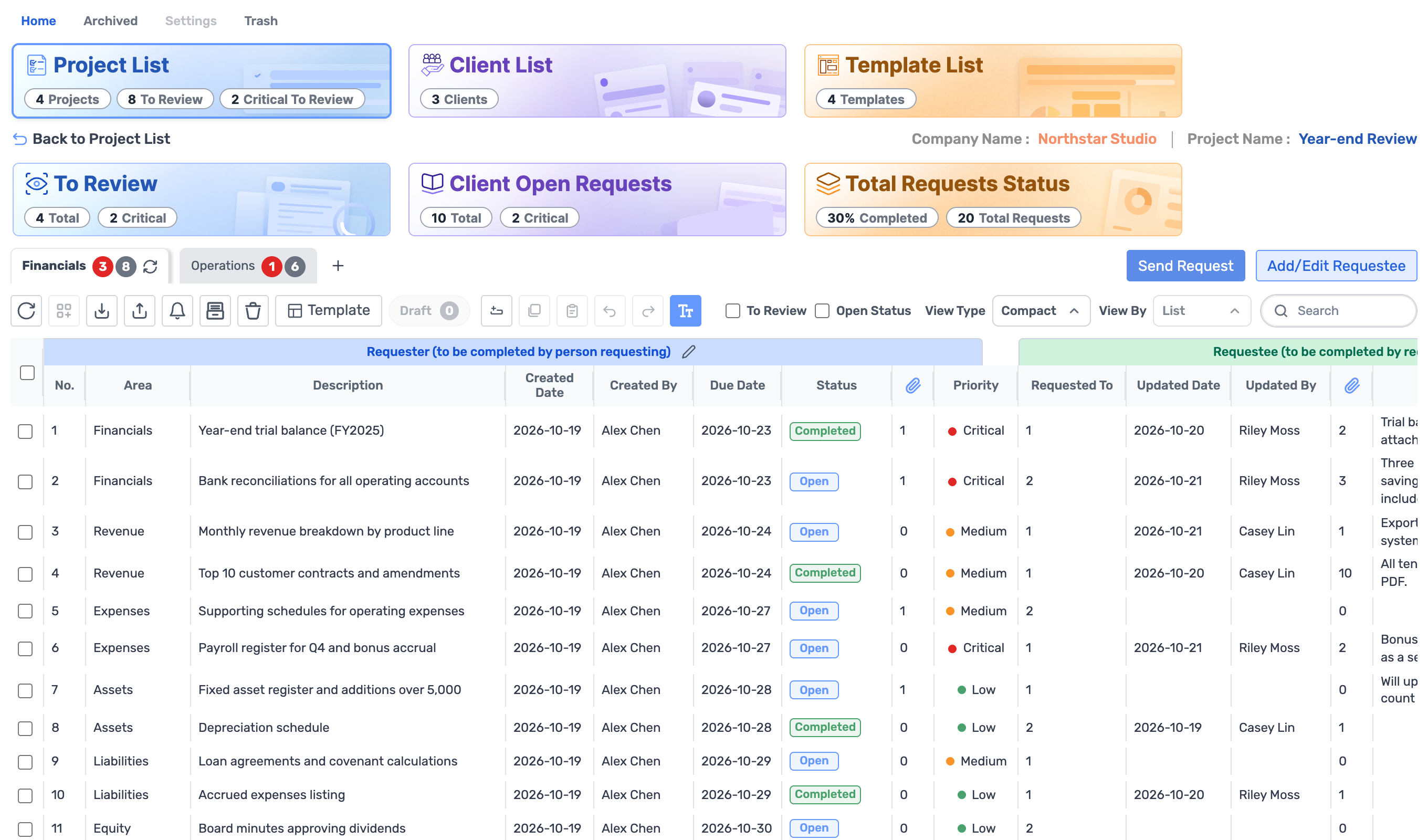
Request List · your teamSample data
Request List item screen. Each request item has a field, description, creation date, deadline, status, and priority.

General tool combo

Customers upload files to a shared folder and notify via email which request the file corresponds to.

  • Shared folder link
  • Email

View progressShared folder and mailbox

When proceeding to the next stepShare the link via email

OLOBBYRequestee

Customers submit files and notes for each request item as Requestee.

View progressCustomer status for same request item

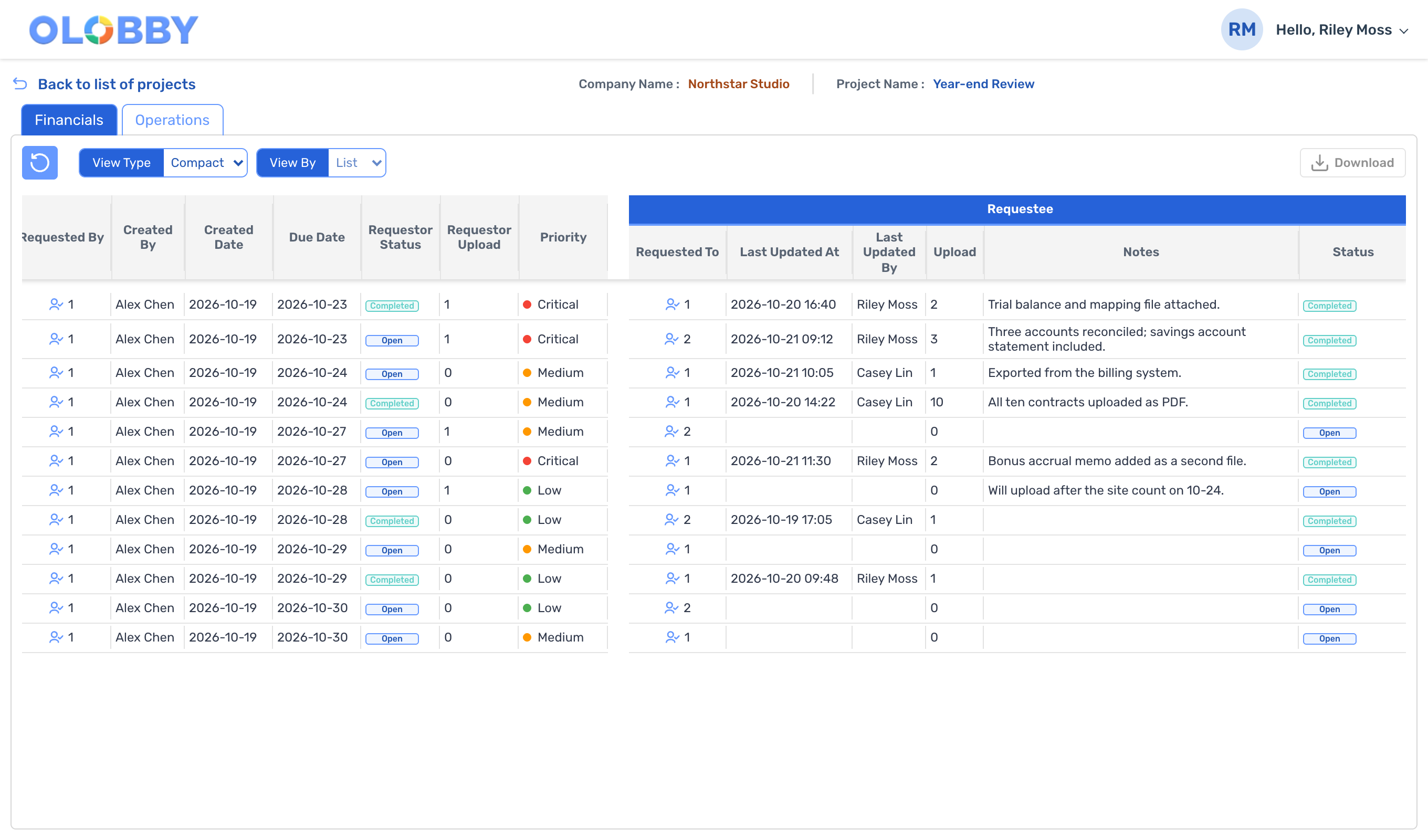
Requestee · Customer ViewSample data
Customer's Requestee screen. Displays upload count, customer notes, and status per request item.

General tool combo

Match each file in the folder with a request form one by one, and manually update the status column.

  • Spreadsheet request form

View progressRequest form status column

When proceeding to the next stepFolder vs. Request Form

OLOBBYRequest List

Customer submission and team review statuses are displayed side by side for each item.

View progressSubmission and review status by item

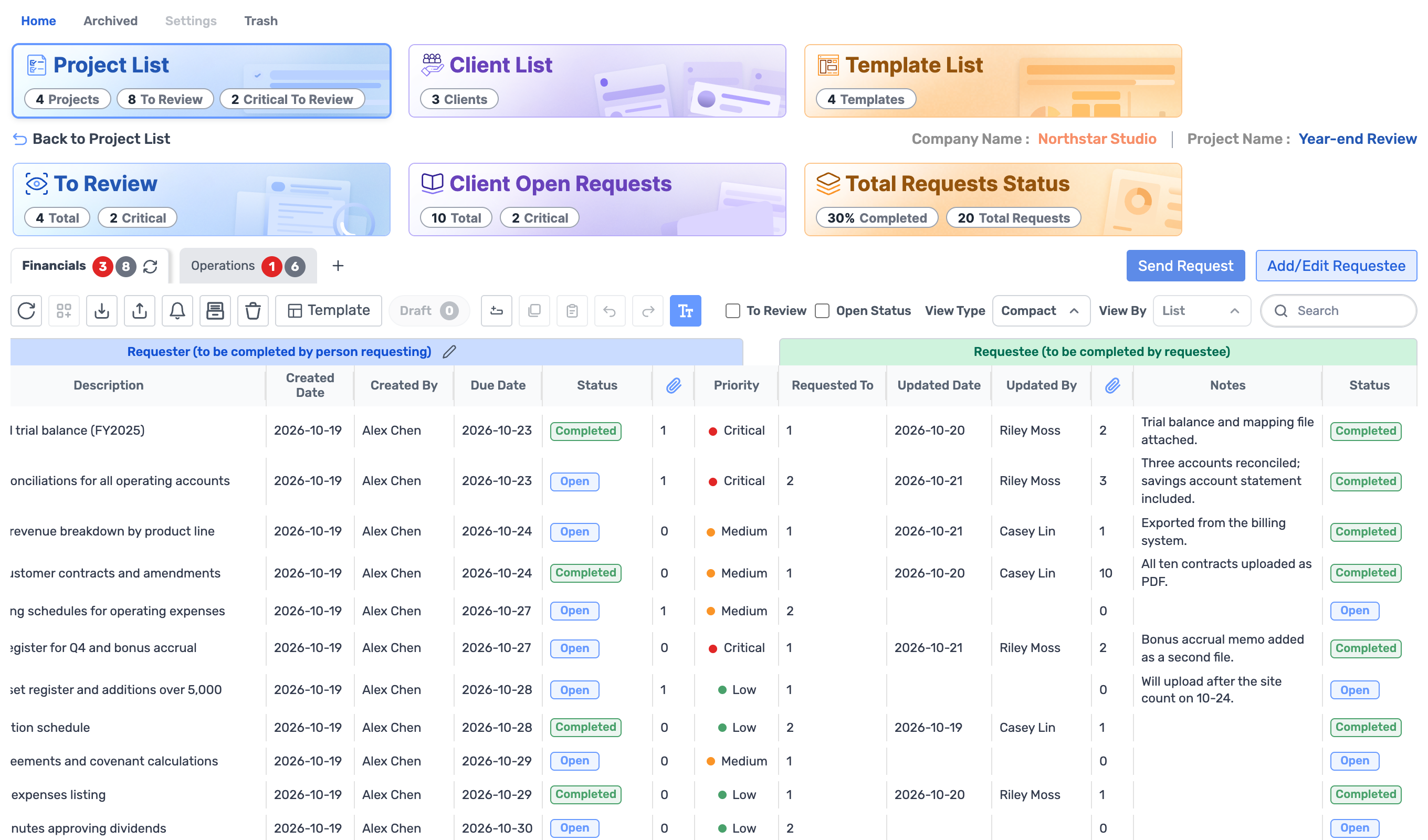
Request List · Requester and Responder StatusSample data
Request List screen. On the left side of each row, displays the team's status; on the right side, shows the customer's note and status.

General tool combo

Review feedback via email, and approvals are received separately through your project management or messaging tool.

  • Email
  • Business management tool

View progressEmail thread and work tools

When proceeding to the next stepShare file via email

OLOBBYWorkFlow

In WorkFlow, set review stages and responsible personnel for each document, and approve or return it for changes.

View progressDocument-specific Workflow Status

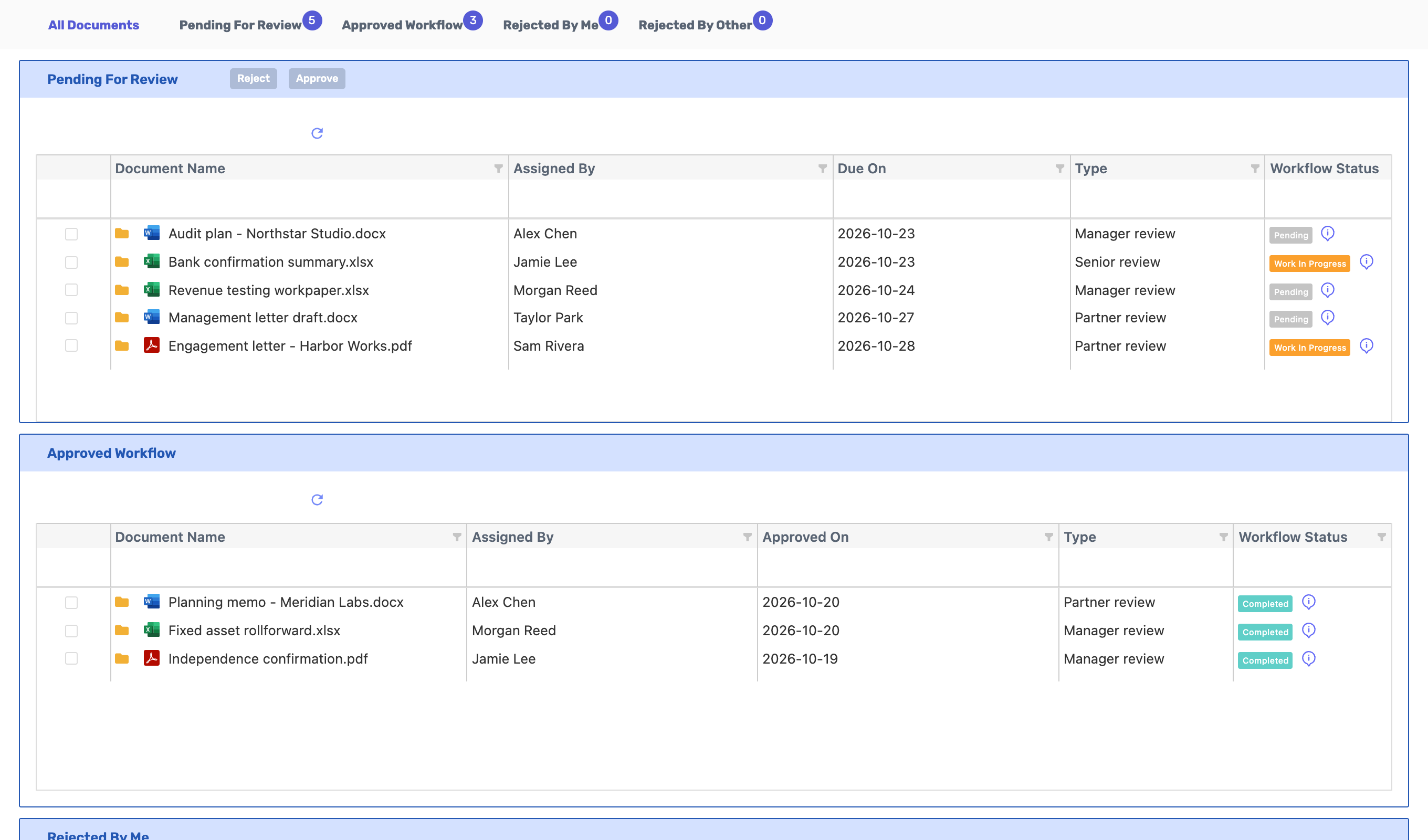
WorkFlow · All DocumentsSample data
Workflow screen. Shows 5 documents in review queue with assignee, deadline, review type, and status.

General tool combo

Download the file after review and upload it to a separate e-signature service, then re-enter the recipient.

  • Electronic signature service

View progressSignature service document folder

When proceeding to the next stepDownload and upload again

OLOBBYE-Signature

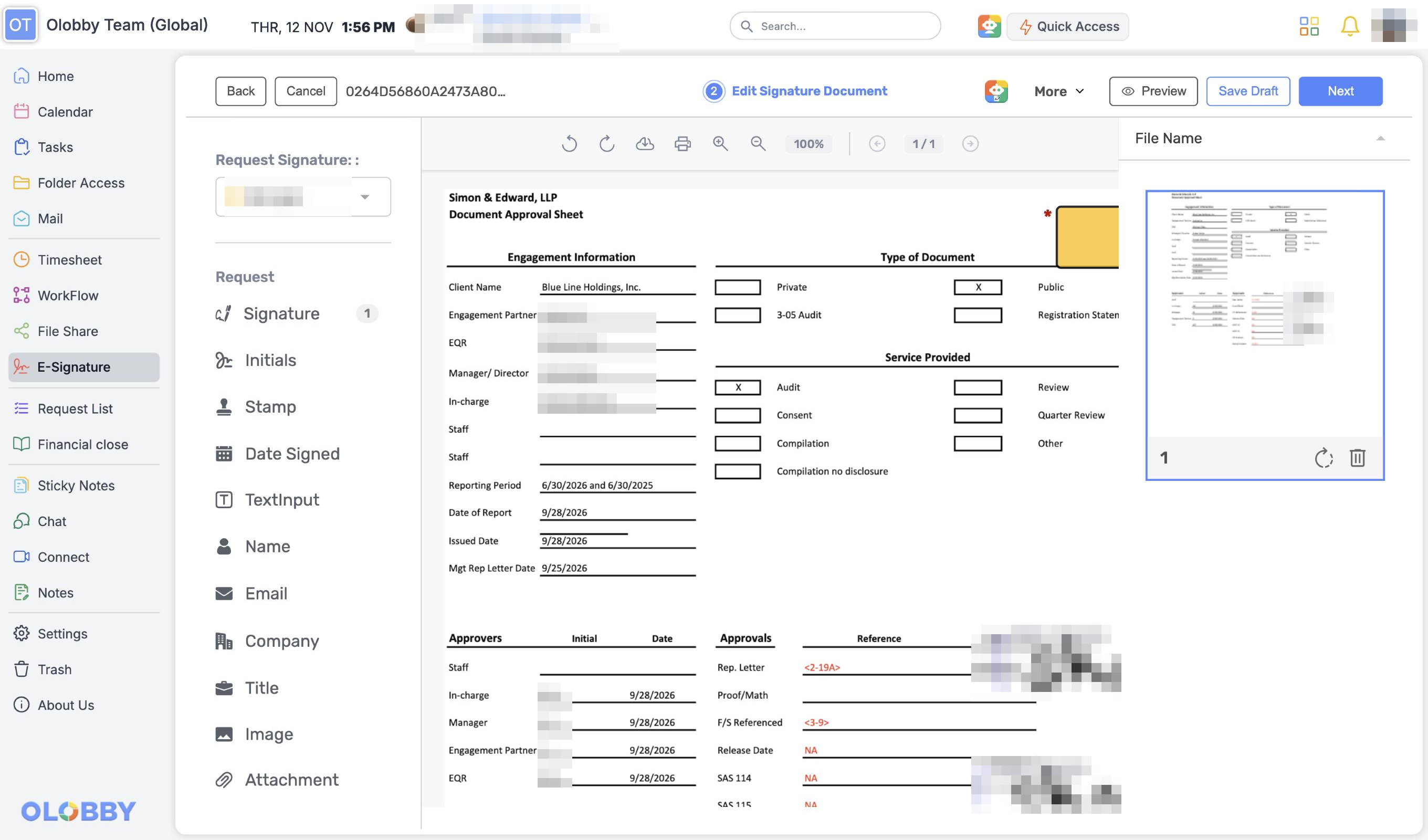
After review, the document is assigned a signature location in E-Signature and a signature request is issued.

View progressDocument signature status

app.olobby.com · E-SignatureService screenshot
E-Signature signature location screen. On the left, a list of fields including Signature, Initials, Stamp, Date Signed. In the center, a signature field is placed on the document. The person's name and signature are displayed in a blurred format.

General tool combo

Record the project name again on a separate sheet for time entry.

  • Time tracking sheet

View progressTime tracking sheet

When proceeding to the next stepEnter separately per sheet

OLOBBYTimesheet

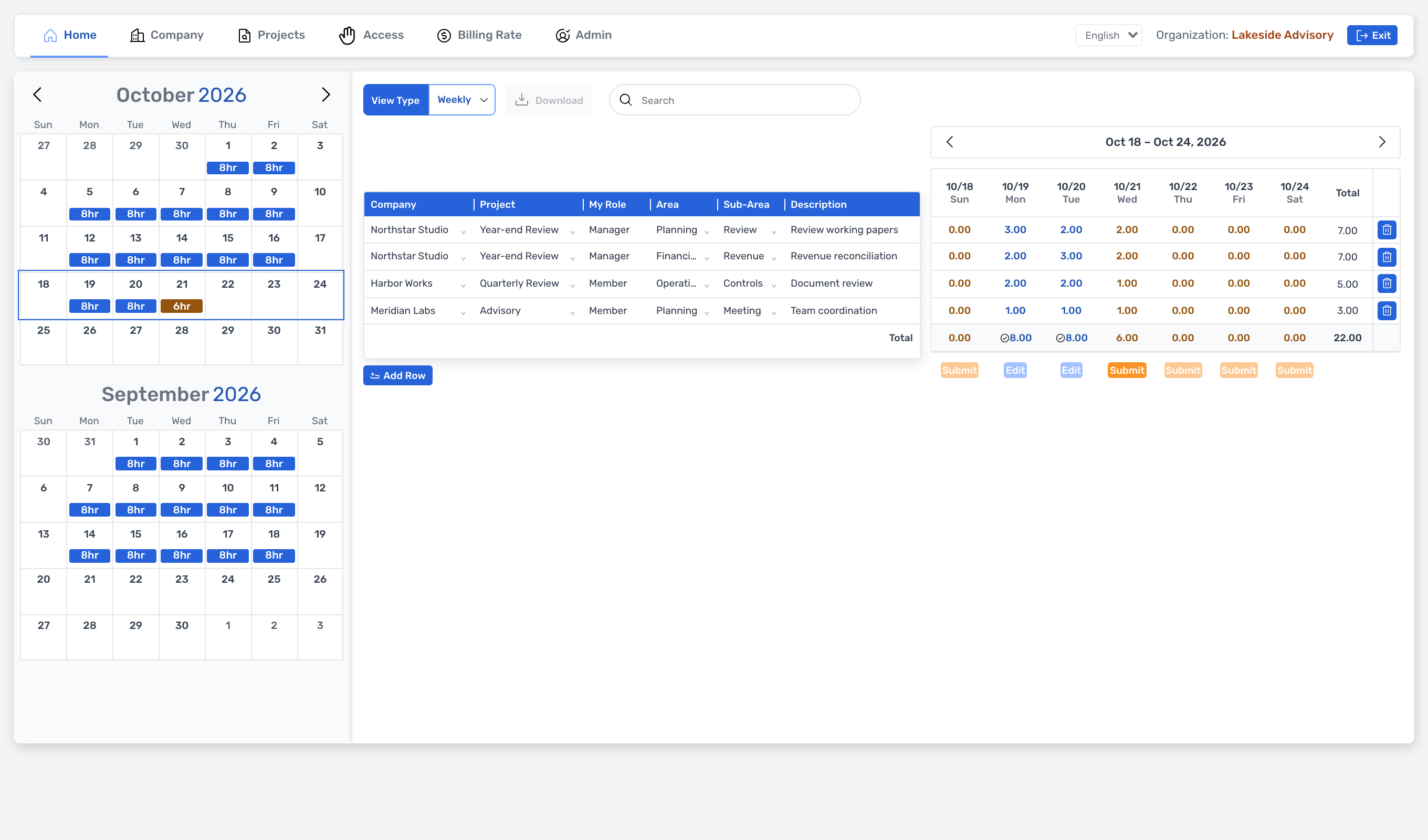
Record and submit your project time in the Timesheet on a weekly or daily basis.

View progressWeekly totals by project

Timesheet · WeeklySample data
Timesheet Weekly View. Time is recorded by day for each project and task, with a total displayed.
Step-by-step results are retained here
  1. 1Request documents

    General tool comboSeparate preparationSpreadsheet request formEmailEmail sent with request form attached
    OLOBBYRequest ListStatus by request itemOpen
  2. 2Customer submission

    General tool comboShare the link via emailShared folder linkEmailShared folder and mailbox
    OLOBBYRequesteeCustomer status for same request itemCompleted
  3. 3Missing check

    General tool comboFolder vs. Request FormSpreadsheet request formRequest form status column
    OLOBBYRequest ListSubmission and review status by itemTo Review
  4. 4Get approval

    General tool comboShare file via emailEmailBusiness management toolEmail thread and work tools
    OLOBBYWorkFlowDocument-specific Workflow StatusApproved
  5. 5Signature

    General tool comboDownload and upload againElectronic signature serviceSignature service document folder
    OLOBBYE-SignatureDocument signature statusCompleted
  6. 6Time tracking

    General tool comboEnter separately per sheetTime tracking sheetTime tracking sheet
    OLOBBYTimesheetWeekly totals by projectSubmit

Results are divided into six tools.

  • Spreadsheet request form
  • Email
  • Shared folder link
  • Business management tool
  • Electronic signature service
  • Time tracking sheet

5 modules left for one office workspace

Signature completedTime entry submission

Example of receiving customer billing data. The sequence may vary depending on your team and tool setup. Sample data and anonymized operation screenshots are displayed on each screen.

Compare features across
a typical set of tools.

Example of integrating common tools used in customer data tasks: emails, messengers, shared folders, request forms, signature services, work tools, and time-tracking sheets—all unified under one platform. Decisions were based on publicly available features of each tool, with common tool combinations prioritized.

Tools you're using now 7

OLOBBY in One office space, 9 modules

  1. EmailRequest and resubmitAt OLOBBY, we offer
  2. MessengerStatus checkAt OLOBBY, we offer
  3. Shared folder linkMaterial sharingAt OLOBBY, we offer
  4. Spreadsheet request formMissing reconciliationAt OLOBBY, we offer
  5. Separate e-signature serviceSignatureAt OLOBBY, we offer
  6. Business management toolTo-do and approvalAt OLOBBY, we offer
  7. Time tracking sheetDeployment timeAt OLOBBY, we offer

Select the tasks relevant to your team, and the corresponding features will be displayed.

Feature Comparison Table for Customer Data Tasks: OLOBBY vs. General Tools (as of 2026-11-12) Each row includes a brief explanation of the feature's meaning.
Features and meaningsOLOBBYA workspaces platformGeneral tool comboRationale
Request & Submission
Customer request list and item-specific statusRequest materials one line at a time, and view the status of each line separately.SupportpartialShare spreadsheet request form and let human update status. Replace with workflow form or guest access.
Submission screen used by customersCustomer requests an item, and immediately uploads a file to that itemSupportpartialShared folder or file request link. Request item and request link are separate.
Separate submission and internal review statusesManage customer submission completion and team review completion as separate statesSupportpartialAdd a column to your request form for manual management
Review and signature
Review and approval sequenceDefine review stages and responsible personnel per document, and track approval or return for changes.SupportpartialEmail circulation, approval for workplace tools, e-signature for collaboration tools
Electronic signature for the same office spaceFeature to request signature within reviewed product materialsSupport¹partialSignature feature within document tools (available on select plans) or separate e-signature service
Workpaper and time
Thank you document and review comments, sign-offManage workpaper creation and review, review comments, and sign-off.Support²NoneWithout dedicated tools, using spreadsheets and folders
Project-based time trackingTrack and submit time spent on projects and tasksSupportpartialSpreadsheet or work tool time tracking feature
Access and Operations
External user access scopeFeature that allows external users to view only the requests and items assigned to themSupport³partialFolder-and-file level sharing, guest access for work tools. On a per-request basis only.
On-premises (installed on your organization's infrastructure)Deployed on your organization's infrastructure, operated directly by your team.SupportpartialVaries by tool. Domestic services offering on-premises options are also available.
Korean screen and supportDo you provide screen menus and customer support in Korean?partial⁴SupportPopular document and collaboration tools mostly support Korean.
Edit in Microsoft 365 · Google DocsEdit saved documents directly in Microsoft 365 or Google EditorSupport⁵SupportThe combination itself uses this document tool
  • ¹ Separate module within the same product. After review, the responsible party will request a signature via E-Signature (not automatically sent).
  • ² Audit Lobby's implementation scope is confirmed during consultation.
  • Access only assigned requests, and access links can be issued, replaced, or revoked.
  • 4 language settings available; screen menus use product terminology in English. Korean screen view available upon consultation.
  • Open documents in Microsoft 365, Google Editor, or Synclobby. Does not imply partnership or authentication.

See how five services
compare with OLOBBY.

Five service providers closely aligned with customer data operations in each field. "Not verifiable" means the public data could not be confirmed, not that the feature is unavailable.

Choose a service, and we'll show you a 1:1 comparison with OLOBBY.

Request Portal for Accounting Audits

Content reviewed from public materials

  • Assign a customer user for each request and review priority and submission status.
  • There's an approval flow for accepting or returning submitted requests.
  • Excel-based workpaper suite with e-signature add-on. E-signature is deployed on top of CORE.

Comparison criteriaProduct & Pricing Page. No public pricing table—request a demo instead.

Both services can be reviewed with public materials.

  • Customer request list and item-specific status
  • Submission screen used by customers
  • Separate submission and internal review statuses
  • Electronic signature for the same office space
  • Audit workpapers
  • External user access by assignment

Unverified items: 3. These are marked “Unverified” in the table.
Caseware Cloud

Cloud-based accounting and audit customer request feature

Content reviewed from public materials

  • Assign question sets with contact-specific deadlines, and the status updates automatically.
  • After the verification agent confirms the response, the employee approves it.
  • In the customer portal, you'll see only assigned items and exchange Working Papers and requests (based on 2020 documents).

Comparison criteria help article. "Availability varies by product" in its documentation.

Both services can be reviewed with public materials.

  • Customer request list and item-specific status
  • Submission screen used by customers
  • Separate submission and internal review statuses
  • Audit workpapers
  • External user access by assignment

Unverified items: 6. These are marked “Unverified” in the table.
Karbon

Accounting firm workflow management

Content reviewed from public materials

  • Customers request processing and upload files via email magic link without a password.
  • Track upload by checklist item and display items not submitted or delayed.
  • Time tracking and budget reporting (Team billing and above), e-signature and approval features.

Comparison criteriaPricing page (Team·Business) and Customer Portal features page

Both services can be reviewed with public materials.

  • Customer request list and item-specific status
  • Submission screen used by customers
  • Electronic signature for the same office space
  • Project-based time tracking

Unverified items: 5. These are marked “Unverified” in the table.

Modusign

Domestic e-signature

Content reviewed from public materials

  • Specify signature order (sequential or concurrent) and provide audit trail certificate.
  • Bulk transfer, link signing, and scheduled transfer are available starting with the TEAM PRO plan.
  • There's an on-premises version for custom and integrated pricing plans.

Comparison criteriaPricing page (TEAM, TEAM PRO, Custom·Integrated)

Both services can be reviewed with public materials.

  • Electronic signature for the same office space
  • On-premises

This service includes support; OLOBBY is partial.

  • Korean screen and support

Unverified items: 7. These are marked “Unverified” in the table.

Flow

Domestic messenger & workplace management collaboration tool

Content reviewed from public materials

  • Invite external guests on all plans, manage external users in Enterprise.
  • Email, e-signature, and calendar are included.
  • Available as On-premises (Flow Enterprise) and public cloud (CSAP).

Comparison criteriaPricing page and Enterprise page

Both services can be reviewed with public materials.

  • Review and approval sequence
  • On-premises

This service includes support; OLOBBY is partial.

  • Korean screen and support

Unverified items: 6. These are marked “Unverified” in the table.

OLOBBY vs. Top 5 Competitors: Public Feature Comparison (as of 2026-11-12)
Features and meaningsOLOBBYA workspaces platformSuralinkRequest Portal for Accounting AuditsCaseware CloudCloud-based accounting and audit customer request featureKarbonAccounting firm workflow managementModusignDomestic e-signatureFlowDomestic messenger & workplace management collaboration tool
Request & Submission
Customer request list and item-specific statusRequest materials one line at a time, and view the status of each line separately.SupportSupportSupportSupportNot availableNot available
Submission screen used by customersCustomer requests an item, and immediately uploads a file to that itemSupportSupportSupportSupportNot availablepartialExternal guest
Separate submission and internal review statusesManage customer submission completion and team review completion as separate statesSupportSupportAccept / ReturnSupportApproved after verificationNot availableCheck to completeNot availableNot available
Review and signature
Review and approval sequenceDefine review stages and responsible personnel per document, and track approval or return for changes.SupportpartialRequest approved/rejectedNot availablepartialWorkflow statuspartialSpecify signature orderSupportInternal approval
Electronic signature for the same office spaceFeature to request signature within reviewed product materialsSupport¹SupportAddonNot availableSupportNeed to confirm pricing rangeSupportKey featuresNot available
Workpaper and time
Audit workpapersManage workpaper creation and review, review comments, and sign-off.Support²SupportWorkpaper SuiteSupportWorking Papers integrationNot availableNot availableNot available
Project-based time trackingTrack and submit time spent on projects and tasksSupportNot availableNot availableSupportNot availableNot available
Access and Operations
External user access by assignmentFeature that allows external users to view only the requests and items assigned to themSupport³SupportRequest-based customer assignmentSupportShow only assigned itemspartialMagic link, 2FA optionNot availablepartialGuest & External Party Management
On-premisesDeployed on your organization's infrastructure, operated directly by your team.SupportNot availableNot availableNot availableSupportSupport
Korean screen and supportDo you provide screen menus and customer support in Korean?partial⁴Not availableNot availableNot availableSupportSupport
Edit in Microsoft 365 · Google DocsEdit saved documents directly in Microsoft 365 or Google EditorSupport⁵partialExcel add-in · OutlookNot availableNot availableEmail integration availableNot availableNot available
SupportReview public materialspartialCheck only a portionNoneFeature not availableNot availableCannot verify publicly available materials (does not mean they don't exist)
View full source (verified on 2026-11-12)
  1. Suralink https://www.suralink.com/ · https://www.suralink.com/technology/request-list-management · https://www.suralink.com/pricing
  2. Caseware Cloud https://www.caseware.com/docs/en/cloud/caseware-cloud/engagement-management/client-requests/what-is-client-requests · https://docs.caseware.com/2020/webapps/31/en/Explore/Cloud-Apps/CaseWare-PBC-Requests.htm?region=int
  3. Karbon https://karbonhq.com/pricing/ · https://karbonhq.com/feature/client-portal/
  4. Modusign https://www.modusign.co.kr/pricing
  5. Flow https://flow.team/ko · https://flow.team/ko/pricing · https://flow.team/ko/enterprise
  6. OLOBBY https://www.olobby.com/ OLOBBY Product Features Sheet

Service name is each owner's trademark and does not imply a partnership with OLOBBY. Comparison was based on each service's public page as of November 12, 2026, and pricing and features may change. Corrections needed: support@olobby.co.krLet us know.

Five capabilities
in one workspace.

Each feature is available in other services. The difference is that all five are included in one product. Select an item to view its screen.

Request List · your teamSample data
Request List Project Details. On the top card: number of review items and completion rate. Below: a table listing request items and their statuses.
Requestee · CustomerSample data
Customer view's Notes and Status columns. Shows customer's notes and submission status for each item.

Same request in two screens

The team views the request in Request List, while customers see the same request on the Requestee submission screen. We separate submission completion from review completion.

Request ListRequestee

Similar category: Suralink, Caseware Cloud, Karbon offer customer portals and request lists. OLOBBY's difference is that requests and submissions are handled within the same product, including review and signature modules.

WorkFlow · All DocumentsSample data
Workflow screen. Each document in review has an assignee, deadline, review type, and Workflow Status.
E-Signature · Specify signature locationService screenshot
In active E-Signature: list of signature fields and signature fields placed on the document. Person names are blurred.

One product for request, review, and signature

Request materials, document review stages with approval or return, sequential and non-sequential signing, and signature certification are handled within the same module. After document review, the responsible party requests a signature through E-Signature.

WorkFlowE-Signature

Signature service (e.g., Moolisign) offers features like signing order and audit tracking. The difference with OLOBBY is that signing occurs within the same product as the prior steps (document request · review).

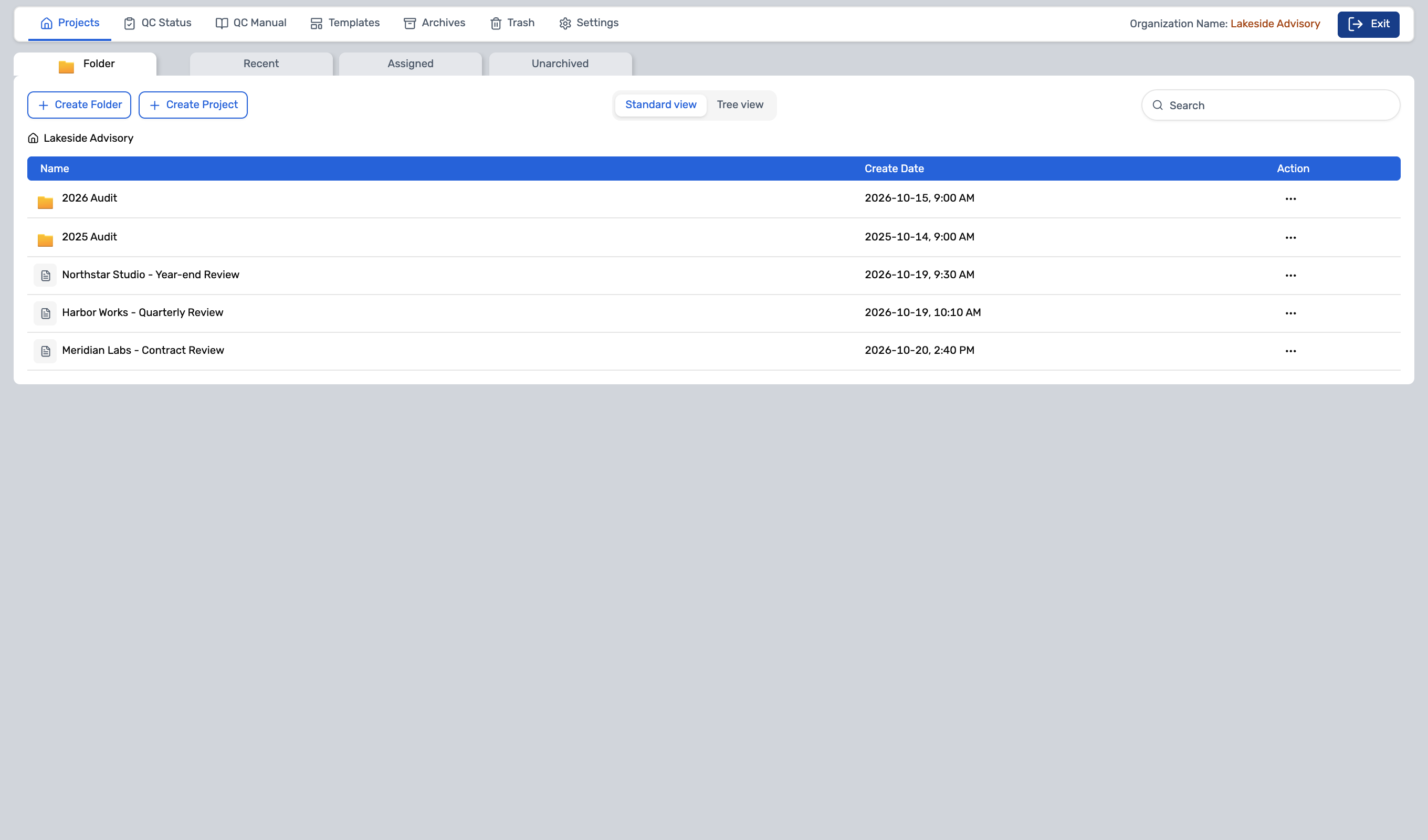
Audit Lobby · ProjectsSample data
Audit Lobby project screen. Displays folder by audit year and customer project list.
Timesheet · Weekly TotalSample data
Weekly timesheet. Shows daily hours and totals.

Workpaper and time tracking too

Manage thank-you workpapers, review comments, sign-off, and project-specific time tracking in one place.

Audit LobbyTimesheet

Thank you, OLOBBY offers workpaper functionality (like Suralink's Workpaper Suite and Caseware's Working Papers). This page does not imply a preference.

OLOBBY Cloud Managed by OLOBBY Your team Client Assigned items Microsoft 365 · Google
CloudOLOBBY operations and updates
Your infrastructure OLOBBY Run by your team Your team Client Link + sign-in
On-premisesDeployed in your organization's operating environment, managed by your team

Cloud or on-premises

OLOBBY operated in the cloud or installed on your organization's environment for internal use. Module scope for on-premises version is confirmed during consultation.

Settings

Among domestic services, both Moolyin and Flow offer on-premises solutions.

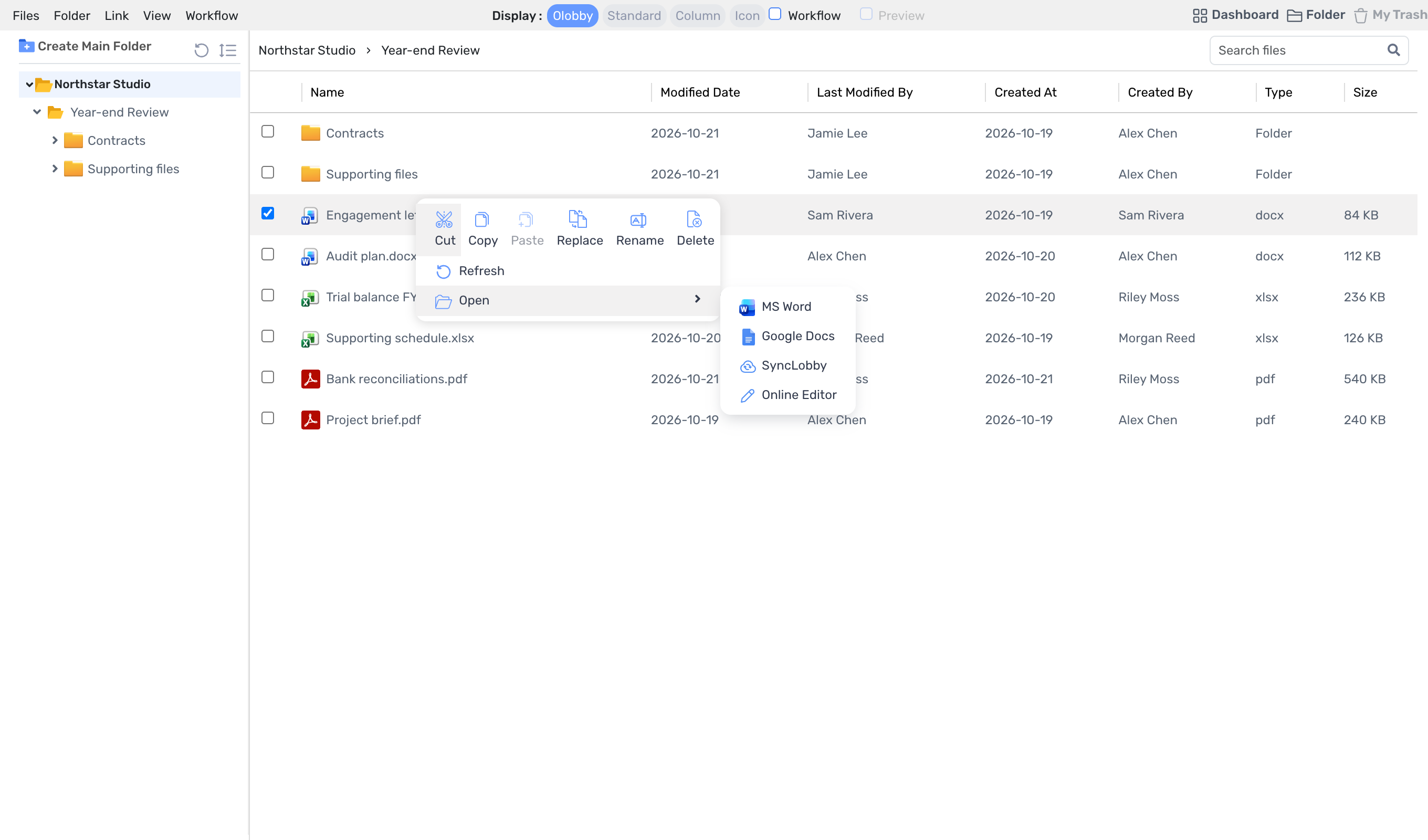
Folder Access · Year-end ReviewSample data
Select a document from Folder Access and click Open. Options include MS Word, Google Docs, SyncLobby, Online Editor.
Open menuSample data
Expand the Open menu. Choose among MS Word, Google Docs, SyncLobby, Online Editor.

Editing tool remains the same

The document remains in your work folder and review stage, and opens directly in Microsoft 365 or Google Docs, or in your computer's program (Synclobby).

Folder AccessSynclobby

This does not mean partnership or authentication. General tool combinations display this row identically because the editing tool itself functions as a repository.

Which setup fits
your team?

Which team uses OLOBBY?

  • You repeatedly request documents item by item and review received documents.
  • After signing the reviewed document, save the results by project.
  • I'd like to divide the scope visible to external customers by request unit.
  • Choose between cloud or on-premises to select the option that fits your organization.

A team that might find a better fit with other tools

  • Minimal customer data requests or signatures; internal workflow management is key. General workflow management tool
  • Document creation and collaborative editing are core tasks. Document tool
  • Already integrated with your existing legal professional tools, including workpapers and requests. Thank you specialist tool
  • All screen menus must be in Korean. In scope for consultation

Bring your
existing files with you.

No need to start from scratch. Just bring over your existing request forms, folders, and recipient lists to get started.

  • Excel request listRequest List

    Request form is unchanged

    Import an existing request list from Excel or download and complete a template.

  • Last year's project request tabRequest List

    Repeat request via template

    Apply a request template or copy the requests tab from a previous project to get started on your next project.

  • Customer & Project FolderFolder Access

    Documents by folder

    Organize materials in customer or project folders and open them with your usual document tools.

  • Signature recipient Excel·CSVE-Signature

    Signature recipient is file

    Send signature requests to multiple people and download recipients as Excel or CSV.

Questions about
the comparison

Getting started and SecuritySee it together.

What were the criteria used for comparison?

We checked public product, pricing and help pages on November 12, 2026. Each row defines the feature. Items without public evidence are marked "Not available". Features and plans may change. An unverified item may still be available.

Why did we not compare prices?

Costs vary with team size, billing period, taxes and deployment. Contact us for terms that match your team.

Why isn't there a service like TaxDome?

This table includes services we could verify through official sources. General work management tools are grouped in the "General tool combo" column.

Do I need to replace all my current tools?

No. You can start by requesting improvements to tasks your team needs to do. When opening documents in Microsoft 365 or Google Docs, OLOBBY continues to save them.

How do external customers get in?

Log in or complete OTP authentication using the assigned email or access link. The link alone does not grant access to all projects; access is restricted to the requested projects.

What if there's an error in the comparison content?

Let us know via support@OLOBBY.co.kr if any corrections are needed. We'll review and update accordingly with the reference date.

Compare OLOBBY with the tools your team uses.

Let us know which tool you're currently using and what task you'd like to switch from, and we'll show you how to do it in OLOBBY.