


 Mail
Multiple inboxes.
One workspace.
Find, categorize, and draft replies to work emails. Preview attachments and move needed files to your OLOBBY work folder.
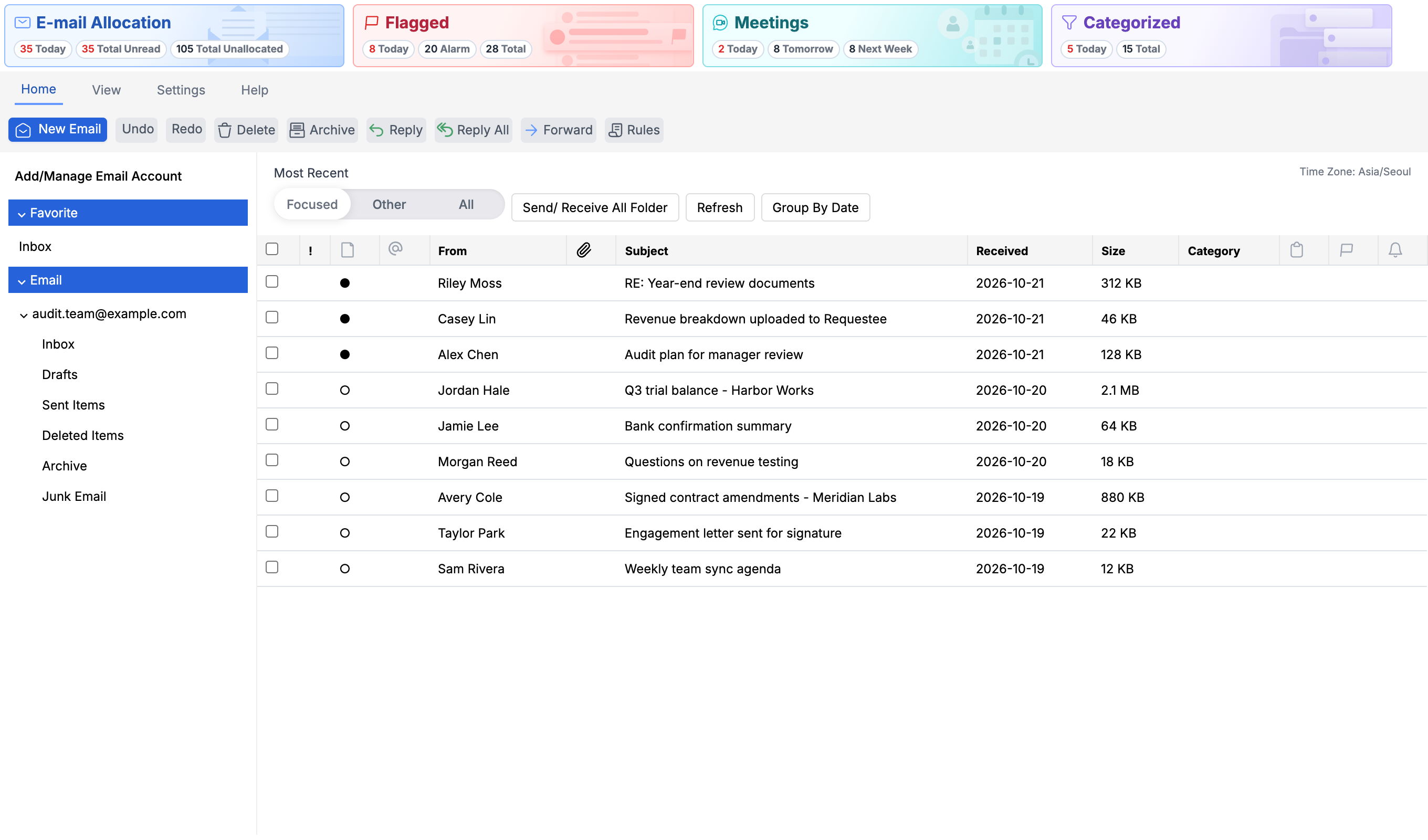
- Use this when needed
- Check multiple work email folders together
- Where to find it
- Left menu → Mail
- Classification
- Communicate and share
Put incoming attachments to work
Lessen the hassle of back-and-forth in your inbox
Bring your account and folder details together in one place, and continue email verification and search in the same location.
Curate a list that works for you
Classify and flag emails, then group by date, sender, and subject.
Attach this as part of the following task's materials.
Review the attached content in advance and move it to your work folder for use in the next task.
Usage steps
How the workflow fits together
Find emails, review documents, and follow up.
- 1
Find received emails
Select an account and folder, then search or filter to find the right message.
- 2
Review content and attachment
Read the message and preview or download its attachments.
- 3
Save to work folder
Attach work materials to a folder with folder access permissions and select a file name to save.
- 4
Draft a response
Review recipient, signature, body, and attachments, then choose draft or send.
- 5
Follow-up schedule summary
Schedule tasks in your connected calendar and attach related materials for use.
Mail features
Connected account and folder exploration
Open the folder of your connected email account to view messages.
- Email folder list and sync status
- Create folder, rename, delete
- Connection account information and display settings
- Check sync progress and completion in Activity
Search and list management
We review emails by familiar criteria like date, sender, and subject.
- Email list and detail view
- Server Storage List & Supplier Search
- Date, sender, subject, attachment, read status, etc. by group
- Compact View · Table View Switch
- Adjust list spacing with Tighter Spacing
- Group and filter by category in Table View and remove
From recipient to body text
Refine the body text and recipient-specific template together.
- Add/Modify/Move To/CC/BCC
- Apply message and recipient list
- Delivery confirmation for unsent messages and mandatory recipient verification
Draft and continue
Prepare content and attachments, save draft for review.
- Save draft with body and attachment
- Processing tailored to temporary inbox of sender account
- Shipment vs. temporary storage and status progress
File attachment handlingVaries by organization
Preview the data from the attached menu and copy or download it, or save it to your work folder.
- View · Copy · Download · Upload to Lobby
- PDF · Image · Excel/CSV · DOCX · PowerPoint preview
- App-generated attachment copy to paste into email composer
- EML attachment creation and preview path
- Select a file to upload to your authorized OLOBBY folder
Attach email to work folder
Select a workflow folder to save your materials as an OLOBBY work document.
- Explore allowed work folder tree
- Verify file name and save as workpaper
- File added notification for current user
Classification and selection email consolidationVaries by organization
Create account-level classifications by name and color, and apply or remove them from selected emails. Manage the color and email folder location for existing classifications.
- Apply/Remove Classification in Categorize
- Uncheck the email classification when selecting Clear All
- Manage categories: create, color update, delete
- Add Flag · Remove Flag
- Mark as read/unread · Move to folder · Delete selected emails
Signature and language toolVaries by organization
Use frequently used signatures and drafting assistance tools.
- Signature creation, editing, and selection
- English spellcheck based on dictionary and personal dictionary
- Body translation requested and format preserved
Schedule sync for email account
Check your connected email account's schedule in the OLOBBY calendar.
- Email schedule inquiry
- Create, edit, or delete account schedules in calendar
- Email provider account and permissions as provided
What to decide before onboardingEmail provider, account linking, security policy
Connect your account
Verify your Gmail or Microsoft 365 account and required email and calendar permissions.
Writing environment
Check your sender account, signature, and draft storage location, and attachment size and format.
Save as business document
Prepare the OLOBBY folder for attachment storage and file addition permissions.
MailFollowed by 8 modules
 Folder AccessSave the email attachment to your work folder to use as a document.
 CalendarView, create, and modify schedules for your connected email account.
 Document and email integrationsUse your Gmail or Microsoft 365 account and permissions to send and receive emails.
 Request ListReview material requests and responses, and have your team manage the request list.
 HomeCheck your email account schedule right from the Home page.
 E-SignatureRequest a signature using a sending account and document-specific instructions.
 OL ConnectSet the recipient range for meeting invitations and summaries based on your meeting options.
 RequesteeAfter submission is complete, the process continues with notifications sent to the requester.
Mail
FAQ
Any other questions? ContactLet us know.
Which email account can you connect?
Guided by Gmail and Microsoft 365 account connections. Check account permissions and usage scope within the connected environment.
Yes, you can save email attachments to your OLOBBY work folder.
Select a work folder and file name to attach and save as a document. You need view and add file permissions for the folder.
How do emails and schedules connect?
Use the schedule from your connected email account in the calendar. Availability may vary depending on account connection and supplier permissions.
Yes, you can continue later.
Save the draft to the temporary inbox of the sending account and proceed to compose. Check your account connection status.
How is translation and proofreading provided?
Translation is handled by connected translation services, spelling checks use English dictionaries and personal dictionaries. Language support ranges may vary.
Yes, you can manage category names and colors directly.
New classifications are defined with a name and color. Gmail labels are managed within OLOBBY and are different from Gmail label auto-synchronization. Auto-classification rules are a separate feature.
Get started with Mail.
Let us know who you'll be working with and which tasks to improve first, and we'll guide you on the required modules and implementation scope.