


 File Share
Send files and
collect documents.
Share files or request necessary materials. Organize received documents, sent documents, and your access link by project and client.
- 1Set up your office spaceCollect materials by customer project or choose Quick Share.
- 2Form tailored to the objectiveChoose how you'd like to proceed: send a file, request materials, or share a link.
- 3Review targets and materialsVerify recipient, file, title, notes, PIN, and other required details.
- 4Use received materialsReview received items and copy the selected file to your work folder.
- Use this when needed
- Share files with external collaborators
- Where to find it
- Left menu → File Share
- Classification
- Communicate and share
See what you shared and who can open it
Send vs. Request
Choose the right way in QuickShare: send files, request materials, or share your link based on your purpose.
See all shared documents in one place
Distinguishes materials received and sent in Received/Sent/MyLink, and separates managed links.
By customer and project
Clarify who the customers, projects, and target audiences are, and clearly define what data and materials will be shared with whom.
Usage steps
How the workflow fits together
Choose to share or request, then prepare your materials.
- 1
Set up your office space
Collect materials by customer project or choose Quick Share.
- 2
Form tailored to the objective
Choose how you'd like to proceed: send a file, request materials, or share a link.
- 3
Review targets and materials
Verify recipient, file, title, notes, PIN, and other required details.
- 4
Use received materials
Review received items and copy the selected file to your work folder.
File Share features
Customer and stakeholder managementVaries by organization
Configure internal and external participants needed for customer data sharing.
- Clients: Customer information and users
- User Access: User and Access Scope
- Distinguish internal users from external users
Project-specific document exchange
Review customers, deadlines, and statuses, and gather related materials within the project.
- Project List · Projects By Clients
- All · Not started · In progress · Completed · On hold
- Overview · Working files · Attachment list
Send fileVaries by organization
Ready to deliver materials to specified recipients.
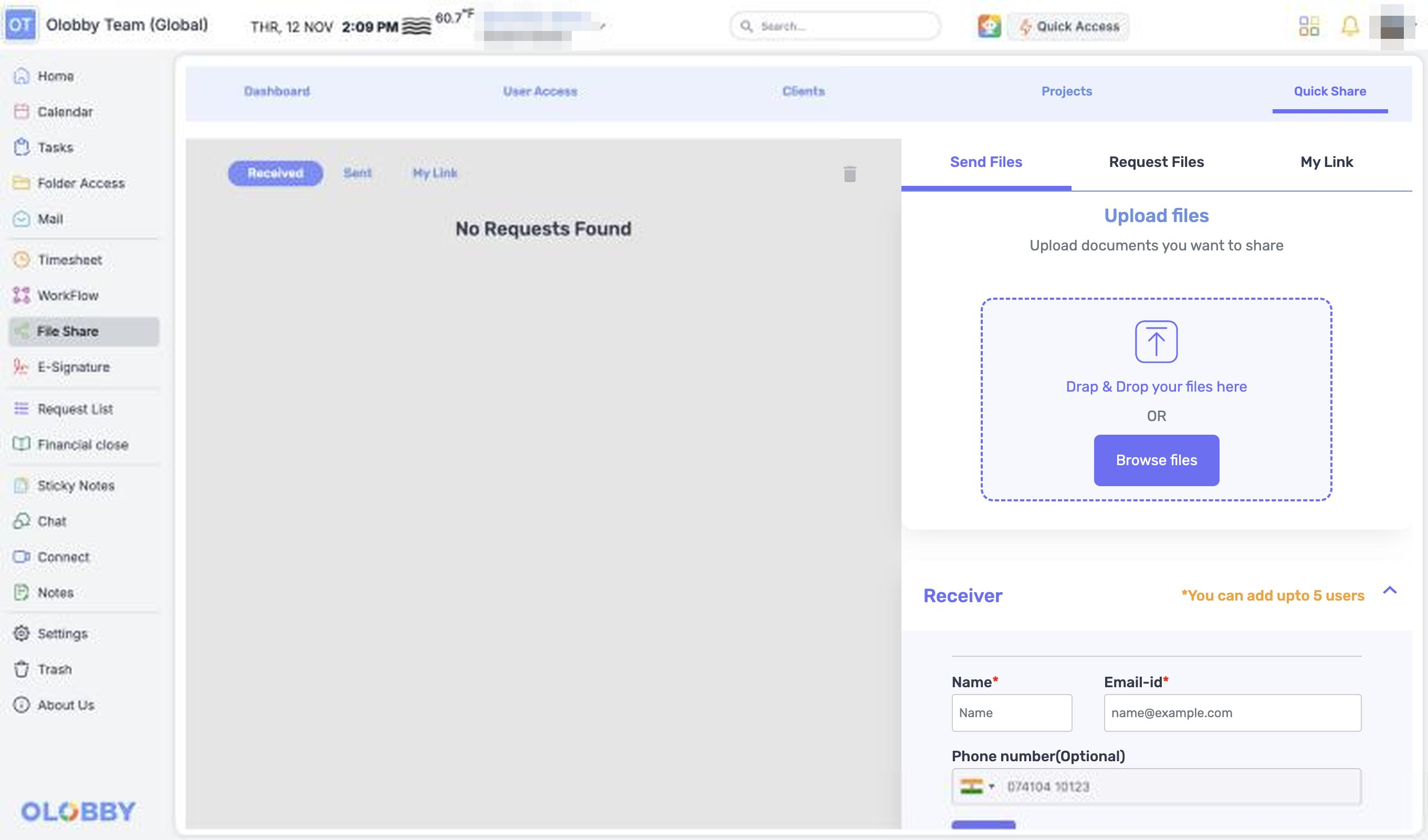
- Quick Share → Send Files
- Browse Files and Recipient Entry
- Up to 5 recipients · Title · Notes · PIN · Expiration condition
External document requestVaries by organization
Specify the documents needed for the recipient in a template.
- Files request: name, email, PIN, title, notes
- File upload and submission on recipient screen
- Upload and final submission stages distinguished
Shared link and transaction reviewVaries by organization
Creates a link for recipients to upload files and distinguishes between received and sent requests.
- Received · Sent · My Link
- My Link's link name · expiration date · Recipient URL
- Link creation, details, and usage scope
Move received file to work folderVaries by organization
Review the materials and copy the file to your OLOBBY workspace.
- File selection and download
- Download to OLOBBY → Target folder → Copy
- Folder access permissions and document type verification
Check status and materials togetherVaries by organization
Review project status along with working files and attachment list.
- Project owner, deadline, status
- Working files data structure
- Attachment list of attached files
What to decide before onboardingShared with · Document scope · Access permissions
Who is this for?
Select how to share: link or attachment, and choose files, folders, and recipients.
Data to collect
Check the scope needed for simple file requests and structured request lists.
Access period
Specify expiration/termination of link and recipient verification method, as well as internal storage location for received materials.
Shared module
Bring files from outside your team into a project
File ShareFollowed by 3 modules
 Folder AccessDownload to OLOBBY by selecting a destination folder and copying files. Inherits folder access permissions.
 Request ListChoose file sharing and PBC request management based on your workflow. Request status and permissions are managed per module.
 SettingsReview User Access and Organizational User Setup for OLOBBY to define collaboration scope.
File Share
FAQ
Any other questions? ContactLet us know.
Yes, like Folder Access sharing functionality?
It's a separate module. File Share is composed around Customer, Project, and Quick Share, while Folder Access folder ZIP and email delivery are covered under file management functions.
Yes, you can store files sent by customers internally.
After selecting a file, choose the target workflow folder in "Download to OLOBBY" and copy it. Verify the access permissions and supported file types for the target folder.
Yes, just uploading the file completes the submission.
Recipient request screen separates upload from final submission. Enter required user information and PIN, complete submission process, then verify results.
Can you use all templates immediately?
Varying by organizational and user permissions, required inputs, and file readiness status.
Yes, project storage and search filters are available.
Use project status categorization and table search/filter features. Project Archive and Quick Share Sort by and Filter functions are currently inactive and will not be provided.
Get started with File Share.
Let us know who you'll be working with and which tasks to improve first, and we'll guide you on the required modules and implementation scope.