
Products
19 modules.
Four areas of work.
The four colors forming the O in the logo represent OLOBBY's four core business functions. Select the tasks that match your needs and explore them.
5 modules
Organize and plan
Check where materials are and what to do today. This is your daily start screen and the place to store work documents.
 HomeSee today’s tasks, appointments, signature requests and document requests.
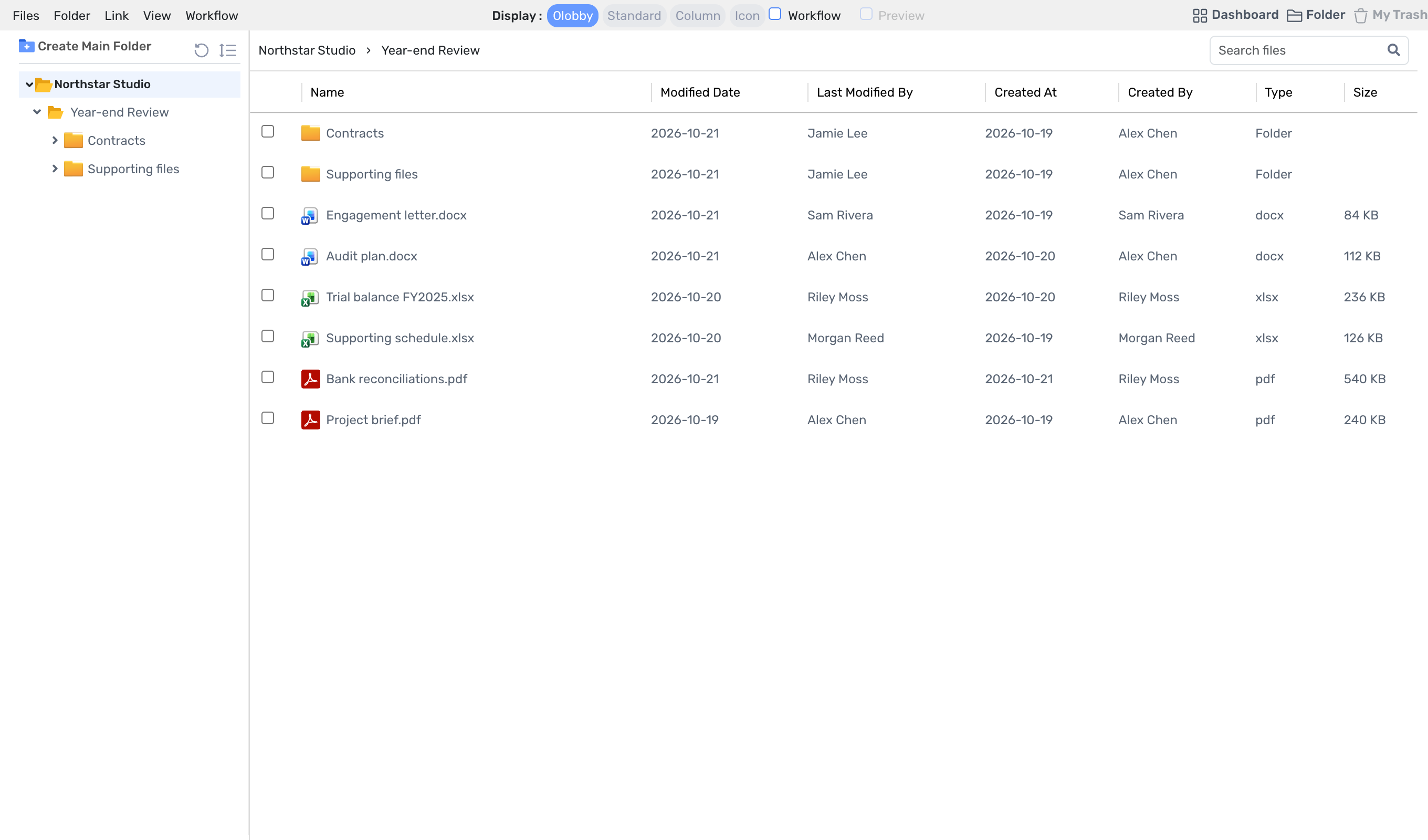
 Folder AccessOrganize project files and start a task or review from a document.
 CalendarPlan meetings and track task deadlines on one calendar.
 NotesOrganize notes on bookshelves, share them and save favorites.
 Sticky NotesCapture a quick note and find it later.
5 modules
Manage work
This is where work, review, document requests, signatures, and time tracking actually conclude.
 TasksTrack each task alongside its owner, due date and files.
 WorkFlowReview order by document and responsible person/process status together
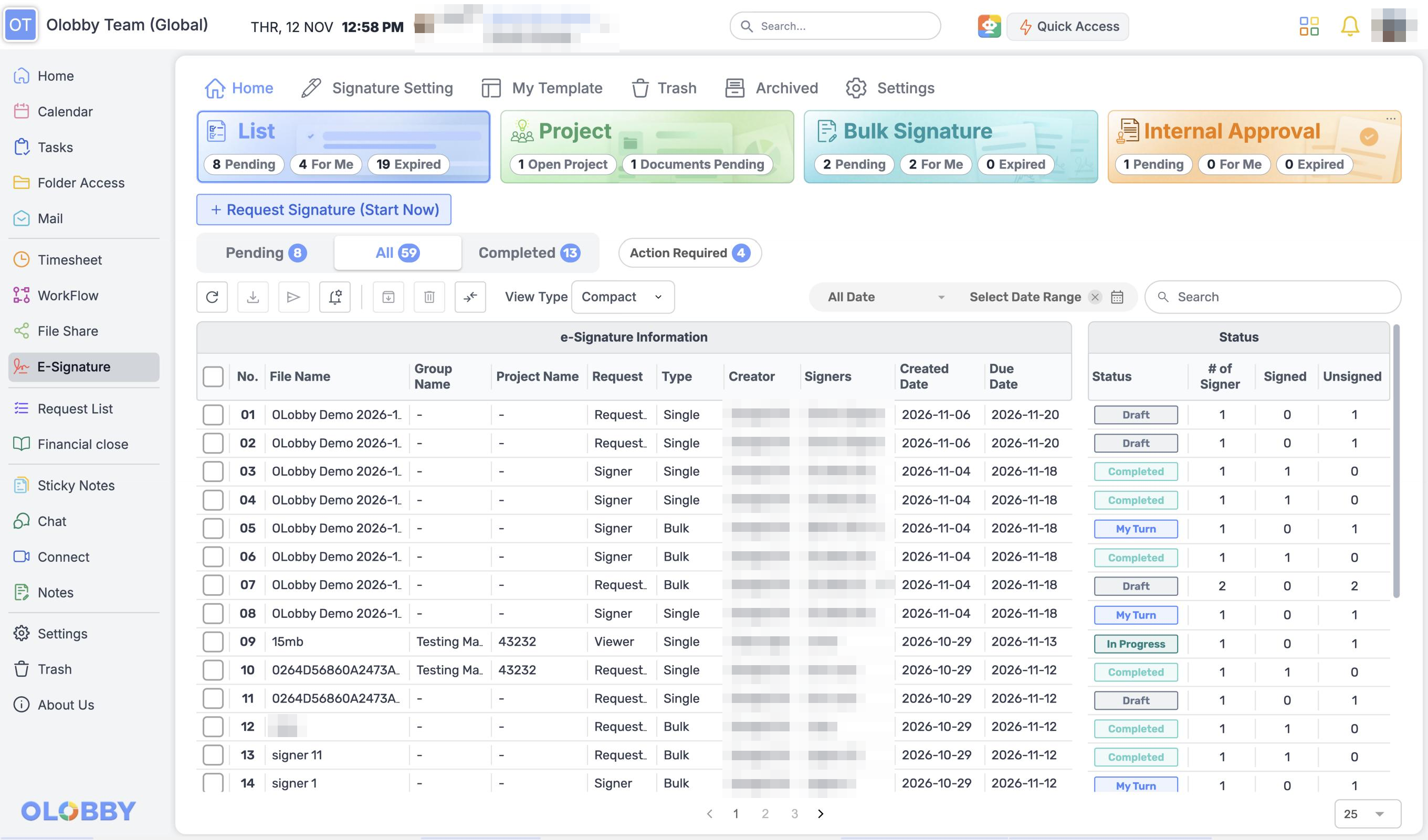
 E-SignaturePrepare documents, designate recipients, and sign all in one place
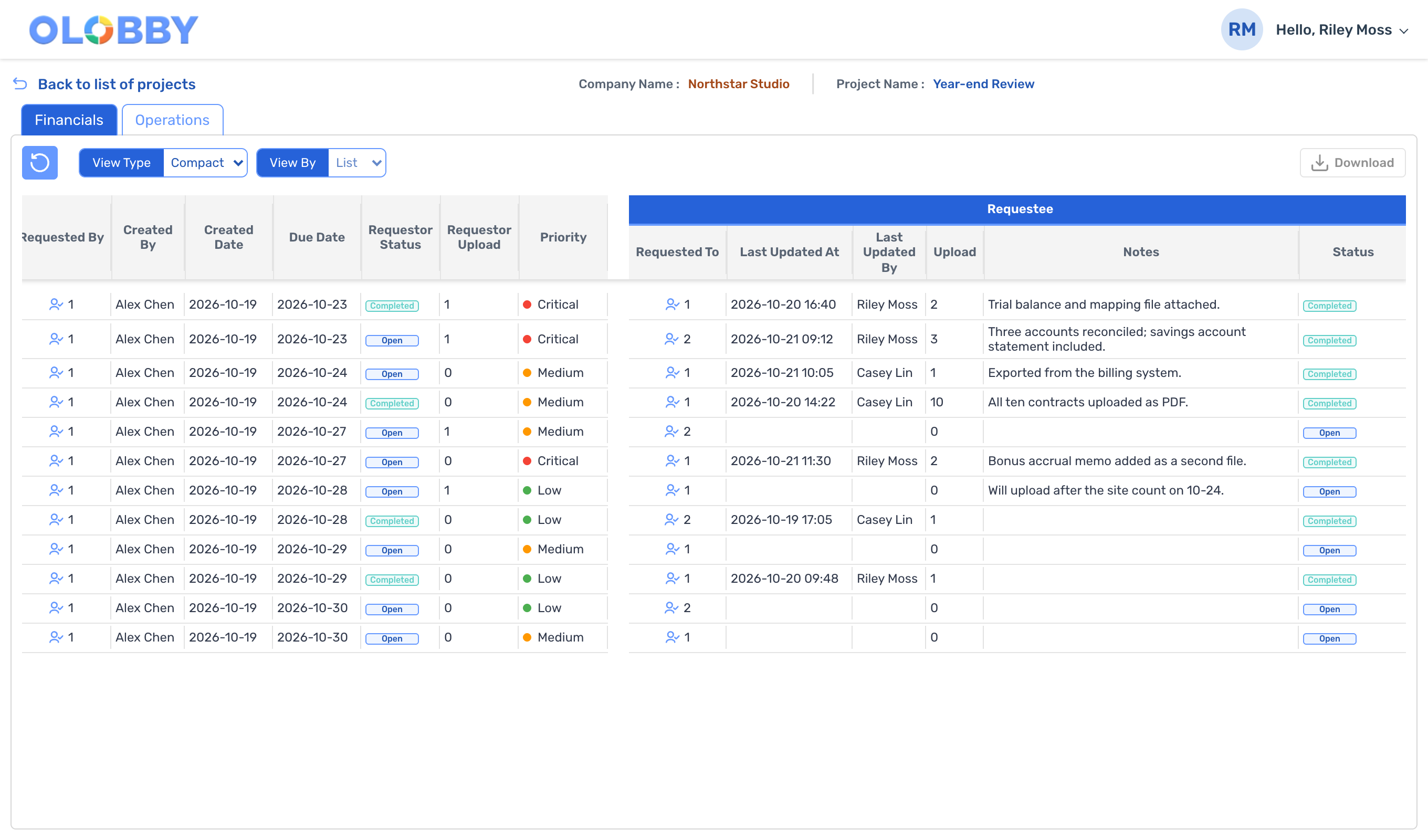
 Request ListRequest client documents and review each submission.
 TimesheetProject-based time tracking and submission/editing management
5 modules
Communicate and share
Email, chat, meeting, file sharing, and customer submission screen.
 MailRead messages and manage attachments across connected accounts.
 OL-ChatKeep messages, threads, files and notes together in a chat.
 OL ConnectMeet with teammates and external collaborators.
 File ShareFile sharing, document requests, and link management in one place
 RequesteePrepare files and responses according to assigned requests
4 modules
Administration and specialist work
Set up members with permissions, connect document tools, and organize by organizational unit like audit tasks.
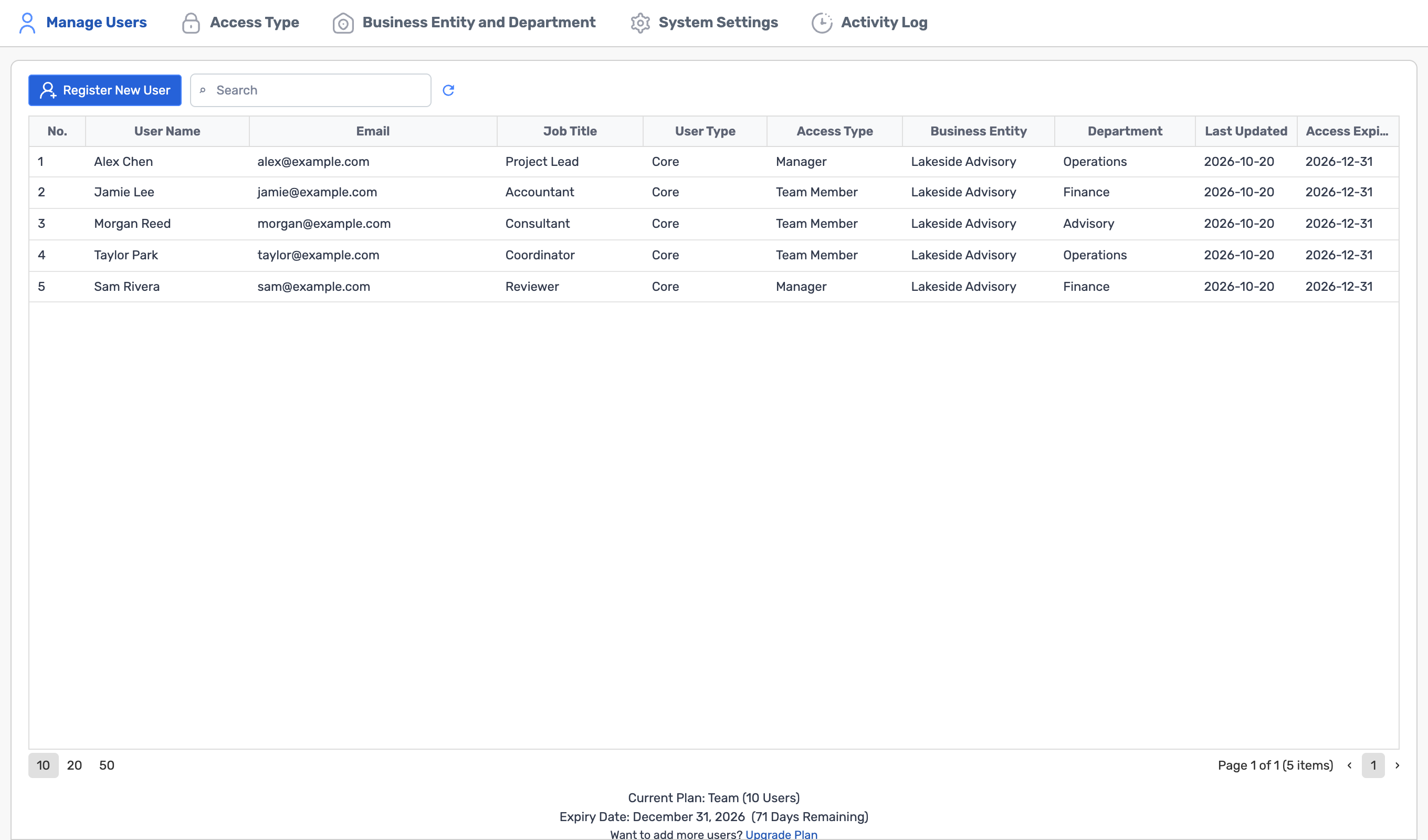
 SettingsCustomize members, roles, and individual environments to fit your organization
 Document and email integrationsConnect OLOBBY documents with familiar online editing tools
 SynclobbyConnect cloud documents with desktop editing
 Audit LobbyWorkpaper, review feedback, and progress management for a gratitude project
Module connections
Choose a module
The next module turns on.
This is a module that works together with another module. How they connect is explained below. There are 48 pairs of connections between 19 modules. View all at a glance with a connection map
Organize and plan
Manage work
Communicate and share
Administration and specialist work
Organize and plan
Home
Review your tasks, schedule, documents, and materials that need signing. Start by identifying pending items, then jump directly to the relevant work screen.
Home details8Connects to one module and onward
In this workflow, two screens are opened simultaneously. Data does not automatically transfer; instead, the responsible user opens the next screen to continue the process.
Let's figure out where to start together.
Let us know your user count and priority tasks, and we'll guide you on the right modules and implementation scope.