


 Home
Your day
starts in Home.
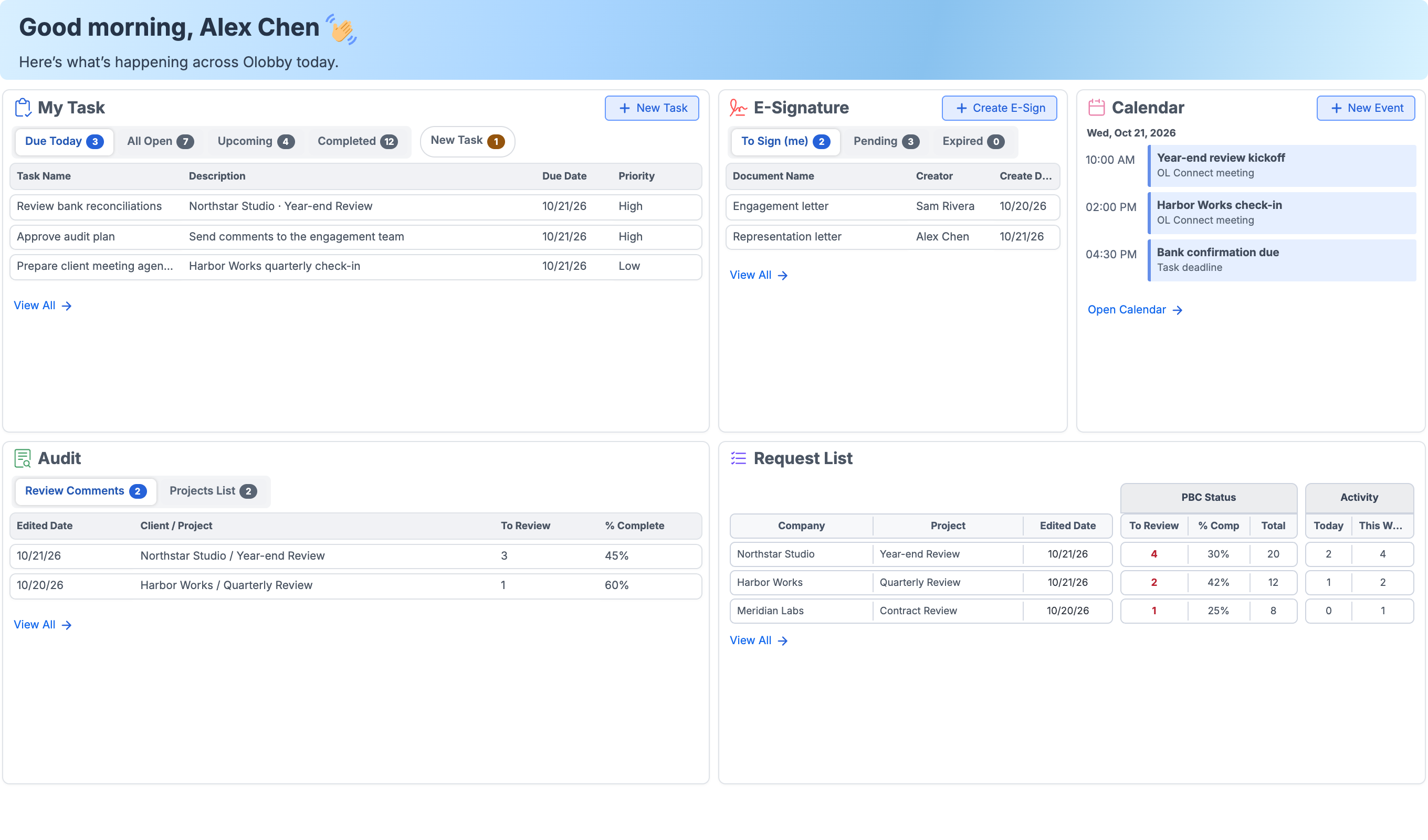
Review your tasks, schedule, documents, and materials that need signing. Start by identifying pending items, then jump directly to the relevant work screen.
- Use this when needed
- Today's documents and tasks overview
- Where to find it
- Left menu → Home
- Classification
- Organize and plan
Four cards show what needs your attention
First, let's get your team connected.
See my tasks and assigned tasks, documents to process, and requests—all in one place to set priorities.
Set deadline on the same screen
Align work deadlines, document reviews, and meeting schedules side by side to prioritize today's tasks.
Start right from discovered items
After reviewing the current status, proceed to the detailed view of the task and document, and begin the necessary work.
Usage steps
How the workflow fits together
From today's status, items to handle directly.
- 1
Check today's tasks
I'll review my tasks and pending requests, plus signatures I'm responsible for first.
- 2
Schedule vs. deadline comparison
Check meeting schedules and task/review deadlines together.
- 3
Handle this module
Work modifications or signature processing is done in the detailed screen for that feature.
- 4
Check updated status
Check updated work status based on module permissions and query results.
Home features
My work and my team's work
View your tasks, assigned tasks, tasks assigned to others, and tasks currently being referenced.
- Task tracking by role
- View completed tasks
- Check task count
View all schedules and deadlines
We examine work, review, meeting, and email schedules from the same work start point.
- Deadline
- Workflow schedule
- OL-Connect·Email Schedule
E-signature progress
Track ongoing items, documents you'll handle, and expired requests to review next steps.
- In progress signature
- My handling scope
- Expired request
Confirm data request from Audit card
On the Home audit card, you'll see the Request List project and review items. This is different from the separate Audit Lobby menu.
- Review Comments · Projects List
- Recent update · Customer/Project · To Review · % Complete
- Go to Request List
Entry by business type
Navigate to the Documents, Tasks, Schedule, Requests, and Signature modules from the common work screen.
- Common Tasks Navigation
- Module-level detailed entry
- Organization-specific usage scope
Clearly indicate loading status
Signature and request lists have separate paths that distinguish between loading, empty results, and retrieval errors.
- Loading list
- Display lookup error
- Reflect latest responses by tab
What to decide before onboardingInformation and notification scope by role
Who's responsible for verification?
Distinguish between your tasks, assigned tasks, referenced tasks, and the documents you'll be processing.
Connectable modules
Check usage permissions and data scope for Work, Calendar, e-Signature, and Document Request.
Blank screen and error
Distinguish between a new organization's empty list and temporary lookup errors.
Shared module
Start your next task, meeting or signature request
HomeFollowed by 8 modules
 TasksCheck task lists and completion status by role, then proceed to task details.
 CalendarView schedule information for work, review, meetings, and emails together.
 E-SignatureCheck signing status, documents awaiting your review, and expiring documents.
 Request ListCheck your project's name, status, and completion rate from Home.
 OL ConnectCheck your OLOBBY meeting schedule along with task deadlines and review schedules.
 MailCheck your email account schedule right from the Home page.
 Sticky NotesOpen the memo panel on the common work screen and record the necessary details.
 WorkFlowReview your schedule information from home.
Home
FAQ
Any other questions? ContactLet us know.
Handle work right from home?
Check the status and navigate to the detailed screen for processing. Use this as a starting point to locate required tasks and signatures.
How are electronic signatures divided?
Distinguish between ongoing documents, documents I'm handling, and expired requests.
Yes, you can view your request completion rate.
Display project status and completion rate together. Please check separately from general task completion rate.
Do all users see the same data?
Information displayed varies based on the logged-in user and their organization's access scope and view permissions.
Yes, Home's Audit is the Audit Lobby.
No. Current Home Card audits are linked to Request List data requests. A separate Audit Lobby falls under a different workflow area.
Get started with Home.
Let us know who you'll be working with and which tasks to improve first, and we'll guide you on the required modules and implementation scope.