


 Settings
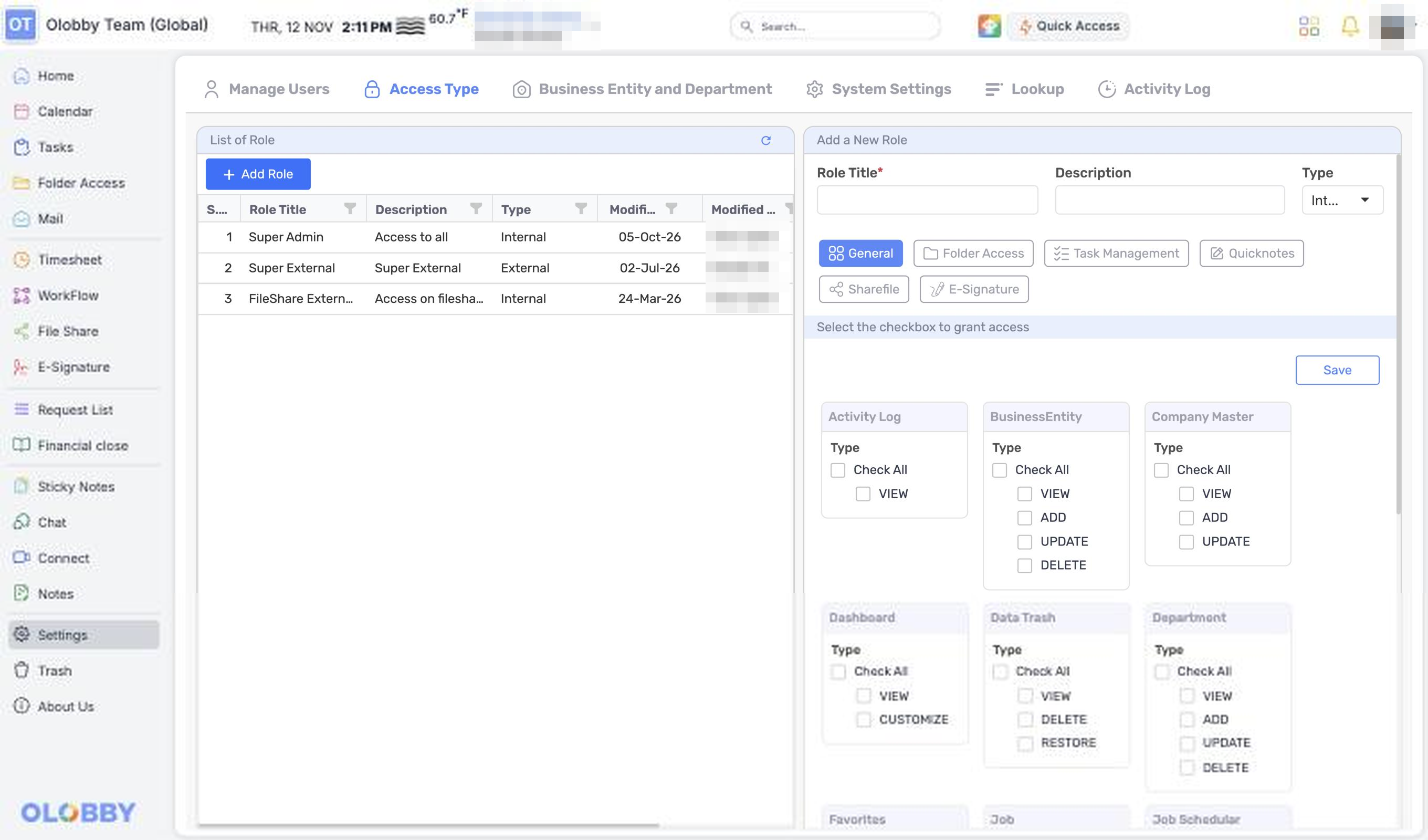
Manage roles
across your organization.
Set access scopes by member, department, and role. Manage the organization's common standards and individual language, time zone, and editing environments together.
- Use this when needed
- Organization, role, and user settings
- Where to find it
- Left menu → Settings / Profile → User Settings
- Classification
- Administration and specialist work
Set up access around the way your team works
Align your organization's structure with workflows
Configure your business, department, and users to define who's involved and the scope of your team.
Role-based access scope
Configure access scopes based on role-specific pages and task permissions for each user's assigned responsibilities.
Familiar environment for individuals
Customizes your work environment with personal preferences for language, time zone, editor, and notifications.
Usage steps
How the workflow fits together
Set members and assign roles and work environments accordingly.
- 1
Organizational Readiness
The administrator creates an organization and completes the join verification.
- 2
Members and structure setup
Add users and set business entity, department, and role.
- 3
Link role-based permissions
Assign folder and module access scopes.
- 4
Personalization and operation verification
View activity logs with user-specific language, time zone, and notifications.
Settings features
Member Management
Manage user lists and handle registration, editing, and role assignment.
- User search · list
- User creation, editing, deletion
- Link roles and organizational units
Role-based usage scope
Configure roles based on page and task-level permission lists.
- Role creation & editing
- View permission list
- Boundary for view, register, edit, and delete operations
Business and department setup
Leverage organizational structure for task access assignment.
- Add or edit a business entity
- Department setup
- User Assignment • Unassigned List
Company basic environment
Query and save organization-wide common settings.
- Organizational Common Settings
- User & Common Settings Inquiry
- Menu display based on setting permissions
Activity history lookup
Authorized manager views activity log.
- Activity history list
- Display menu for authorized users
- Starting point for managing change tracking
Personal work environment
Each user adjusts language, time zone, editor, and profile.
- Base language & time zone
- Basic document editor
- Profile image & password change
Notification and chat settings
Manage work alerts and chat settings on a per-user basis.
- Task notification settings
- Notification temporary pause setting
- Chat settings and schedule refresh
Organization onboarding and subscription management
After account verification, you'll proceed to organization setup and subscription details.
- Email verification and OTP
- Duplicate Organization Check · Organization Creation
- Current plan & payment information
What to decide before onboardingUser · Permissions · Scope of Provision
Organizational Structure
Organize separate organizational and project assignments for businesses, departments, and users by module.
Roles and permissions
Check the menu and view access, as well as add, edit, and delete permissions for administrators and regular users.
Personal and organizational setup
Separate common operation settings from individual language, time zone, editor, and notification settings.
SettingsModule 10 and onward
 Folder AccessUse business unit, department, and user setup for folder access assignment.
 OL-ChatManage user chat settings and notification schedules.
 Document and email integrationsUse your selected default editor in the document opening environment.
 TimesheetConfigure common user information and Timesheet-specific organization memberships together.
 NotesSplit records by user and shared permissions.
 Sticky NotesConfigure memo usage based on owner and shared recipients.
 E-SignatureSelect team members and recipients using organizational user information.
 File ShareReview User Access and Organizational User Setup for OLOBBY to define collaboration scope.
 RequesteeAccess scope is determined based on account verification and project assignment.
 Audit LobbyEnter the common portal and configure organization and project access permissions for Audit Lobby.
Settings
FAQ
Any other questions? ContactLet us know.
Yes, each user sees a customized menu based on their role and permissions.
User, role, organization, system settings, and activity logs are governed by role-based access permissions.
Yes, you can change your language and time zone.
Manage your language, time zone, editor, and profile in Settings.
Yes, subscription management and organization setup are on the same screen.
Organizational operations and subscription/payment information are managed in separate screens. Separate access and permissions for administrators.
Does one role apply to all modules exactly?
Separate from common users and roles, there are organization- and project-level assignments for Timesheet, E-Signature, Audit, etc. Configure module-level access scopes together.
Get started with Settings.
Let us know who you'll be working with and which tasks to improve first, and we'll guide you on the required modules and implementation scope.