


 OL-Chat
Keep conversations and files
in the same thread.
Add files and links to personal and group conversations. Divide discussion by replies and threads, and organize reference content in conversation notes.
- 1Select targetCompare partners from recent conversations, favorites, or user groups.
- 2Context sharingSend messages and files together, and separate discussion points into replies and threads.
- 3SummaryRecord agreement details in the chat room note and review the materials again in the files tab.
- 4Expand to meetingsCreate an OL-Connect meeting with current participants and verify the generated link before sending it.
- Use this when needed
- Team conversations as you review materials
- Where to find it
- Left menu → OL-Chat
- Classification
- Communicate and share
Keep files and meeting plans in the conversation
Multiple stories in context
Discuss conversations thread by thread, keeping each context separate and clear.
Next to conversation: files & records
Place shared materials and summarized content beside conversations in the Files and Notes section.
Extended discussion becomes a meeting
Prepare a meeting link based on participants, so you can discuss together on the same screen.
Usage steps
How the workflow fits together
Choose a target and share documents and stories together.
- 1
Select target
Compare partners from recent conversations, favorites, or user groups.
- 2
Context sharing
Send messages and files together, and separate discussion points into replies and threads.
- 3
Summary
Record agreement details in the chat room note and review the materials again in the files tab.
- 4
Expand to meetings
Create an OL-Connect meeting with current participants and verify the generated link before sending it.
- 5
Follow-up action
Summarize meeting notes and assign necessary tasks separately in Task.
OL-Chat features
Personal chat and group chat
Select a partner or team, then start from the latest conversation or unread messages.
- List of personal/group messages and view previous conversations
- Unread message count and group read status
- Change group name · Add/remove participants · Choose to make existing conversations public
Distinguish discussion points by reply and thread
Keep the overall conversation flow intact while isolating discussions about specific messages.
- Reply to citation and go to original message
- Message thread and last reply check
- View unread threads and reply count
Message editing and replies
We handle messaging from quick checks to corrections.
- Add/delete emoji
- Edit or delete your own messages
- Transmission failure display and resend
Files linked to the conversation
Upload the file to the conversation, then find it again in the Files tab.
- Attach multiple files and image preview
- Conversation room file list
- Document preview and download
Shared notes by conversation room
Save meeting notes and agreement details in the chat room's notes tab.
- Create multiple notes, rename, edit content
- Template and note colors
- Read-only when another user is editing the note
Chat list and user groups
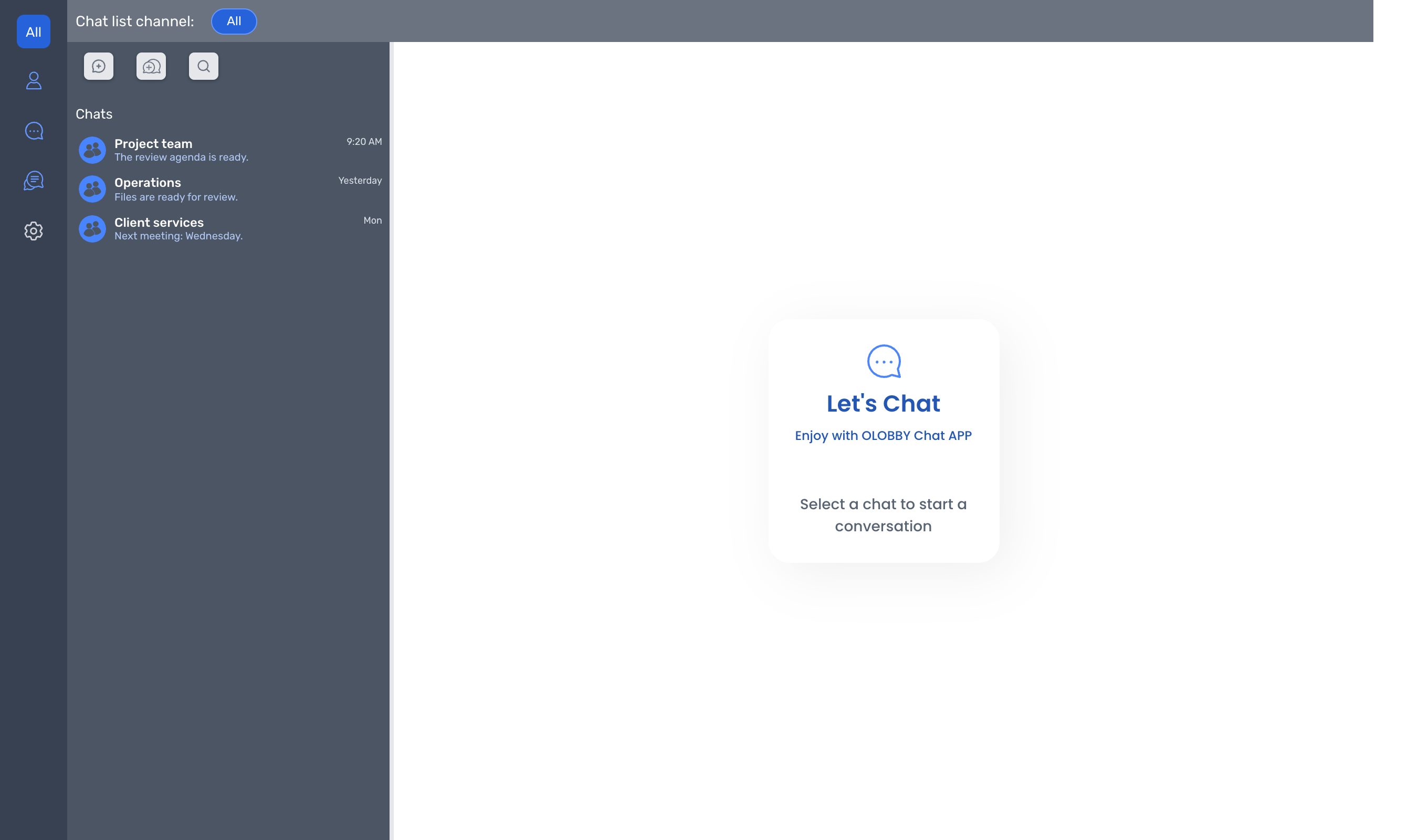
All Users & Groups, Recent Chats & Use Channels and Threads to find people and conversations.
- User list group: Person organization
- Chat list channel: Organize conversation list
- Group chat: A conversation space for multiple people
Preparing video conference
Invite the current participants to the meeting and prepare the OL-Connect link in the input field.
- Use personal chat or group participant list
- User time zone and meeting link generation
- After reviewing the results in the message, share them.
Participation status and personal settings
Manage user status, unverified items, and personal display settings.
- User status change
- Unread message and thread count display
- View and save chat settings
What to decide before onboardingMaterials to share with conversation groups
Conversation setup
Distinguish between one-on-one chats, group chats, and user group chats, and set separate visibility scopes for existing and new chat groups.
Sample materials to review
Check the purposes of attached and shared notes in a conversation space, as well as file preview and download scopes.
Continue the meeting
Verify attendees via meeting invitation and review the generated link before sending.
Shared module
Turn a conversation into a meeting or a follow-up
OL-Chat
FAQ
Any other questions? ContactLet us know.
Yes, you can create a meeting directly from a chat.
You can now create an OLOBBY meeting and prepare the link in the input field. Review the content and send it.
Yes, you can keep documents and notes alongside your conversations.
In a conversation, you'll find message, note, and file tabs. Notes and chat attachments are managed within the context of the specific conversation.
Yes, you can edit a previously sent message.
Editing and deletion menus are displayed in your own messages. The same permissions are not granted for messages from other users.
Can you turn chat into work immediately?
You can use this workflow to register follow-up tasks within the work module.
Yes, available for web and desktop.
Web and desktop usage options vary based on your organization's package and environment. Confirm your environment during consultation.
Get started with OL-Chat.
Let us know who you'll be working with and which tasks to improve first, and we'll guide you on the required modules and implementation scope.