


 Requestee
See what's requested.
Submit it on time.
Review requested content and deadlines in your assigned project. Prepare itemized files and response notes, and manage submission status together.
- Use this when needed
- Request review and submission space for external stakeholders
- Where to find it
- Material request → Assigned project
- Classification
- Communicate and share
See what you owe and where to submit it
Before submission, request first
Review requirements and reference materials, assigned tasks, and deadlines in one place to understand what materials to prepare.
Add more details to the file
Prepare the file and response memo according to the request item, and explain the context of the materials.
Keep my current state together
Review submission status per item and distinguish pending requests across multiple projects.
Usage steps
From opening a request to submitting a response
Review the request, prepare the materials, and check the submission status.
- 1
Open requested link
Log in via assigned email or access link to verify link status.
- 2
Account verification • Project selection
After authentication, select the assigned project and request tab.
- 3
Review content · Submit materials
Review the request description and attached original to add response file and notes.
- 4
Complete mark • Progress check
Change submission status to Completed and separately verify the requester's review status.
Requestee features
View assigned projects
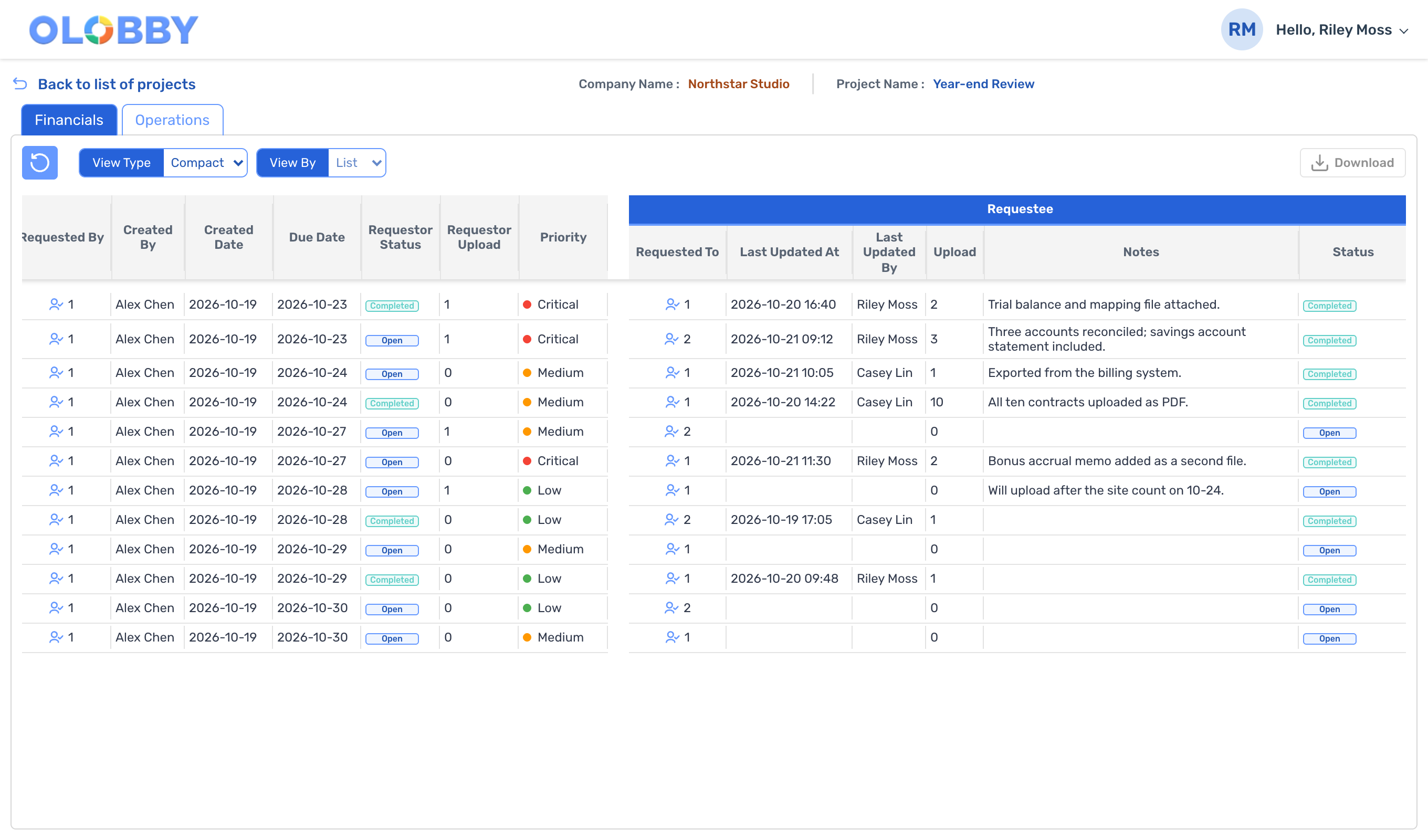
Check the submission status of multiple request projects from a single list.
- Project assignment inquiry
- Project-specific request/completion information
- Go to Projects and Requests tab
Request context verified
Read what needs to be delivered and by when before submission.
- Industry · Request description · Requester
- Deadline and priority
- Requestor document view and download
File submission and progress status
Request response materials item by item and check upload status.
- Request-specific submission file management
- General and high-volume upload path
- Progress and cancellation handling
Response memo and submission complete
Instead of sending files alone, include submission context too.
- Response memo
- Update status to Open/Completed
- After submission, requestor notification
View list and individual views
Review and verify the required items, even with high request volumes.
- By-industry requests and status distinctions
- Last response editor · edit time
- Export to Excel and Reload List
Access and account switching
Check the status of your access link and proceed with the correct account.
- Access setup entry
- Choose login or OTP path
- When switching accounts with different targets, verify the transition.
What to decide before onboardingUser · Permissions · Scope of Provision
Assignment and account
Review the requested account, access link, and assigned project.
Submission materials
Read the request details, deadline, and example attachments, then prepare the file and response note accordingly.
Completion confirmed
After verifying the upload result, mark submission as complete and confirm the requester's follow-up instructions.
Shared module
Keep submissions and reviews with the original request
RequesteeFollowed by 3 modules
Requestee
FAQ
Any other questions? ContactLet us know.
Yes, you can view materials with just a link—no login required.
After verifying the link's status and account, you'll gain access to your assigned request. Simply accessing the link does not grant access to all projects.
Yes, can you view the files submitted by the requester?
You can view and download the attachment for your assigned request.
What happens after submission?
Response memo, status, and file change path available; current access and version checks must be passed.
Yes, we can handle large files.
Large uploads support progress tracking and cancellation. Check allowed capacity and storage requirements based on your deployment environment.
Why are "Submission Complete" and "Review Complete" displayed differently?
We manage respondent submission and requester review statuses separately. Internal verification may still be pending after submission.
Get started with Requestee.
Let us know who you'll be working with and which tasks to improve first, and we'll guide you on the required modules and implementation scope.